
Sony Phone Camera Not Working After Update: Causes and Safe Fixes
Direct answer: a Sony Xperia camera that stopped working right after an update is almost always a software problem, and you fix it by working through Sony’s own published order — restart, force-stop the camera app, clear its cache, then its data, then update everything. Do not factory-reset first: for a failure that started the moment an update finished, a reset reinstalls the same software and wipes your data without addressing the likely cause.
On this page
Direct answer: a Sony Xperia camera that stopped working right after an update is almost always a software problem, and you fix it by working through Sony’s own published order — restart, force-stop the camera app, clear its cache, then its data, then update everything.
1. Who this guide is for — and the one rule that matters
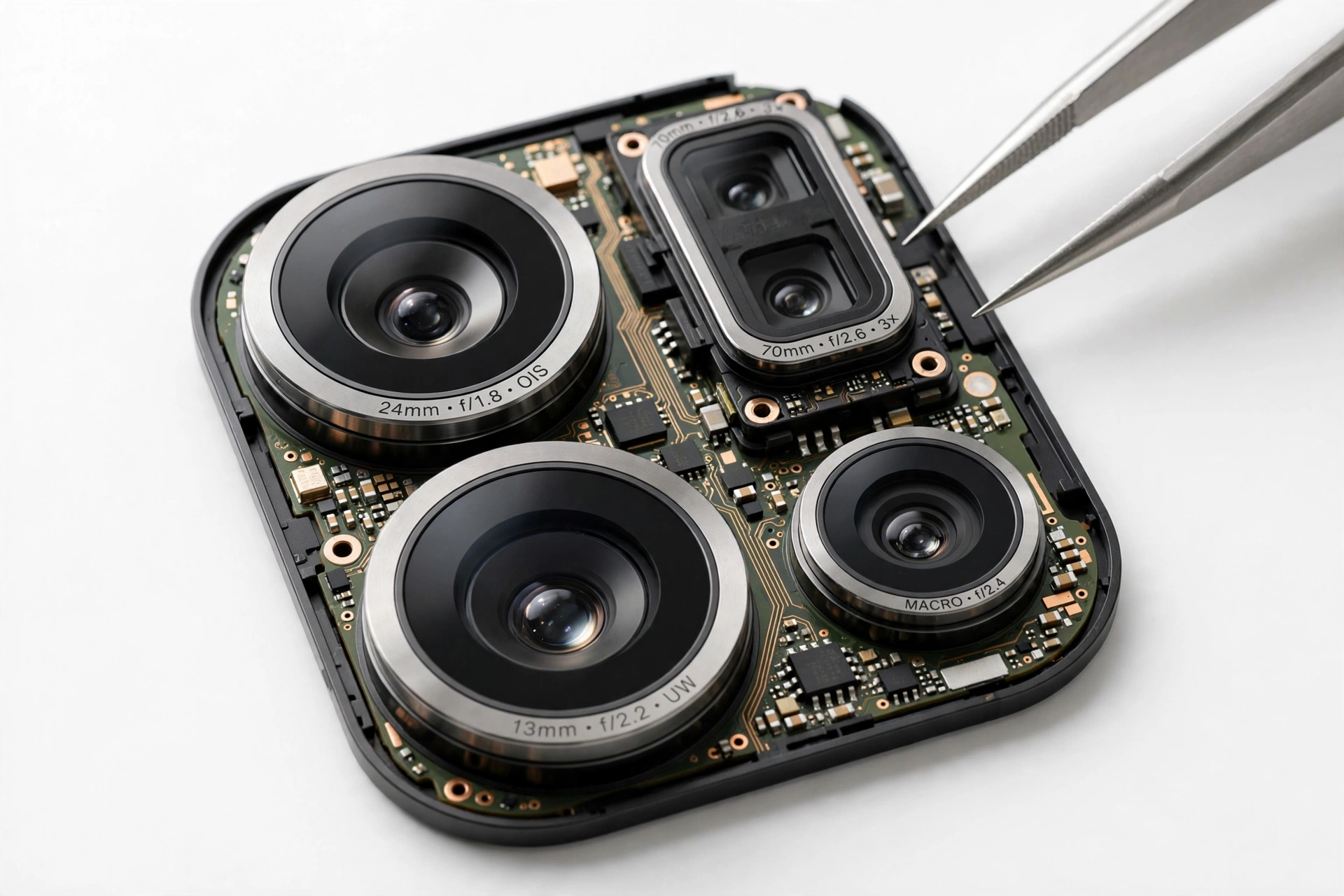
This guide is for Sony Xperia owners whose camera app — the standard Camera app, Photo Pro, or both — worked before a system or app update and misbehaves after it: the app won’t open, shows a black viewfinder, crashes back to the home screen, or reports “Camera not available.” If your camera broke the moment a software package finished installing, the timing itself is the most important diagnostic clue you have. Software packages update the operating system and app code; they cannot physically damage a camera sensor. What they can do is corrupt cached data the camera app was holding, reset permissions behind your back, or install a version of the camera app that no longer matches the system it’s running on. Each of those has a targeted, safe fix, and Sony publishes the order to try them in. (Source: sony-asia.com)
There is one rule that governs this whole guide: do not factory-reset the phone because of an update-timing camera failure. A factory data reset erases your photos, apps, and accounts from the phone’s internal storage, and — critically — it reinstalls the very same software version that is already on the phone. A factory data reset does not roll a phone back to an older version of the software. If the failure came from a bug inside the installed version, the reset cannot remove it; if it came from corrupted camera app data, the reset is a data-destroying way to achieve what “clear data” on one app does safely. Sony itself lists the factory data reset last, after every other step, with an explicit backup warning. Treat it as last.
This guide covers Xperia phones broadly — the fix order comes from Sony’s own support pages — and calls out the Sony-specific parts: the standard Camera app versus Photo Pro / Video Pro / Cinema Pro, the dedicated camera key, the “Camera not available” error, and Xperia Companion software repair, which exists only on Sony phones.
If your camera problem is not tied to an update at all, the brand-neutral guide covers the same diagnostic logic without the Sony specifics: phone camera not working after update fixes. The parallel update-failure guides for other brands — Asus camera after update and Itel camera after update — use the same spine with different manufacturer procedures.
2. Two-minute triage: identify exactly what is happening
Before changing anything, spend two minutes pinning down the exact failure. The five patterns below cover nearly every post-update camera report, and each one points at a different fix:
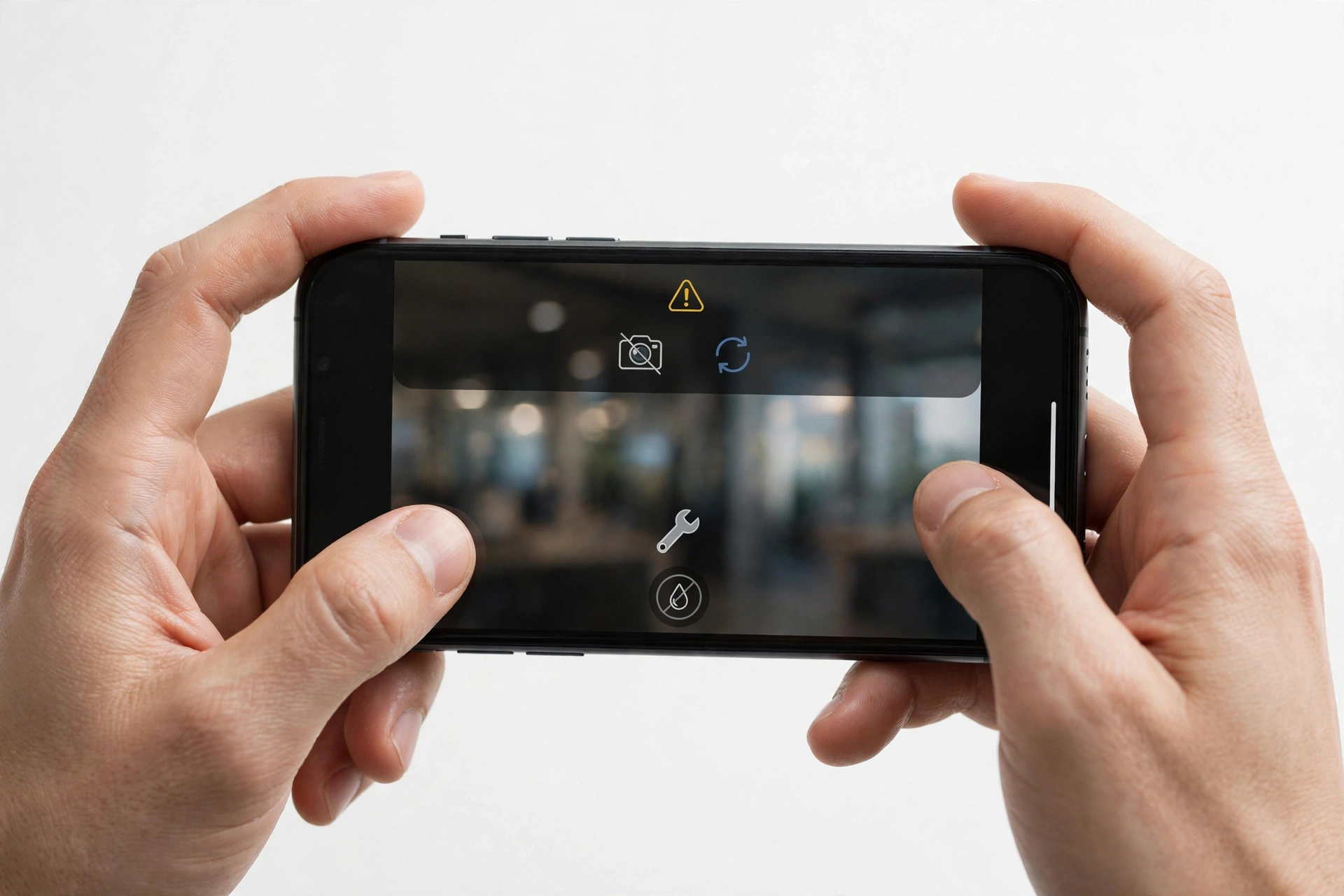
- “Camera not available” error. The app opens (or tries to) and immediately reports that the camera is unavailable. This is Sony’s signature error message and usually means the camera hardware session is being held by something else — a stuck background process or a third-party app — rather than a broken sensor.
- Black viewfinder. The camera app opens, the interface appears, but the preview is black. The app is running; it just cannot get a picture from the sensor. Permissions and stuck sessions are the usual suspects.
- Instant crash. The app opens and immediately closes, or closes when you switch modes (photo to video, for example). Corrupted app data is the classic cause after an update.
- One camera app broken, the other fine. Xperia phones ship with several camera-capable apps: the standard Camera app, Photo Pro, Video Pro, and Cinema Pro. If Photo Pro crashes but the standard Camera works, the problem is in that one app’s data — not in the camera hardware, which all the apps share.
- Camera works sometimes, then fails. Intermittent failure after an update often involves heat (Sony explicitly shuts the camera off when the phone gets too hot — see section 14) or an app that grabs the camera in the background and never releases it.
Quick fact: Your photos are safe during nearly all of these fixes. Photos you take live in the Photos app (or the Album/Photos storage on the phone), not inside the Camera app. Clearing the Camera app’s cache or data does not delete your pictures — it only resets the camera app’s own settings and temporary files. The full explanation is in section 7.
3. Why an update breaks a working camera: five mechanisms
It helps to know why before you start fixing, because each mechanism below maps to a specific step in Sony’s published order. An update package touches thousands of files; the camera fails when one of these five things goes wrong:
| Mechanism | What actually happened | How common | The fix |
|---|---|---|---|
| Corrupted camera app data | The update rewrote app files while the camera app was holding old cached data; the two no longer agree | Most common | Clear cache, then clear data (section 7) |
| Permissions silently reset | The update revoked the Camera app’s access to the camera, or to the microphone (which crashes video mode) | Very common | Re-grant permissions (section 9) |
| Stuck camera session | Another app (video call, scanner, flashlight tool) holds the camera open in the background after the update’s restart | Common | Force-stop camera-holding apps (section 6) |
| App/system version mismatch | Photo Pro or the Camera app needs its own update to match the new system version, and it hasn’t arrived yet | Common | Update all apps + check system update again (section 8) |
| Genuine shipped bug | The update package itself contains a camera driver bug affecting your model | Least common, but real | Wait for the follow-up patch; use Xperia Companion repair meanwhile (sections 8, 12) |
Notice what is not on this list: physical sensor damage. A software package cannot bend, scratch, or burn out camera hardware. If the camera worked an hour before the update and fails an hour after, hardware failure is the least likely explanation — and every step in this guide tests that assumption rather than assuming it.
4. Sony’s official fix order — follow it top to bottom
Sony publishes a troubleshooting sequence for exactly this failure (“the pre-installed camera app does not work,” including the “Camera not available” error). Sony’s instruction is to try the methods one after another and check whether the problem is solved after each one before moving on. The order, summarized in original language from Sony’s support documentation:
- Restart the device using the power key.
- Force the camera app to stop.
- Clear the camera app’s cache.
- Clear the camera app’s data.
- Check for new software wirelessly in the device (Settings > System > Advanced > Software update > SYSTEM). Some updates are not available for wireless download — for those, check with a computer using the Xperia Companion application.
- Use Safe mode to check whether a downloaded app is causing the problem.
- If the device already has the latest available software and the problem persists, perform a factory data reset — after backing up your data.
The rest of this guide walks that order step by step, with the Sony-specific details filled in. Do not skip ahead to step 7. The order is deliberate: each earlier step is cheaper and less destructive than the next.
5. Step 1: a real restart — and Sony’s force-restart method
A restart clears stuck camera sessions, which is the single fastest explanation for “Camera not available” right after an update. Many update installs reboot the phone automatically, but a post-update restart can leave background processes in a half-migrated state — an app that was holding the camera before the update may still hold it after.
The standard restart: hold the power key, then tap Restart (or Power off, wait 10–15 seconds, and power back on). After the phone boots, open the camera immediately — before launching any other app — and test it.
If the phone is unresponsive or the camera problem came with general instability after the update, Sony documents a force-restart using the physical keys: press and hold the power key and the volume-up key together until the phone vibrates — one vibration means a forced restart, three vibrations means a forced shutdown. This is Sony’s documented recovery for devices misbehaving after a software update. It does not delete any data; it is the hardware equivalent of pulling the plug and putting it back.
Quick fact: Test the camera with the dedicated camera key if your Xperia has one. The physical shutter button can launch the camera even when the screen is locked. If the camera launches from the key but not from the app icon, the hardware path is fine and the problem is isolated to the app’s launch path — skip ahead to the force-stop and clear-data steps.
6. Step 2: force-stop the camera app and its rivals
Sony’s second step is to force the camera app to stop. An app that crashed mid-update can sit in a zombie state — not fully running, not fully closed — and every new launch attempt attaches to the broken instance instead of starting fresh. Force-stopping kills it outright.
To force an app to stop (Sony’s documented path):
- Open Settings > Apps & notifications > See all apps.
- Find and tap Camera.
- Tap Force stop, then confirm.
But don’t stop at the Camera app. On Xperia phones, remember you have several camera apps: Camera, Photo Pro, Video Pro, and Cinema Pro. A stuck session in any one of them can block the others, because the camera hardware can only serve one app at a time. Force-stop Photo Pro, Video Pro, and Cinema Pro too. Then check for third-party apps that hold the camera open: video-calling apps, QR/barcode scanners, banking apps with document scan, and flashlight utilities are the usual suspects. Either force-stop them the same way or uninstall the most recently installed one — Sony specifically suggests starting with the most recently downloaded app.
After force-stopping, open the standard Camera app and test. If it works now, the cause was a stuck session — a software traffic jam, not damage.
(The following is a hypothetical illustration, not a customer story.) Amara updated her Xperia overnight. In the morning the Camera app opens to a black screen. She force-stops Camera, Photo Pro, and the QR scanner she installed last week, then reopens Camera — the viewfinder is back. The scanner had been holding the camera open since the update’s reboot, and nothing was physically wrong.
7. Step 3: clear cache, then clear data — and why your photos survive
This is the step that fixes most post-update camera failures, and it is also the step people avoid because they fear losing photos. Let’s settle that fear permanently.
| Action | What it removes | What it keeps | When to use it |
|---|---|---|---|
| Clear cache | Temporary files the camera app stored for speed (thumbnails, previews) | Everything: settings, photos, videos | First — harmless, takes seconds |
| Clear data (clear storage) | The camera app’s settings, mode preferences, and saved state | Your photos and videos (they live in the Photos app / phone storage, not in the Camera app) | Second — if clear cache didn’t work |
Your photos are stored by the phone’s media storage and displayed in the Photos (or Album) app. The Camera app is just the tool that creates photos; it does not store them. Clearing the Camera app’s data resets the tool’s preferences — shooting mode, resolution choices, grid settings — back to defaults. It does not touch the photo library. This is why Sony lists “clear cache” before “clear data”: cache is the gentlest possible intervention, and data is the next rung up.
To clear cache and data (Sony’s documented path):
- Open Settings > Apps & notifications, then select the Camera app (on newer Xperia builds the path is Settings > Apps > Camera).
- Tap Storage & cache.
- Tap Clear cache. Test the camera.
- If it still fails, return to the same screen and tap Clear storage (shown as “Clear data” on some builds), then confirm with OK. Test the camera again.
Repeat this for Photo Pro if that’s the app failing — it has its own separate data store, and clearing the standard Camera app’s data does not clear Photo Pro’s. Same for Video Pro and Cinema Pro.
Tip: If you had customized camera settings you care about (a favorite shooting mode, a specific resolution), take a screenshot of the Camera app’s settings screen before tapping Clear storage. You’ll be able to restore your preferences in under a minute afterward.
8. Step 4: update everything — system, Camera, and Photo Pro
Sony’s fifth step is to check for new software, and on Xperia phones this means two separate things that people often check only one of.
First, the system software. Go to Settings > System > Advanced > Software update > SYSTEM and check. Follow-up patches frequently arrive days after a major update specifically to fix camera regressions — the update that broke your camera may already have a repair waiting. Sony notes that some updates are not available for wireless download; for those, you check with a computer using the Xperia Companion application.
Second, the camera apps themselves. This is the Xperia-specific part that trips people up. On Xperia 1-series and 5-series phones, Photo Pro, Video Pro, and Cinema Pro are pre-installed apps that receive their own updates — Sony documents that these apps can be updated via the Software Update menu in settings rather than only through the Play Store. An update to the system without a matching update to Photo Pro can leave the two out of sync, which is exactly the “app/system version mismatch” mechanism from section 3. Check both the Play Store (My apps) and the system Software Update screen for pending camera-app updates, install everything pending, restart, and test.
Also update any third-party camera or video app you use. A third-party app built against the old system version can crash against the new one — and if it’s the app holding the camera session, it can make even Sony’s own Camera app fail.
9. Step 5: check permissions — camera and the sneaky microphone one
Updates sometimes reset app permissions. A camera app without camera permission fails in obvious ways — but there’s a subtler failure: video mode needs the microphone permission too. If photo mode works but switching to video crashes the app, the update likely revoked microphone access, and the app crashes when it tries to record audio it can no longer reach.
To check and fix permissions:
- Open Settings > Apps & notifications, tap Camera, then Permissions.
- Make sure Camera is set to Allow (or “Allow only while using the app”).
- Make sure Microphone is also allowed — this is the one updates love to revoke.
- Repeat for Photo Pro (and Video Pro / Cinema Pro if you use them) — each has its own permission set.
You can also audit every app holding camera permission at once: Settings > Apps & notifications > App permissions > Camera. If an app you don’t recognize — or a recently updated one — holds camera permission and misbehaves, revoke it and test. This is also how you spot the third-party app Sony warns about: a downloaded app interfering with the pre-installed camera.
10. Step 6: Safe Mode — Sony’s third-party app test
If the camera still fails after restart, force-stop, cache/data clears, updates, and permission checks, Sony’s next step is Safe Mode. In Safe Mode the phone starts with pre-installed software and apps only — every app you downloaded is temporarily disabled. This is a pure diagnostic: it tells you whether the problem is in Sony’s software or in something you installed.
To enter Safe Mode (Sony’s documented method for Android 11 and later):
- Press and hold the power key until the power menu appears.
- Touch and hold Power off until the Reboot to safe mode message appears.
- Tap OK. The phone restarts with “Safe mode” shown in the corner of the screen.
Open the standard Camera app in Safe Mode and test it. Then read the result:
- Camera works in Safe Mode. Sony’s own conclusion: one or more downloaded apps is affecting the device. Restart normally to exit Safe Mode, then uninstall apps starting with the most recently installed or updated — especially camera, scanner, video-call, and flashlight apps. Test the camera after each removal.
- Camera still fails in Safe Mode. The problem is in the system software or the hardware, not in a downloaded app. Continue to the next steps.
To exit Safe Mode, simply restart the phone normally. (If it keeps booting into Safe Mode, Sony notes that a stuck volume key, power key, or camera key — or a case pressing on one of them — can be the cause; remove the case and make sure the keys move freely.)
Stop for safety: Safe Mode is read-only diagnosis — it changes nothing permanently. But do not use it as an excuse to start uninstalling system apps or disabling pre-installed Sony software with third-party tools. Removing the wrong system component can break the phone far beyond the camera. Uninstall only apps you chose to download.
11. The key diagnostic: a third-party camera test
Everything so far has tested Sony’s camera apps. This step tests the camera hardware path independently: install a reputable third-party camera app from the Play Store and try it. The result separates app-level problems from system/hardware problems in one move.
| Result | What it proves | What to do next |
|---|---|---|
| Third-party app works, Sony apps don’t | The camera sensor and driver are fine; the problem is inside Sony’s camera app data or version | Re-do the clear-data and app-update steps for each failing Sony app; no hardware repair is needed |
| Both fail the same way | The problem is at the system level (driver, permissions framework) — or, rarely, hardware | Continue to Xperia Companion software repair (section 12) |
| Third-party app works only for one lens (front or rear) | That lens’s pipeline has a software or hardware fault the other doesn’t share | Note which lens fails; a repair assessment can target it instead of replacing the whole module |
Choose the test app from the Play Store with normal scrutiny — a well-known open-source camera app, not a “camera booster” or “camera fixer” utility. The latter category is where malware and adware hide, and Sony’s camera needs no boosting. After the test, you can keep or uninstall the app; it served its diagnostic purpose either way.
12. The Sony-only escalation: Xperia Companion software repair
Here’s where Sony phones differ from every other Android brand. If the camera still fails with the latest software and Safe Mode didn’t implicate a downloaded app, Sony’s documented escalation — before the factory reset — is a software repair using Xperia Companion on a computer. This reinstalls the phone’s system software cleanly from Sony’s servers, which can fix a corrupted update installation that on-device steps can’t reach. (Note: in recent Xperia Companion versions, the backup/restore/transfer functions are no longer supported — the software-repair function is the one that matters here.)
Before you start: make sure you know your Google account username and password. Depending on your security settings, you may need them to restart the device after the repair. Back up anything you haven’t already backed up — the repair may erase personal data.
Sony’s documented software-repair flow:
- On your computer, download and install Xperia Companion from Sony’s support site if it isn’t installed already.
- Open Xperia Companion.
- Make sure the Xperia phone is turned off.
- Connect the phone to the computer with a USB cable.
- In Xperia Companion, under Manage your Xperia, click Software repair.
- If the device isn’t detected, mark the “My device cannot be detected” checkbox and click Next.
- Follow the on-screen instructions to reinstall the software and complete the repair.
This is the appropriate response to the “genuine shipped bug / corrupted update install” scenario: it replaces the installed software wholesale rather than patching around it. If the camera worked before the update and the update installation itself was flawed, this is the step most likely to restore it.
(The following is a hypothetical illustration, not a customer story.) Devon updated his Xperia 1 V and Photo Pro has crashed on launch ever since — but the standard Camera app works, and a third-party camera app works too. Cache clears and permission checks changed nothing. He runs Xperia Companion’s software repair on his laptop; afterward, Photo Pro opens normally. The update package had installed incompletely, and only a clean reinstall of the system software fixed the mismatch.
13. Factory data reset — genuinely last, with Sony’s own warning
Sony lists the factory data reset only after all of the above, with this explicit warning: all content on the internal memory of the device gets deleted. Back up first — copy photos and files to a computer. Content on an external SD card is not deleted, but everything on internal storage is.
And remember the honest limit from section 1: a factory data reset does not revert the phone to an earlier software version. If the camera failure is caused by a bug inside the currently installed update, the reset reinstalls that same version and the bug returns. Only do this when every earlier step has failed and you’ve considered the Xperia Companion repair in section 12, which addresses the same class of problem without quite as much collateral.
Stop for safety: Do not perform a factory reset as a first or second step for an update-timing camera failure — it is the most destructive option and cannot fix a bug inside the installed software version. Back up to a computer before any reset, and make sure you know your Google account credentials, or you may be locked out of the phone afterward.
14. The heat shutdown: when Sony turns the camera off on purpose
There is one Sony-specific camera failure that is neither a bug nor damage: the phone deliberately disabling the camera when it gets too hot. Sony’s own troubleshooting documentation describes the message “Camera is temporarily unavailable due to high temperature.” The camera is shut off to protect the hardware, and it stays off until the phone cools down.
This matters after an update for a specific reason: major updates trigger background work — re-indexing photos, re-optimizing apps, re-syncing — that heats the phone for hours after the install. If you tested the camera during that warm window and got the temperature message (or a silent failure), the update didn’t break anything; the phone was protecting itself during post-update housekeeping.
What to do: remove any case (cases trap heat — Sony’s own guidance says to take the case off to quicken cooling), stop using the phone for 15–30 minutes, let it cool to room temperature, and test the camera again. If it works when cool and fails only when hot, that’s the thermal protection doing its job — not a fault to repair. If the camera fails when the phone is verifiably cool, return to the main fix order; heat is ruled out.
15. Symptom-to-fix worksheet
Use this table to jump straight to the most likely fix for what you’re seeing. Work the rows in order within your symptom.
| Symptom | Most likely cause | Fix (section) |
|---|---|---|
| “Camera not available” error | Stuck camera session held by another app | Restart, then force-stop all camera apps (§5–6) |
| Black viewfinder | Revoked camera permission or stuck session | Permissions check, then force-stop (§9, §6) |
| App opens then instantly closes | Corrupted camera app data after update | Clear cache, then clear data (§7) |
| Photo Pro crashes, standard Camera works | Photo Pro’s own data corrupted / app needs its own update | Clear Photo Pro data; update Photo Pro via Software Update (§7–8) |
| Photo mode works, video mode crashes | Microphone permission revoked by the update | Re-grant microphone permission to the camera app (§9) |
| Camera fails in every app including third-party | System-level driver issue or corrupted update install | Xperia Companion software repair (§12) |
| Camera works in Safe Mode only | A downloaded app interfering | Uninstall recently added/updated apps one by one (§10) |
| “Temporarily unavailable due to high temperature” | Thermal protection, often from post-update background work | Remove case, cool 15–30 min, retest (§14) |
| Camera fails only with flash on | Flash/LED driver conflict after update | Clear camera data; check for system update; Safe Mode test (§7, §8, §10) |
| Everything worked before update, nothing above helps | Shipped bug in the update package | Check for follow-up patch; Xperia Companion repair meanwhile (§8, §12) |
16. What your tests can — and cannot — prove
Honest diagnosis means knowing the limits of what each check tells you.
| Observation | What it establishes | What it does NOT establish |
|---|---|---|
| Camera failed right after the update | The failure is almost certainly software-related | Which of the five mechanisms (cache, permissions, session, mismatch, bug) is responsible |
| Clear data fixed it | Corrupted app data was the cause | That the hardware was ever at risk |
| Third-party camera app works | Sensor and driver are healthy | Which Sony app’s data is corrupted — test each Sony app separately |
| Safe Mode fixed it | A downloaded app is interfering | Which app — remove candidates one at a time |
| Xperia Companion repair fixed it | The update installation was corrupted | That a future update won’t need the same treatment |
| Nothing software-side fixes it | Professional assessment is warranted | That the sensor is dead — connector and module faults need hands-on testing |
17. When to stop troubleshooting and get an assessment
Stop and seek professional help when any of these are true:
- You’ve worked Sony’s full order — restart, force-stop, clear cache/data, updates, permissions, Safe Mode, third-party test, Xperia Companion repair — and the camera still fails.
- The phone is swollen, distorted, or dangerously hot while idle. Power it down and do not charge it. A swollen battery is a safety issue, not a camera issue.
- There is visible physical damage to a camera lens (crack, deep scratch) or the phone took a hard drop around the same time as the update — in that case the timing may be coincidence, and the lens needs hands-on inspection.
- The camera fails identically in Safe Mode, in every app, and after a software repair. At that point the remaining suspects (sensor module, connector, board-level fault) require opening the phone, which you should not do yourself — Xperia phones use glued, water-resistant assemblies, and prying one open risks battery puncture and destroys the water resistance.
A repair shop can run the same third-party camera test you ran, then go further: checking whether the failure follows one lens or all of them, and whether reseating or replacing the camera module resolves it. If you are in the Las Vegas area, Las Vegas Phone Repair & Accessories (7400 Las Vegas Blvd S, Unit TT42, Las Vegas, NV 89123; (424) 406-6202; open 10 AM–8 PM — call ahead to confirm today’s hours) can assess a camera that survives every software step in this guide. Bring the phone charged, and mention that the failure started with an update — that history changes what a technician checks first.
Video: How to tell if your smartphone is fake or real
Frequently asked questions
Will clearing the Camera app’s data delete my photos?
No. Photos are stored by the phone’s media storage and shown in the Photos app — the Camera app only creates them. Clearing the Camera app’s cache or data resets the app’s settings and temporary files, not your photo library. Sony lists both steps in its official troubleshooting order for exactly this failure.
Why does Photo Pro crash but the normal Camera app work?
They are separate apps with separate data stores, sharing the same camera hardware. If Photo Pro’s data was corrupted by the update (or Photo Pro needs its own update to match the new system version), it can crash while the standard Camera app works fine. Clear Photo Pro’s cache and data separately, and check for a Photo Pro update in the Software Update menu.
What does “Camera not available” mean on my Xperia?
It means the app could not open a session with the camera hardware — most often because another app is already holding it open, or a background process got stuck during the update’s restart. Restart the phone and force-stop every camera-capable app (Camera, Photo Pro, Video Pro, Cinema Pro, plus any scanner or video-call app), then try again.
Should I factory-reset my Xperia to fix the camera?
Not as a first step — Sony lists it last for a reason. A factory reset erases your internal storage and reinstalls the same software version that’s already on the phone, so it cannot fix a bug inside that version. Work through restart, force-stop, clear cache/data, updates, permissions, Safe Mode, and the Xperia Companion software repair first.
Can a software update physically damage my camera?
No. A software package cannot damage the camera sensor or lens. What an update can do is corrupt the camera app’s cached data, reset permissions, leave a stuck camera session, or install mismatched app/system versions — all software problems with software fixes. If the camera worked before the update, treat hardware failure as the last suspect, not the first.
My camera says it’s unavailable due to high temperature. Is it broken?
Almost certainly not — that’s Sony’s thermal protection deliberately shutting the camera off to protect it. Remove the case, let the phone cool for 15–30 minutes without use, and test again. Major updates cause hours of background work that heats the phone, so this message is common right after an update and resolves on its own.
What is Xperia Companion software repair, and when do I need it?
It’s Sony’s computer-based tool that cleanly reinstalls the phone’s system software — the escalation Sony documents before a factory reset. Use it when the camera still fails with the latest software installed and Safe Mode didn’t blame a downloaded app. You’ll need a computer, a USB cable, your Google account credentials, and a backup of anything you haven’t backed up yet.
Are “camera fixer” or “camera booster” apps safe to try?
No — avoid them. They cannot fix the mechanisms in this guide (corrupted data, permissions, stuck sessions, version mismatches), and that category of app is a known vector for adware and malware. Sony’s camera needs no boosting. For the independent hardware-path test, use a reputable camera app from the Play Store, not a “fixer” utility.
Sources and editorial notes
- Sony Asia support: “The pre-installed camera app does not work. I get the error message ‘Camera not available'” — Sony’s official step-by-step fix order (restart, force-stop, clear cache, clear data, software update via Settings or Xperia Companion, Safe Mode, factory data reset last), summarized above.
- Sony UK support: “Problems with my Xperia after software update” — force-restart key combination (power + volume up; one vibration restart, three vibrations shutdown) and the Xperia Companion software-repair flow.
- Sony UK support: “How do I enable and exit safe mode (Android 11 or higher)” — touch-and-hold Power off → Reboot to safe mode → OK; exit by restarting.
- Sony Indonesia: Xperia Companion overview — software-repair function; note that backup/restore/transfer functions are no longer supported in current versions.
- Digitec: Sony Xperia 1 IV long-term test — Photo Pro, Video Pro, and Cinema Pro as pre-installed Xperia apps updatable via the Software Update settings menu.
- iFixit: Sony Xperia Z1 troubleshooting — community documentation of Sony’s “Camera is temporarily unavailable due to high temperature” protection behavior and cooling guidance.
Last source check: October 14, 2026. AI-assisted editorial guide, checked against the linked manufacturer information. Sony’s support procedures are summarized in original language; no manufacturer text is reproduced. Procedures and menu paths reflect Sony’s published documentation as of the check date and may vary slightly by model and software version.
Let’s get you connected again.
Tell us what’s happening with your device and we’ll help you decide the safest next step — no jargon, no pressure.
Las Vegas Phone Repair & Accessories · 7400 Las Vegas Blvd S, Unit TT42, Las Vegas, NV 89123
10:00 AM–8:00 PM — call ahead to confirm today’s hours