
How to Transfer Data from Broken Honor Phone to New Phone: Complete Guide
Yes — in most cases you can move your data from a broken Honor phone to a new phone, even when the screen is unusable. If the broken phone backed up to Google or Honor Cloud before it broke, you can restore that backup during new-phone setup without ever touching the broken screen; if it never backed up, the path depends on whether the phone still powers on and whether you can see or tap its display.
On this page
Yes — in most cases you can move your data from a broken Honor phone to a new phone, even when the screen is unusable.
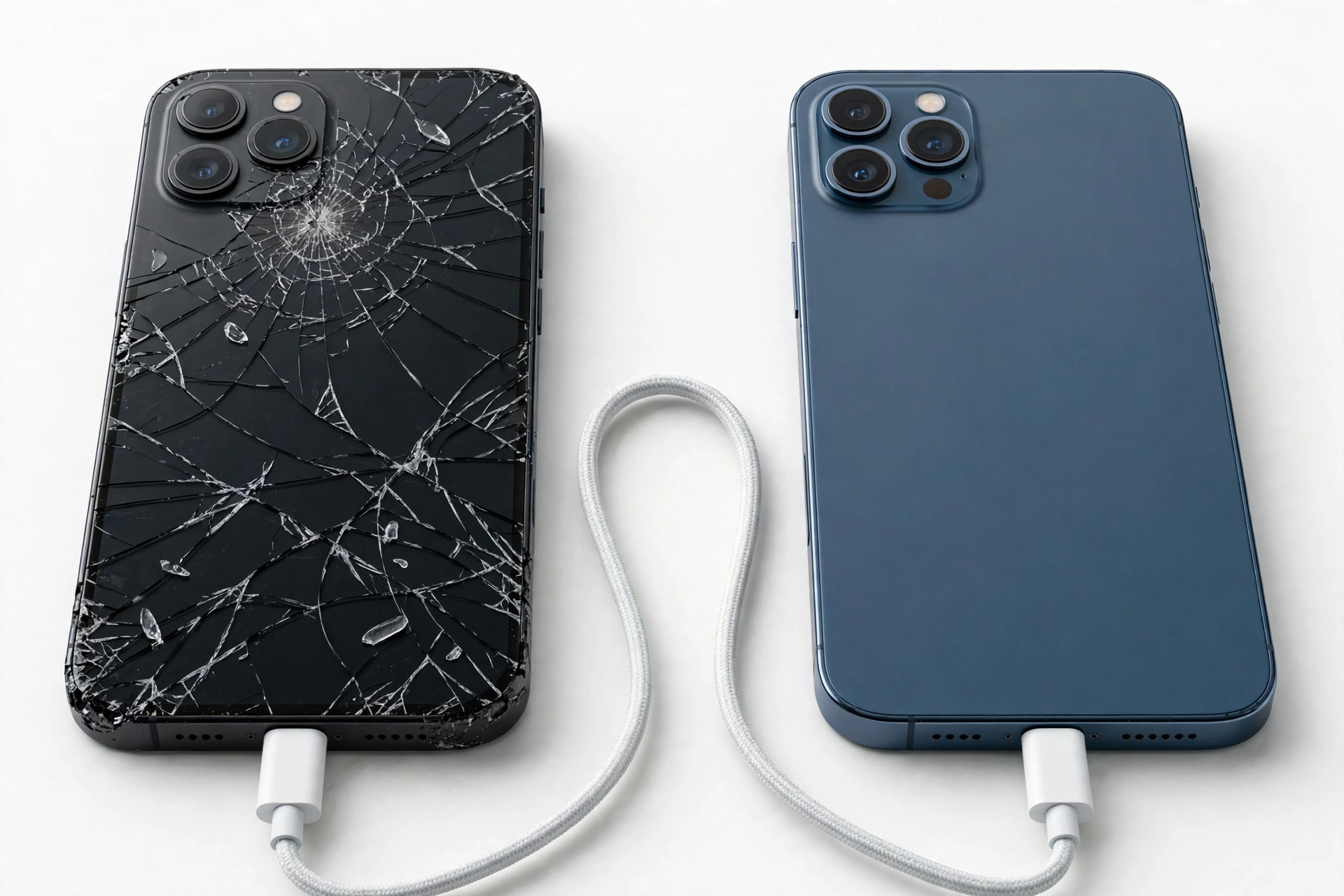
1. Who this guide helps
This guide is for ordinary Honor phone owners — Magic, Magic V, 200, X, or 90-series devices — whose phone is cracked, has a dead display, or will not respond to touch, and who need their photos, contacts, messages, and app data on a new phone. It is organized around one question that decides which methods can possibly work for you: did the broken phone back up before it broke? (Source: honor.com)
Quick fact: Honor’s official data-migration tool is called Device Clone (found under Settings > System & updates > Device Clone). It moves photos, contacts, apps, and settings between phones — but it requires both phones to have working screens, so it cannot help when the broken phone’s screen is the problem. The core of this guide covers what can work in that situation.
2. Path A: restore from a cloud backup (broken screen irrelevant)
If the broken Honor phone backed up to the cloud before it was damaged, the broken screen is no longer an obstacle. Cloud restores happen entirely on the new phone — the broken device is never involved.
2a. Google One backup restore
Honor phones run MagicOS on Android, and Google One backup is built in. On the new phone, during first-time setup:
- Connect to Wi-Fi and sign in with the same Google account the broken phone used.
- At the “Copy apps and data” step, choose Can’t use old device.
- Select the most recent backup from the broken phone, choose what to restore, and tap Restore.
Google One backups typically include apps, call history, device settings, SMS text messages, and contacts — photos and videos are only included if Google Photos backup was switched on separately. Backups older than 57 days may expire, and an already-set-up phone needs a factory reset before the restore option appears.
2b. Honor ID and Honor Cloud data
If you signed in to an Honor ID on the broken phone and enabled sync, some data (contacts, notes, Wi-Fi passwords when “Stay in sync” is on) follows your Honor ID to the new Honor phone automatically. Photos and videos sync to Honor Cloud only if you explicitly enabled gallery cloud sync — Honor does not assume this, so check the Honor Cloud app on the new phone before assuming photos are safe.
2c. WhatsApp’s separate backup
WhatsApp does not use Google One’s system backup; it keeps its own backup in Google Drive (on Android). Install WhatsApp on the new phone with the same phone number and the same Google account, and accept the restore prompt during WhatsApp setup. This is the single most commonly missed step — people restore the phone backup and assume WhatsApp chats came with it. They do not.
3. Honor’s Device Clone — official, but read the limitation
Device Clone is Honor’s official migration tool, pre-installed on all Honor phones (Magic V3, 200 series, X series, and newer). The documented flow:
- On the new phone, go to Settings > System & updates > Device Clone (or open the Device Clone app directly).
- Choose the old device type (Honor, other Android, iPhone, or HarmonyOS — Honor’s Device Clone supports all of them).
- Open Device Clone on the old phone too, scan the QR code shown on the new phone, and select the data to transfer.
The transfer runs over a local wireless connection — no cables, and no data uploaded to a server. The catch: you must be able to see and tap the screen of both phones to set up the QR pairing and approve the transfer. A broken or dead screen makes Device Clone unusable. If your Honor phone is merely cracked but fully touch-responsive, Device Clone works fine — use it before the screen gets worse.
4. Backup & Restore to external storage (responsive phone only)
Honor phones include a built-in Backup & Restore option (Settings > System & updates > Backup & Restore) that saves a backup to external storage — a USB drive or memory card. This is useful when the phone works but the screen is failing: back up now, while you still can.
Steps: connect a USB drive or insert a memory card, open Backup & Restore, select the data categories (contacts, messages, photos, apps), and let the backup complete. Move the drive or card to the new phone and restore. This path needs a screen you can see and touch — it is a preparation method, not a rescue method.
5. Cable transfer to a computer
If the phone powers on and the computer can recognize it over USB, you can copy files (photos, videos, documents) to the PC, then move them to the new phone. This only works if:
- The phone boots and stays on.
- The USB mode dialog can be set to file transfer (MTP) — which may need a working screen, or may be reachable by plugging in a mouse via OTG.
- The phone is not locked in a way the computer cannot satisfy.
Cable copies move files, not app data, settings, or messages. It is a good way to save irreplaceable photos and videos, but it is not a full migration.
6. Broken-screen triage: which case are you in?
The right rescue method depends on what exactly is broken. There are three cases:
| Case | Symptoms | What still works |
|---|---|---|
| Touch dead, display alive | Cracked screen shows image but ignores taps | Seeing the screen; USB/OTG accessories |
| Display dead, touch alive | Black screen, but phone vibrates/rings on input | Blind navigation; voice assistant; external display via USB-C |
| Completely dead | No vibration, no LED, no charging animation | Cloud backups only; SIM/SD cards; professional assessment |
7. Case 1: display alive, touch dead — the OTG mouse rescue
This is the most recoverable case. A USB OTG adapter plus a wired mouse lets you control the phone with a cursor, because Android accepts mouse input without touch.
- Plug a USB OTG adapter into the phone’s USB-C port and connect a wired mouse (wired is recommended — Bluetooth pairing requires screen taps).
- A cursor appears on the display; use it to unlock the phone and navigate.
- Trigger a Google One backup (Settings > Google > Backup > Back up now), or copy files to a computer via USB.
Do this before the display fails further. Once you have control, your first action should be securing data — not browsing.
8. Case 2: display dead, touch alive — external display and blind operation
When the screen is black but the phone still responds (vibrations, sounds), three approaches exist:
- USB-C to HDMI external display: many Honor phones support video output over USB-C. Connect a USB-C hub with HDMI to a monitor, plus a keyboard and mouse. Power on the phone, wait a minute for it to boot, unlock with your PIN (type it blindly, then press Enter), and the interface appears on the monitor.
- Voice assistant: if “Hey Google” was set up, you may be able to enable backups or make calls by voice without seeing anything.
- Blind USB connection: if USB file-transfer mode was already the default, plugging the phone into a computer may expose its files immediately.
Pattern locks are nearly impossible to draw blind — PIN or password locks are the realistic target here. If you cannot unlock the phone, the data stays encrypted.
9. Case 3: completely dead phone — cloud and cards only
If the phone shows no sign of life:
- Charge it with a known-good charger and cable for at least 30 minutes — some “dead” phones are deeply discharged.
- Try a force restart (hold the power button 10–15 seconds).
- If it stays dead, check what backed up before it died: sign in to the same Google account on a computer and check Google Drive backups; check Honor Cloud on the new phone.
- Remove the SIM card and any memory card — they move freely to the new phone. (A card formatted as internal “adopted” storage is encrypted to the dead phone and cannot be read elsewhere.)
- If none of that yields your data, a professional repair assessment is the next step — a lab may be able to revive the board enough to boot.
Stop for safety: if the battery is swollen, leaking, distorted, or the phone is dangerously hot, do not charge it or attempt to power it on. Put it somewhere non-flammable and ventilated and seek professional handling — punctured or overheated lithium batteries can catch fire.
10. What defeats every method
Some data cannot be moved from a broken phone no matter the technique:
- Authenticator codes: two-factor authenticator apps do not sync codes unless you explicitly enabled their own cloud backup. Expect to re-enroll accounts with each service’s recovery process.
- Banking and payment apps: these require re-verification on the new phone by design — a security feature, not a failure.
- WhatsApp without its own backup: if WhatsApp’s Drive backup was never enabled, chats on a dead phone are gone.
- DRM-protected media: downloaded streaming content is tied to the old device and must be re-downloaded.
- Apps that opted out of backup: some apps deliberately exclude themselves from system backups.
11. Encryption honesty: why chip removal is not a shortcut
Modern Honor phones encrypt their storage with keys bound to the phone’s hardware. This means removing the storage chip and reading it elsewhere does not bypass the lock — the data is still encrypted. A professional lab must revive the phone’s own board enough to boot before data can be read, which is expensive, slow, and never guaranteed. Treat any service promising guaranteed data recovery as a red flag.
12. Method comparison
| Method | Requires | Best for | Limitations |
|---|---|---|---|
| Google One restore | Backup existed; same Google account | Fullest automatic migration | Only what backed up; 57-day expiry |
| Honor Cloud / Honor ID sync | Sync was enabled | Contacts, notes, Wi-Fi passwords | Photos only if gallery sync was on |
| WhatsApp restore | WhatsApp Drive backup existed | Chat history | Separate from system backup |
| Device Clone | Two working screens | Fast local migration | Useless for broken screens |
| USB cable to PC | Phone recognized over USB | Photos, videos, files | Files only — no app data or settings |
| OTG + wired mouse | Display visible | Regaining control to back up | Needs a visible screen |
| USB-C external display | Video-out support | Full control with dead display | Needs hub/monitor; PIN unlock only |
| SIM / memory card | Physical cards | Number, portable-storage files | Adopted-storage cards stay locked |
13. What your observations can and cannot establish
| Observation | What it establishes | What it does not establish |
|---|---|---|
| Phone vibrates when called | The phone powers on and the radio works | That data is accessible — encryption still applies |
| Charging animation appears | The display and charging circuit work | That the touch layer or data connection works |
| Computer recognizes the phone | The USB port and controller work | That files are readable — lock and mode still matter |
| No response at all | The phone is not booting | That data is lost — backups and labs may still help |
14. When to stop and get a professional assessment
Stop DIY attempts and seek a repair assessment when: the battery is swollen or overheating; the phone was submerged and never dried properly; you cannot unlock the phone and cannot verify the PIN; the board shows physical damage; or you have already tried the applicable methods above without success. A reputable shop will assess whether the board can be revived enough to boot — and will tell you honestly when it cannot.
If you are in the Las Vegas area, our general guide to transferring data from a broken phone covers brand-neutral methods, and the shop at Las Vegas Phone Repair & Accessories, 7400 Las Vegas Blvd S, Unit TT42, Las Vegas, NV 89123, (424) 406-6202 (open 10AM–8PM — call ahead to confirm today’s hours) can assess what your specific Honor model will allow.
Stop for safety: never open a phone yourself to reach its storage or battery. Honor phones use glued assemblies — prying them open risks puncturing the battery, which can cause fire or toxic smoke. Data is never worth that risk.
15. Prevention: make the next break survivable
Once your data is safe on the new phone, set up the safety net the broken phone lacked:
- Turn on Google One backup (Settings > Google > Backup) and run a manual backup.
- Turn on Google Photos backup for photos and videos.
- Enable WhatsApp’s own chat backup to Google Drive.
- Keep an Honor ID signed in with sync enabled if you use Honor’s cloud features.
- Periodically copy irreplaceable files to a computer or external drive.
16. Honor ID “Stay in sync”: what it actually saves
Honor phones have an additional sync layer tied to your Honor ID — the account you create when you first set up the phone. If “Stay in sync” and the Data Sync switch were enabled on the broken phone, certain data follows your Honor ID rather than living only on the device:
- Wi-Fi network settings: saved networks and passwords sync across Honor devices signed in to the same Honor ID, so the new phone reconnects to familiar networks automatically.
- Notes and contacts: if you stored these in Honor’s own apps with sync enabled, they appear on the new phone after signing in to the same Honor ID — independently of Google’s sync.
- Gallery cloud items: only photos and videos you explicitly enabled for Honor Cloud sync. Local-only photos do not follow.
To check what your Honor ID holds, sign in to the same Honor ID on the new Honor phone during setup and open each Honor app (Contacts, Notes, Gallery) to see what synced. This check costs nothing and takes two minutes — do it before assuming anything is lost. Note the boundary: Honor ID sync covers Honor’s own apps and settings, while Google One backup covers the broader Android app set. A phone with both enabled has two independent safety nets; a phone with only one has a thinner one. This is also why two phones can “both be Honor phones” yet restore very different amounts of data — the outcome depends on which syncs were switched on before the break, not on the brand badge.
17. FAQs
Can I transfer data from a broken Honor phone if the screen is completely black?
Possibly. If the phone backed up to Google or Honor Cloud before it broke, restore the backup on the new phone — the broken screen is irrelevant. If it never backed up, try USB-C video output to a monitor (many Honor phones support it), blind USB file copy, or professional assessment. Related brand-neutral steps are covered in our broken-phone transfer guide.
Does Honor Device Clone work with a broken screen?
No. Device Clone requires you to see and tap both phones to scan the QR pairing code and approve the transfer. It is excellent when both phones work — it is not a broken-screen rescue tool.
Can I use Honor’s old Phone Clone app instead?
Device Clone is the current name of Honor’s official migration tool (Phone Clone was the older Huawei-era branding). Either way, it needs two operable screens, so it does not solve a broken-screen transfer.
Will my WhatsApp chats transfer automatically?
Only if WhatsApp’s own Google Drive backup was enabled on the broken phone. The system backup does not include WhatsApp chats. Install WhatsApp on the new phone with the same number and Google account and accept the restore prompt.
My Honor phone won’t turn on at all. Is my data gone?
Not necessarily. First try a 30-minute charge and a force restart. Then check for cloud backups (Google Drive, Honor Cloud) from a computer or the new phone. Move the SIM and memory card. If nothing yields data, a repair lab may still be able to revive the board — but no one can guarantee recovery.
Can a shop read data directly from the storage chip?
No — modern Honor phones use hardware-bound encryption, so chip removal does not bypass the lock. A lab must get the phone’s own board to boot. Be skeptical of any service promising guaranteed recovery.
Should I factory reset the broken phone before trying?
Never. A factory reset wipes user data and the encryption keys that protect it. Resetting a broken phone destroys the very data you are trying to save.
How is this different from transferring from a broken Samsung or Sony phone?
The principles are the same — cloud backup first, then condition-dependent rescue. The Honor-specific parts are Device Clone (Settings > System & updates), Honor ID/Honor Cloud sync, and MagicOS backup paths. Brand-neutral methods are covered in our Lenovo transfer guide and our Sony transfer guide.
Video: How to transfer everything from old to new Android

Sources and editorial notes
- Honor official blog: How to Clone Phone Data — documents the Device Clone flow (Settings > System & updates > Device Clone, QR pairing, supported old-device types including Honor, iOS, Android, HarmonyOS).
- Honor official blog: Phone Clone transfer steps — documents the QR-code pairing flow and data-type selection of the legacy Phone Clone branding.
- GSMArena: Honor Device Clone compatibility — reports Device Clone’s support for Android, iOS, and HarmonyOS Next.
- TalkAndroid: cracked-screen data recovery — USB-C hub with monitor/keyboard/mouse method and Google backup steps for broken-screen Android phones.
- Android Authority: restore from Google backup — documents the “Can’t use old device” restore flow during new-phone setup.
- Honor Magic7 Pro user manual — documents Settings > System & updates > Reset paths and the factory-reset data-erasure warning.
Last source check: October 14, 2026. AI-assisted editorial guide, checked against the linked manufacturer information. Honor procedures are summarized in original language from Honor’s own support material; independent guides are labeled as such. Hypothetical illustrations below are not customer stories: (The following are hypothetical illustrations, not customer stories.) For example, imagine Maya, whose Honor 200 screen shows an image but ignores all touch — she connects a wired mouse via OTG, triggers a Google One backup, and restores it on her new phone. Or Daniel, whose Honor phone is completely dead after a drop — he finds his Google backup intact, restores it during new-phone setup, and loses only the WhatsApp chats whose Drive backup he had never enabled. Business details (address, phone, hours) are as published by Las Vegas Phone Repair & Accessories.
Let’s get you connected again.
Tell us what’s happening with your device and we’ll help you decide the safest next step — no jargon, no pressure.
Las Vegas Phone Repair & Accessories · 7400 Las Vegas Blvd S, Unit TT42, Las Vegas, NV 89123
10:00 AM–8:00 PM — call ahead to confirm today’s hours