
How to Transfer Data from Broken Lenovo Phone to New Phone: Complete Guide
Direct answer: the fastest way to transfer data from a broken Lenovo phone to a new phone is to restore the broken phone’s Google backup during your new phone’s setup — you never touch the broken phone. If no Google backup exists, Lenovo’s own Rescue and Smart Assistant PC tool can back up and clone a Lenovo phone that still responds to a USB connection, and a plain USB cable copy works when the phone’s storage is readable.
On this page
Direct answer: the fastest way to transfer data from a broken Lenovo phone to a new phone is to restore the broken phone’s Google backup during your new phone’s setup — you never touch the broken phone.
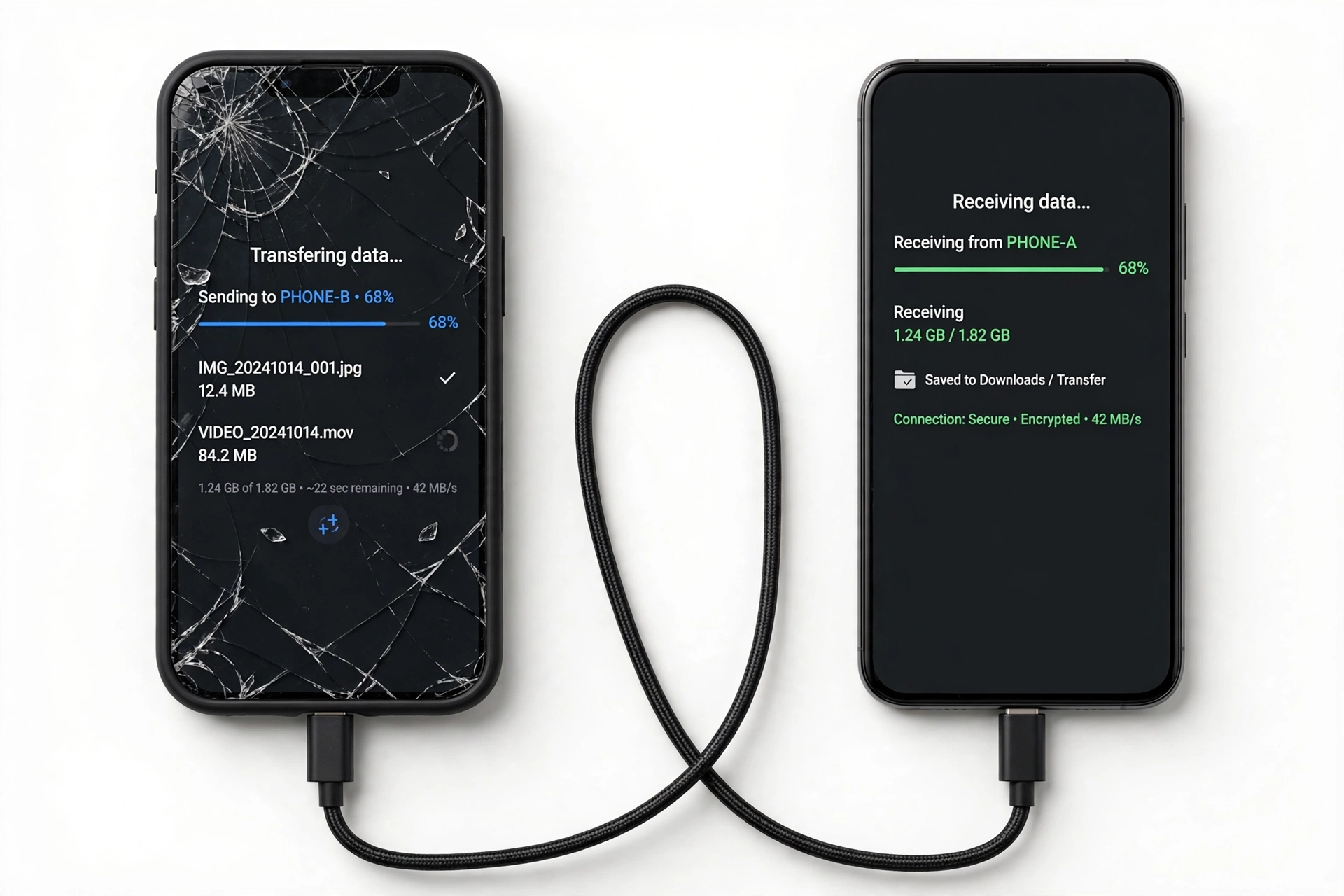
1. Start with one question: did the broken phone back up before it broke?
Everything in this guide hangs on a single question. Answer it honestly before trying any method, because it decides which sections of this guide apply to you and which you can skip entirely. (Source: download.lenovo.com)
| Your situation | Your path | What to do |
|---|---|---|
| Google backup was on (the usual default on Android) | Path A — cloud restore | Skip everything else. Read section 3, restore on the new phone, done. |
| No Google backup, but the phone still powers on and a computer recognizes it | Path B — Lenovo’s PC tool or cable | Read sections 4–6. Rescue and Smart Assistant or a USB copy can pull your data. |
| Phone is completely dead — no lights, no vibration, no USB response | Path C — cloud-only plus professional assessment | Read sections 3 and 11. A dead phone with no backups leaves only cloud sources and, as a last resort, a repair assessment. |
Quick fact: Most Lenovo phones (and Motorola phones, which share Lenovo’s tooling) back up to Google automatically unless the owner turned it off. If you ever logged into a Google account on the phone and didn’t disable backup, Path A probably works for you — check before assuming the worst.
2. What makes a Lenovo phone different here
Lenovo sells phones under its own name and, since 2014, under the Motorola brand. Both brands are supported by the same official PC software: Rescue and Smart Assistant (often abbreviated LMSA, sometimes called Lenovo Moto Smart Assistant in older documentation). This is Lenovo’s own device-management suite — not a third-party utility — and it is the one genuinely Lenovo-specific transfer method in this guide.
From Lenovo’s own user documentation, Rescue and Smart Assistant can:
- Back up and restore contacts, SMS messages, pictures, songs, videos, and apps to a PC, then restore them to a device.
- One-key Clone (also labeled One-click clone in newer versions): connect two devices to the same PC, pick the old one as “From” and the new one as “To”, and move data between them.
- Manage files by dragging and dropping between the PC and the phone’s internal storage.
- Check for firmware updates, download firmware, and run diagnostics.
Honesty first: every one of those features requires the broken phone to power on, authorize the USB connection (or have been authorized before), and be recognized by the PC. A dead phone cannot be backed up by any software. Lenovo’s tool is powerful, but it is not a miracle worker — treat it as the best option for a damaged-but-responsive phone, not a dead one.
3. Path A: restore the Google backup on your new phone (easiest, no broken phone needed)
If the broken Lenovo phone had Google backup turned on, the broken phone’s condition is almost irrelevant. Your contacts, call history, SMS (on many setups), device settings, app list, and Google Photos library are sitting in your Google account, waiting for the new phone.
How to restore during new-phone setup
- Charge the new phone and connect it to Wi-Fi.
- On the “Copy apps and data” screen (shown during initial setup), choose restore from a cloud backup.
- Sign in with the same Google account that was on the broken Lenovo phone.
- Pick the backup labeled with the broken phone’s model name and date, then choose what to restore.
- Finish setup and let the restore complete on Wi-Fi — photos and apps continue downloading in the background.
Tip: Google keeps only the most recent backup per device, and backups expire if the device is inactive for about 57 days. If the broken phone sat in a drawer for months, restore sooner rather than later. If your new phone is already set up, the “Copy apps and data” screen only appears during initial setup — you would need to factory-reset the new phone to see it again, which erases anything already on the new phone.
What Google backup covers — and what it misses
Google’s backup covers contacts, call history, SMS text messages (device-dependent), device settings, Wi-Fi passwords, and your installed-app list. Photos and videos are separate: they live in Google Photos only if backup was turned on in the Photos app. WhatsApp keeps its own separate Google Drive backup that must be restored inside WhatsApp itself — it is not part of the Android system backup. Banking apps, authenticator apps, and anything with hardware-bound encryption generally require re-verification or re-setup no matter what method you use (see section 10).
4. Path B: Lenovo Rescue and Smart Assistant — backup a responsive broken phone to a PC
Rescue and Smart Assistant is Lenovo’s official Windows PC suite for Lenovo and Motorola phones. If your broken Lenovo phone still powers on and your PC recognizes it over USB — even with a cracked, partially working screen — this is the most complete Lenovo-native option.
What you need
- A Windows PC.
- Rescue and Smart Assistant installed from Lenovo’s official support site.
- A USB cable, and ideally the broken phone’s drivers installed (the tool usually handles this).
- The broken phone powered on. If the screen works enough to show the “Authorize”/”Allow USB debugging” prompt, tap OK. If you authorized this PC before the screen broke, the phone may connect without any tap — this is the lucky case the tool was made for.
Backing up (per Lenovo’s own documented flow)
- Connect the broken Lenovo phone to the PC with a USB cable and open Rescue and Smart Assistant.
- If an authorization box pops up on the phone, tap OK — this is the phone trusting the PC.
- Click the Backup icon and select the categories you want: Contacts, SMS, Pictures, Songs, Videos, and/or Apps.
- Optionally set the save path (the Change icon) and a backup password (the “Encrypt backup” option).
- Click Backup and wait for it to finish — large photo libraries take a while.
Restoring to the new phone
- Connect the new phone to the same PC and open Rescue and Smart Assistant.
- Click the Restore icon. The tool lists backups by model name, size, backup date, and notes.
- Select the backup you just made (or an older one you imported with the Import icon), click Continue, choose the items to restore, and click Restore.
Quick fact: The backup files live on your PC, not in the cloud. Keep a copy somewhere safe — if the PC drive fails, the backup is gone. Copy the backup folder to an external drive or cloud storage after a successful run.
Stop for safety: never factory-reset the broken phone before your data is safely backed up somewhere else. A reset wipes the encryption keys that protect the phone’s storage, and it does not make data recovery easier — it makes it harder or impossible.
5. One-key Clone: move data from the broken Lenovo to the new phone through the PC
If both phones can connect to the PC, Rescue and Smart Assistant’s One-key Clone (One-click clone) moves data directly from the old device to the new one. This is the closest thing Lenovo offers to a single-tap migration.
- Connect both phones to the PC and open Rescue and Smart Assistant.
- Click the One-key Clone icon.
- Select the broken Lenovo phone as the “From” device and the new phone as the “To” device.
- Click Next, review the transfer summary, and let it run.
Quick fact: One-key Clone is at its best when the “broken” phone’s main problem is a cracked screen or a failing battery while the internals still work. It needs two responsive devices — it is not a tool for a dead phone.
6. The plain USB cable copy (when storage is readable)
Sometimes the simplest method wins. If the broken Lenovo phone powers on and a PC recognizes it as a storage device — even if the screen is dead — you can copy files directly:
- Connect the phone to the PC with a USB cable.
- If the phone is set to “Charging only” by default and you cannot change it on a dead screen, this method stalls here — skip to section 8 for the broken-screen workarounds.
- Open the phone’s storage in your file manager and copy the DCIM (photos/videos), Download, Documents, and WhatsApp folders to the PC.
- Copy those folders onto the new phone, or let Google Photos and WhatsApp’s own restore handle them.
The cable copy moves files, not app data, contacts, or messages. It pairs well with the Google restore (section 3) covering everything else. For photos specifically, check Google Photos on the web first — if they synced, you already have them.
7. Broken-screen triage: three cases, three playbooks
Case 1 — screen shows a picture but touch doesn’t work
This is the best broken-screen case. Plug a USB OTG adapter and a wired USB mouse into the Lenovo phone. Most Android phones, Lenovo included, support mouse input over OTG — the cursor lets you tap through backup prompts, enable the Google backup, or authorize the PC connection for Rescue and Smart Assistant. Use a wired mouse rather than Bluetooth: pairing a Bluetooth mouse needs screen taps you cannot make.
Case 2 — screen is black but the phone is alive (vibration, sounds, LED)
- Try the USB cable copy (section 6) — a PC may still read the storage.
- If the phone has USB-C video output, an external display adapter can show the screen on a monitor while you control it with an OTG mouse.
- Try your voice assistant (“Hey Google”) — if it responds, you can ask it to read notifications or start a backup.
- If the phone was previously authorized on your PC, Rescue and Smart Assistant may connect with no screen interaction at all.
Case 3 — completely dead (no lights, no vibration, no USB recognition)
- Charge it for at least 30 minutes with a known-good charger and cable — a deeply discharged battery can look dead.
- Try a force restart: hold Power + Volume Down for about 10–15 seconds.
- If it stays dead, go to Path C: restore whatever exists in Google/Photos/WhatsApp cloud backups (section 3), move the SIM and SD card (section 8), and get a professional assessment for anything that only exists on the phone.
Stop for safety: if the phone is swollen, bent, smells odd, or gets dangerously hot while charging, unplug it and do not use it further. A damaged lithium battery is a fire risk — no photo is worth that. Keep the phone away from flammable materials and get it assessed.
8. SIM card and SD card: the two-minute wins
- SIM card: move it to the new phone (or ask your carrier for a replacement/eSIM) to keep your number and SMS-based verifications working.
- SD card (portable storage): if the card was used as portable storage, pop it into the new phone or a card reader — photos and files move freely.
- SD card (adopted/internal storage): if the card was formatted as internal/adopted storage, it is encrypted to the broken phone and unreadable anywhere else. This is normal Android behavior, not a defect — only the original phone can read it.
9. Method comparison: what each approach needs and what it can’t do
| Method | Requires | Best for | Limitations |
|---|---|---|---|
| Google backup restore (section 3) | Backup was on; same Google account | Any broken phone — screen and power irrelevant | Only what was backed up; photos need Photos backup; WhatsApp separate |
| Rescue and Smart Assistant backup (section 4) | Phone powers on; USB recognized by PC | Contacts, SMS, photos, apps from a damaged-but-alive phone | Windows PC needed; authorization prompt may need a working screen |
| One-key Clone (section 5) | Both phones connect to the PC | Direct old-to-new migration in one flow | Two working devices; not for dead phones |
| USB cable file copy (section 6) | Phone recognized as storage | Photos, videos, documents — fast and simple | Files only; no app data, contacts, or messages |
| SIM/SD card move (section 8) | Removable cards | Number continuity; portable-storage files | Adopted-storage cards are encrypted to the dead phone |
10. What survives the move — and what defeats every method
Be honest with yourself about these, because no transfer method — Google’s, Lenovo’s, or a cable — can move them:
- Authenticator app codes: most authenticator apps bind codes to the device. If you didn’t export or cloud-sync them, you must re-enroll each account using its backup codes or recovery process.
- WhatsApp chats: only if WhatsApp’s own Google Drive backup was on. The Android system backup does not include them.
- Banking and payment apps: these deliberately refuse to transfer; expect to re-verify your identity in each app.
- DRM-protected media: rented movies, some music downloads, and licensed content generally cannot be moved — re-download them on the new phone.
- Apps that opted out of backup: some apps exclude themselves from Android’s backup framework; their data stays on the old phone.
Hypothetical illustrations (not customer stories):
- Maya’s cracked-screen OTG rescue. (The following is a hypothetical illustration, not a customer story.) Maya’s Lenovo phone took a fall — the display shows a picture but touch is dead. She plugs in a USB OTG adapter and a wired mouse, opens Rescue and Smart Assistant on her laptop, and backs up contacts, SMS, and photos to the PC. Total cost: one OTG adapter.
- Daniel’s dead-phone cloud restore. (The following is a hypothetical illustration, not a customer story.) Daniel’s Lenovo phone won’t power on at all. He signs into his Google account during his new phone’s setup, restores the backup from three days before the failure, then opens WhatsApp and restores its separate Drive backup. His photos were in Google Photos already. The only losses: two authenticator enrollments, which he re-sets with backup codes.
11. What your observations can and cannot establish
| Observation | What it establishes | What it does NOT establish |
|---|---|---|
| PC recognizes the phone over USB | The phone’s internals are alive; software methods can work | That the screen or battery is repairable, or at what cost |
| Phone vibrates or shows an LED but the screen is black | Power circuitry works; the display assembly is the likely fault | That data is intact (usually it is, but only a backup proves it) |
| Google backup dated before the break exists | Path A will restore most data to the new phone | That photos synced (check Google Photos separately) |
| Rescue and Smart Assistant can’t see the phone | USB authorization or drivers are blocking it | That the data is gone — try a different cable, port, or PC first |
| Phone is completely unresponsive after charging and force restart | Software methods are exhausted | That data is unrecoverable — a board-level assessment is the next step, not a conclusion |
12. When to stop and get a professional assessment
Stop DIY transfer attempts and seek an in-person assessment when:
- The phone is swollen, hot, or smells unusual (safety first — see the warning in section 7).
- No method in sections 3–8 yields your data and the data matters (irreplaceable photos, business records).
- The phone contains the only copy of something important and every software path has failed.
A repair shop can assess whether the phone’s storage can be read by reviving the device enough to boot — this is board-level work, it is never cheap, and no honest shop guarantees recovery. Be skeptical of anyone who promises “guaranteed data recovery” before examining the phone.
If you are in the Las Vegas area, Las Vegas Phone Repair & Accessories at 7400 Las Vegas Blvd S, Unit TT42, Las Vegas, NV 89123 — (424) 406-6202 — can assess a damaged Lenovo phone and discuss options. Hours are 10:00 AM–8:00 PM; call ahead to confirm today’s hours.
13. Preparing your new phone so the transfer actually works
- Charge the new phone and connect to stable Wi-Fi before starting.
- Sign in with the same Google account used on the broken Lenovo.
- Make sure the new phone has enough free storage for the restore.
- Don’t interrupt a restore in progress — photos and apps continue in the background.
- After the restore, open WhatsApp and any authenticator/banking apps to complete their separate setups.
For the general, brand-agnostic version of this process, see our broken phone data transfer guide. Brand-specific companions: transfer data from a broken Sony phone and transfer data from a broken Asus phone.
14. Frequently asked questions
Can I transfer data from a Lenovo phone with a completely black screen?
Often, yes — if the phone still powers on and a PC recognizes it, Rescue and Smart Assistant or a USB cable copy can pull your files. If the phone is truly dead with no USB response, software can’t reach it, and you’re left with cloud backups plus a professional assessment.
Is Rescue and Smart Assistant free?
Yes — it’s Lenovo’s official support utility for Lenovo and Motorola phones, provided for device management, backup, and firmware updates. Download it from Lenovo’s official support site rather than third-party download pages.
Does One-key Clone work from a Lenovo phone to a non-Lenovo phone?
One-key Clone is designed around Lenovo/Motorola devices connected to the same PC. For moves to other brands, the Google backup restore (section 3) is the brand-independent path — restore the Google backup onto any Android phone during setup.
Will my text messages transfer?
SMS messages are included in Rescue and Smart Assistant backups and in many Google backups, but not universally — it depends on the phone’s setup. Check the new phone after restoring; anything missing was never backed up.
My photos aren’t in the Google backup. Where are they?
Photos sync through Google Photos, which is separate from the Android system backup. Open Google Photos on the web with the same account — if they synced, they’re there. If not, a USB cable copy of the DCIM folder from the broken phone is your fallback.
Can a repair shop recover data from a dead Lenovo phone?
Sometimes. If the storage chip and its encryption keys are intact, board-level repair may revive the phone enough to boot and back up. It is specialized, expensive work with no guarantee — and modern file-based encryption means the phone must actually boot; nobody can just read the chip.
Should I factory-reset the broken phone before transferring?
No — never. A factory reset wipes the encryption keys protecting the phone’s storage and destroys the data you’re trying to save. Back up first, transfer second, and only reset a phone you no longer need data from.
What about my WhatsApp chats?
WhatsApp keeps its own backup to Google Drive, separate from everything else in this guide. Install WhatsApp on the new phone, verify your number, and accept the Drive restore prompt. If WhatsApp backup was off, the chats only exist on the broken phone’s storage.
Video: How to transfer everything from old to new Android
Sources and editorial notes
- Lenovo Rescue and Smart Assistant User Guide (official PDF) — documents the Backup/Restore flow (contacts, SMS, pictures, songs, videos, apps), the Restore screen fields, and the One-key Clone from/to device flow. Summarized in original language.
- Rescue and Smart Assistant feature overview — independent summary of the tool as Lenovo’s official PC suite for Lenovo and Motorola devices, covering backup/restore, sync, firmware updates, and rescue features. Summarized in original language.
- Coolmuster: transferring data to Lenovo phones — independent guide covering Quick Share and Bluetooth transfer methods applicable to Lenovo Android phones. Summarized in original language.
- Computerworld: the smart way to switch to a new Android phone — documents the “Copy apps and data” restore-during-setup flow and SIM/eSIM handling. Summarized in original language.
Last source check: October 14, 2026. AI-assisted editorial guide, checked against the linked manufacturer information. Lenovo Rescue and Smart Assistant procedures are summarized from Lenovo’s own published user guide; Google restore behavior is described from independent technical documentation. No manufacturer authorization, certification, or endorsement is claimed.
Let’s get you connected again.
Tell us what’s happening with your device and we’ll help you decide the safest next step — no jargon, no pressure.
Las Vegas Phone Repair & Accessories · 7400 Las Vegas Blvd S, Unit TT42, Las Vegas, NV 89123
10:00 AM–8:00 PM — call ahead to confirm today’s hours