
Asus Phone Speaker Not Working After Update: Causes and Safe Fixes
An Asus phone speaker that stopped working right after an update is usually a software problem — reset settings, rerouted audio, or a disturbed AudioWizard profile — not dead hardware. Start with ASUS’s own two-minute order: raise the volume, play music to test the speaker, restart, and check Settings > System > System update for a follow-up patch before you change anything drastic.
On this page
An Asus phone speaker that stopped working right after an update is usually a software problem — reset settings, rerouted audio, or a disturbed AudioWizard profile — not dead hardware.
1. What this guide covers (and who it is for)
This guide is for owners of Asus phones — ZenFone models and the ROG Phone series — whose speaker output changed, weakened, or vanished shortly after a system or app update. It walks through the same diagnostic order ASUS’s own support documentation uses, plus the Asus-specific audio features (AudioWizard, Dirac-tuned profiles, stereo speaker layouts) that most often explain update-timed speaker problems. (Source: asus.com)
It will help you if:
- Your speaker stopped working, got quieter, sounds distorted, or crackles after a system update, security patch, or app update.
- Some sounds work but others don’t — for example, ringtones play but media is silent, or media plays but calls have no audio.
- The speaker works with Bluetooth or wired headphones but not on its own.
- You want to know whether the problem is software (fixable at home) or hardware (needs a technician).
It will not tell you how to open the phone, replace a speaker module, or perform unofficial firmware downgrades. Those steps carry genuine risk — battery puncture, water-resistance loss, and warranty complications — and ASUS’s own documentation never asks customers to do them.
Quick fact: ASUS’s official troubleshooting page for malfunctioning phone amplification lists its steps in a fixed order: volume check, music test, restart, firmware update, obstruction check, Safe Mode, and only then a backed-up factory reset. This guide follows that same spine, because it mirrors how ASUS support agents actually diagnose the problem.
2. The two-minute triage: find out what still works
Before touching any setting, spend two minutes mapping the problem. ASUS support starts with the same step — play music to confirm that the receiver/speaker functions properly — because the pattern of what works and what doesn’t is the single most informative diagnostic you have.
Try each of these in order and note the result:
- Play a song through the phone speaker (not Bluetooth, not headphones). Do you hear it at all? Is it quiet, distorted, or intermittent?
- Play a ringtone or notification sound from Settings. Ringtones use a different volume channel than media — this is the detail that catches most post-update issues.
- Make a test call on speakerphone. Can the other person hear you? Can you hear them?
- Connect Bluetooth earbuds or a wired headset. If audio plays normally there, the phone’s audio engine is working and the fault is localized to the built-in speaker path or its settings.
Tip: A pattern where everything works through headphones or Bluetooth but nothing comes from the built-in speaker is a classic software-routing signature. The hardware is almost certainly fine; the phone is simply sending sound to the wrong output. The fixes later in this guide target exactly that.
Write down your pattern before continuing. In the next sections you will map it to a cause.
3. Know your speakers: earpiece vs. bottom speaker (and why ROG phones are different)
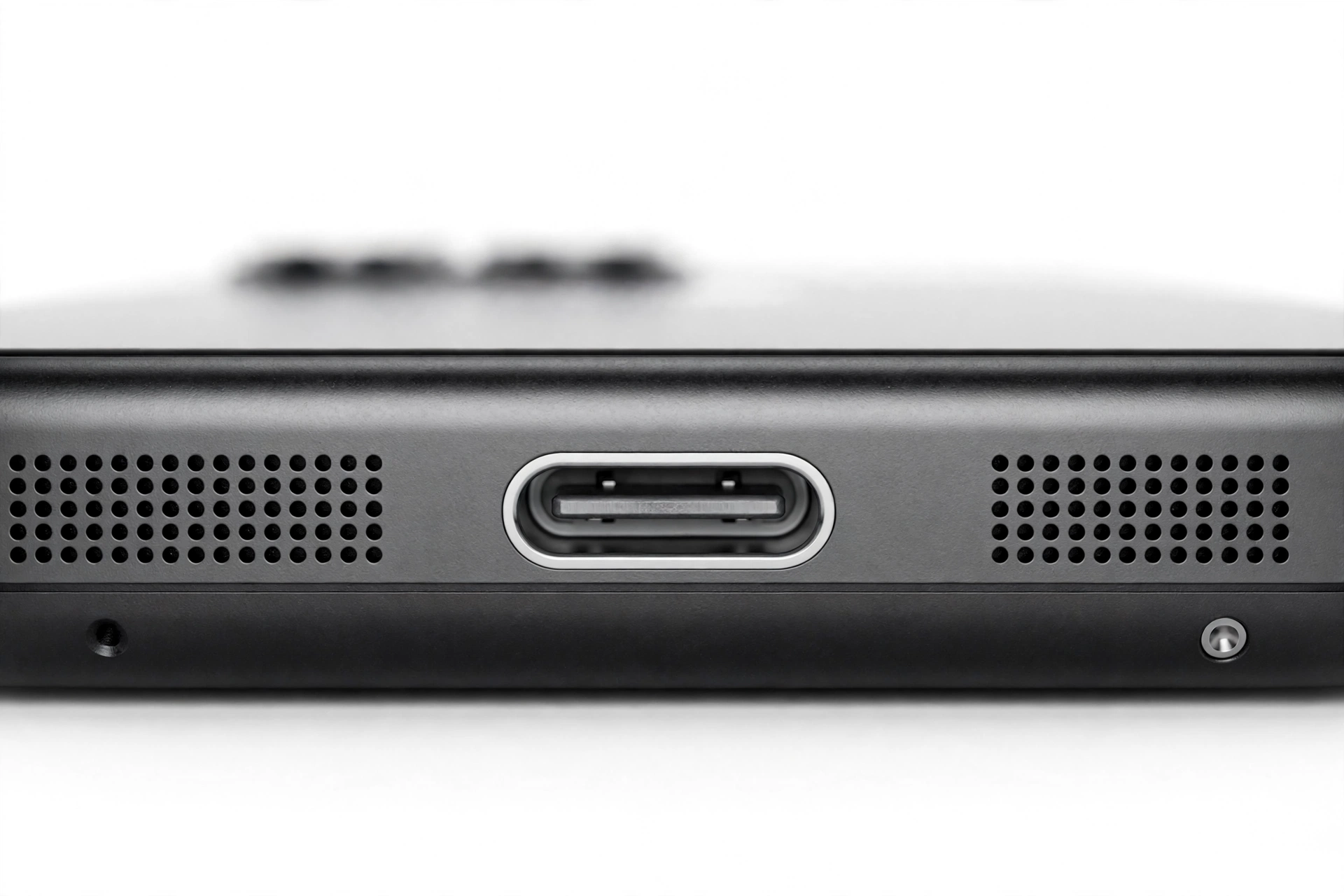
A common source of confusion after an update: the phone isn’t silent at all — you are testing the wrong speaker. Asus uses different layouts across its lineups, and the layouts changed between generations.
ROG Phone (gaming series)
ROG Phones from the ROG Phone 2 through the ROG Phone 7 use dual front-facing speakers — one grille at the top of the display area (shared with the earpiece) and one at the bottom — tuned in collaboration with audio specialist Dirac. In landscape mode (how most games and videos are held), they present true stereo with left-right imaging. This is the signature ROG audio experience, and it’s why ROG speaker complaints so often sound like “it used to be amazing and now it’s flat”: an update that resets the Dirac/AudioWizard profile removes the tuning that made the sound distinctive.
Note the generational change: the ROG Phone 8 and ROG Phone 9 moved to a bottom-speaker-plus-top-earpiece layout (driven by water-resistance improvements), which press coverage noted is less full-sounding than the classic front-facing pair. If you upgraded from an older ROG Phone, a thinner stereo image on the new model is partly physics, not a bug — though it shouldn’t mean silence or distortion.
ZenFone (mainstream series)
ZenFone models typically use a more conventional layout: a bottom-firing main speaker plus an earpiece receiver at the top of the display that handles call audio. On some models the earpiece doubles as a second speaker for stereo output. If calls are clear but media is quiet, or media is loud but the caller is faint, you may be listening to two different physical speakers with two different faults.
Why this matters after an update: updates sometimes change how audio is balanced between these speakers. If an update reset your mono-audio or channel-balance settings, one speaker can fall nearly silent while the other plays normally — which feels like a hardware failure but is a settings problem. Check Settings > Accessibility for mono audio and balance sliders before assuming the worst.
4. ASUS’s official fix order, explained step by step
ASUS’s support documentation lists a fixed troubleshooting order for malfunctioning amplification. Here is that order, with each step explained in plain language. Do them in sequence — each step rules something out.
Step 1 — Press Volume Up
It sounds obvious, but updates can and do change volume levels. While media is playing, press the volume buttons and watch the slider. Then expand the volume panel and check every channel: Media, Ringtone, Alarm, and Call. The classic post-update pattern is media at full while the ringtone sits near zero, or vice versa.
Step 2 — Play music to test the speaker
This is the triage from section 2, restated as ASUS does: play music through the phone speaker and confirm the receiver and speaker function. If music plays clearly, the speaker hardware works and the problem is isolated to whatever app or mode was failing.
Step 3 — Restart the phone
A full restart clears stuck audio sessions — the most common software cause of post-update silence. If a camera app, voice call, or game was holding the audio output open when the update installed, the speaker can stay “checked out” to that app even after it closes. Hold the power button, choose restart, and test again.
Step 4 — Check for a firmware update
Go to Settings > System > System update > Check Update. ASUS ships audio-related fixes in follow-up patches more often than owners realize; an update that broke something in one build is frequently corrected in the next. If a newer build is available, install it on stable Wi-Fi with a good charge, then retest.
Step 5 — Check for obstructions
Remove the case and any object that could cover the speaker or earpiece. Check whether the grilles are blocked or dirty — and if cleaning is needed, use a soft brush, as ASUS’s guidance says. Do not push pins, needles, or liquids into the speaker holes; the openings lead directly to fragile drivers, and probing them can turn a cleaning job into a repair bill.
Step 6 — Test in Safe Mode
Safe Mode loads the phone with third-party apps disabled. If the speaker works in Safe Mode, a third-party app is the culprit — very often an “equalizer,” “volume booster,” or “speaker cleaner” app whose behavior changed after the update. To enter Safe Mode: long-press the power key, then tap and hold “Power Off,” then tap “OK.” Test the speaker, then restart normally to leave Safe Mode and remove the suspect app.
Step 7 — Back up and factory reset (last resort)
ASUS lists this as the final software step: back up your data, then reset. It wipes everything, so treat it as a diagnostic decision, not a first try — and only after the Safe Mode test points at a system-level problem rather than a single app. The factory-reset section near the end of this guide explains the backup-first logic and a test-before-you-restore method that keeps the diagnosis clean.
Stop for safety: If the phone is swollen, distorted, or gets dangerously hot during these tests, stop immediately, power it off, and do not charge it. A swollen or overheating battery is a fire risk that no speaker fix is worth. Likewise, never charge a phone that has been in water.
5. The silent culprits: mute traps an update can set
Updates routinely flip settings owners never touch. Run through these traps before going deeper:
- Do Not Disturb. Updates can re-enable DND or change its schedule. Check Quick Settings for the DND tile, and look in Settings > Sound for DND schedules that silence calls and notifications.
- Per-app volume and muting. Android lets individual apps control their own output; an update can change an app’s default. Open the failing app, play something, and use the volume panel while it has focus.
- Alarm vs. media vs. ring. As noted, these are independent channels. An update that silences media while ringtones still blare — or the reverse — is a channel problem, not a speaker problem.
- Mono audio and balance. In Accessibility settings, a balance slider shoved fully to one side mutes one speaker channel. Updates occasionally reset this. Center it and turn mono audio off unless you genuinely need it.
- Flip-to-mute / gesture silencing. If your ZenFone or ROG Phone has gesture-based silencing (flip the phone to mute a call), an accidental gesture can silence things that look broken. Unlikely, but cheap to rule out.
6. Bluetooth and headphone ghosts
One of the most common post-update complaints is: “the speaker doesn’t work, but everything is fine with my earbuds.” That is not a coincidence — it’s the diagnosis. The phone’s audio engine is healthy; the routing is wrong.
Check these in order:
- Turn Bluetooth off entirely and retest the speaker. The phone may be holding a connection to earbuds in a bag, a car stereo, or a smartwatch, silently sending all audio there. This is the single most common “speaker stopped after update” false alarm.
- Check the status bar for a headphone icon with nothing plugged in. If it’s there, the phone thinks wired headphones are connected. Plug and unplug a wired headset a few times to reset the jack detection.
- On ROG Phones with a 3.5mm jack: community reports (including ZenTalk threads) have described headphone-audio issues surfacing around updates; in at least one documented case ASUS support staff concluded the timing was coincidental hardware failure rather than update damage. The honest rule: if the jack problem survives a Safe Mode test and a restart, treat it as hardware until proven otherwise.
- Clear paired-device confusion. In Settings > Connected devices, forget Bluetooth devices you no longer own. The phone can’t route to a device it doesn’t remember.
Two hypothetical examples illustrate the pattern:
(The following are hypothetical illustrations, not customer stories.)
Maya’s car stereo. Maya updated her ZenFone overnight. The next morning, no sound from the speaker — but music played fine on her Bluetooth earbuds. The culprit: her car stereo had auto-connected from the driveway. Turning Bluetooth off restored the speaker instantly.
Daniel’s ghost jack. Daniel’s ROG Phone showed a headphone icon with nothing plugged in after a patch. Two plug-unplug cycles with his wired headset cleared the jack detection, and the speaker came back.
7. AudioWizard: the most Asus-specific cause
Here is the setting that distinguishes Asus phones from nearly every other brand — and the one most likely to explain a changed sound after an update.
AudioWizard is ASUS’s audio-profile manager. On ROG Phones it offers sound styles (Normal, Classical, Dance, Jazz, Pop, Rock, and Custom, per ASUS’s own documentation) plus scenario effects — the ROG Phone 5, for example, added dedicated gaming, music, and cinema modes that change the perceived bass and soundstage. On older ZenFone models, a similar Audio Wizard panel with bass/treble and equalizer controls lives under Settings > Sound and Notifications.
The official path to check it: Settings > Sound & vibration > AudioWizard. Expand the menu, look at the selected style, and try switching to Normal or a different preset while music plays.
Why updates break it: audio-profile selections and equalizer curves are settings, and settings are exactly what updates reset. A patch that resets AudioWizard to a flat default can make a Dirac-tuned ROG Phone sound thin, quiet, or unbalanced overnight. The hardware didn’t change — the tuning that made it distinctive was wiped.
Tip: If your ROG Phone sounds noticeably worse after an update — quieter, harsher, less bass — open AudioWizard before you suspect the speaker. Re-selecting your scenario mode or rebuilding your Custom equalizer curve fixes a large share of “update ruined my sound” complaints.
The reported ROG Phone 2 DTS issue
Press reporting (Piunikaweb, covering ZenTalk community posts) documented a case where ROG Phone 2 owners found DTS audio effects getting disabled after incoming calls — the effect would switch off by itself and had to be manually re-enabled in AudioWizard. The pattern matters beyond that one model: calls are the event most likely to disturb audio profiles, because the phone switches audio routing to call mode and sometimes fails to restore the previous profile when the call ends. If your sound changed right after a call that followed an update, check AudioWizard first.
What not to do about profiles
Do not install third-party “volume booster” or “speaker cleaner” apps to compensate. These apps fight AudioWizard and Android’s audio system for control, and after updates they are among the most common causes of audio misbehavior — exactly the kind of problem ASUS’s Safe Mode test is designed to expose. If you have one installed, remove it, restart, and retest before doing anything else.
8. Why an update can change speaker sound (five real mechanisms)
Updates don’t physically damage speakers — no software download can tear a speaker cone. But they can change everything around the speaker. Here are the five genuine mechanisms, in rough order of likelihood:
- Reset settings. Volume channels, DND schedules, balance, mono audio, and AudioWizard profiles can all revert to defaults during an update. This is the most common cause and the easiest fix.
- Rerouted audio. Updates can change Bluetooth pairing behavior, default output selection, or headphone-jack detection logic, silently sending sound to a device that isn’t there.
- Stuck audio sessions. If an app was holding the speaker when the update installed, the audio service can restart in a confused state. A full restart clears it — which is why ASUS lists restart as step 3.
- App incompatibility. One app silent while everything else plays is usually that app, not the phone. Check the app’s own settings and its app-store page for update notes.
- A genuine shipped audio bug. It happens: an update can ship with a broken audio driver or profile package. The signature is exact timing (broke the moment the update finished, persists through restarts and Safe Mode) plus identical complaints from other owners of the same model. The fix is a follow-up patch, not a factory reset — which is why checking for the next update comes early in ASUS’s order.
Note the honest limit on mechanism 5: a factory reset reinstalls the same build. If the bug is in the build itself, resetting changes nothing except your data. That is why the guide insists on the update check before the reset.
9. Safe Mode and the SMMI hardware test — ASUS’s two signature diagnostics
These two tools, both documented by ASUS’s own support channels, separate software faults from hardware faults. Together they answer the question this whole guide is building toward.
Safe Mode
How to enter: long-press the power key, then tap and hold “Power Off,” then tap “OK.” The phone restarts with third-party apps disabled and “Safe Mode” shown on screen. Test the speaker. How to exit: restart the phone normally.
Interpretation:
- Speaker works in Safe Mode, fails normally: a third-party app is the cause. Uninstall recently added or updated audio-related apps (boosters, equalizers, cleaners, call recorders) one at a time, restarting after each.
- Speaker fails in Safe Mode too: the cause is in the system itself — settings, the audio service, the firmware build, or hardware. Continue to the SMMI test.
The SMMI speaker test
ASUS support staff on the official ZenTalk forums use a built-in hardware diagnostic called the SMMI test. To run it: open the Calculator app, type .12345+=, then choose SMMI TEST > Single Test > Speaker Test (there are also Receiver Test and Headset Test options). The test drives the speaker directly, bypassing Android’s audio settings — so AudioWizard profiles, volume channels, and app routing can’t interfere with the result.
Interpretation is straightforward:
- Speaker Test passes: the speaker hardware is healthy. Your problem is software — settings, routing, or an app — and the fixes in this guide should resolve it.
- Speaker Test fails: ASUS staff treat this as a strong indicator of faulty hardware and direct owners to the nearest ASUS service center. No settings change will fix a driver that fails its own direct hardware test.
Quick fact: The SMMI test is the single most decisive check in this guide. If you’re unsure whether to keep troubleshooting or seek a technician, run it — it takes under a minute and ASUS’s own support team uses exactly this test to make that call.
10. Symptom-to-cause worksheet
| Symptom | Most likely cause | Fix to try |
|---|---|---|
| No sound from speaker, works with Bluetooth/headphones | Audio routed to the wrong output; ghost Bluetooth connection | Turn Bluetooth off; clear old pairings; retest |
| Headphone icon shown with nothing plugged in | Stuck jack detection | Plug/unplug wired headset a few times; restart |
| Ringtones play but media is silent (or reverse) | Volume channel reset by the update | Expand the volume panel; raise each channel while its content plays |
| Sound is quieter, thinner, or less bass than before | AudioWizard/Dirac profile reset to flat default | Settings > Sound & vibration > AudioWizard; re-select scenario/equalizer |
| One speaker much quieter than the other | Balance slider shifted or mono audio flipped | Accessibility settings: center balance, check mono audio |
| Speaker works in Safe Mode only | Third-party app interference | Uninstall audio apps (boosters, equalizers, cleaners); restart |
| Silence began at the exact moment the update finished | Shipped audio bug in the new build or stuck audio session | Restart; check for a follow-up patch; then SMMI test |
| SMMI Speaker Test fails | Hardware fault | Professional diagnosis — no settings fix applies |
| Crackling or distortion at high volume | Damaged speaker driver or debris; profile clipping | Soft-brush the grille; flatten AudioWizard EQ; if it persists, service |
| No audio from any source, any output | System-level audio failure | Restart, update check, Safe Mode, then reset as last resort |
11. The update after the update
If the silence began the moment a specific build installed, your most productive move may be patience plus one check. ASUS’s troubleshooting order puts “update firmware to the latest version” at step 4 — before Safe Mode and well before the factory reset — because a follow-up patch is the designed remedy for shipped bugs.
Practical approach:
- Check Settings > System > System update > Check Update now, and check again in a few days. Security patches and hotfixes arrive on their own schedules.
- Search ASUS’s ZenTalk forums for your model and build number. Identical complaints from other owners of the same build strengthen the “shipped bug” case and weaken the “my phone is broken” case.
- Do not install unofficial firmware or attempt a downgrade to “undo” the update. Unofficial packages can break the modem, camera, and audio drivers further, and can complicate warranty service. If you want a previous build, that is a decision for ASUS support, not a download link.
12. Factory reset: the last software step, done safely
ASUS’s order places the factory reset last for a reason: it erases everything, and it cannot fix a bug that lives in the installed build. Only reset when: the SMMI Speaker Test passes (hardware is fine), Safe Mode still fails (not a third-party app), and no newer build is available.
Stop for safety: A factory reset deletes your photos, messages, accounts, and app data. Back up first — Google backup, a USB copy, or both — and confirm the backup completed before you reset. Do not reset a phone you haven’t backed up because you’re frustrated; frustration fades, deleted photos don’t.
The backup-first logic, from ASUS’s own ZenTalk support guidance: Settings > System > Advanced > Reset options > Erase all data (factory reset). After the reset, test the speaker before restoring your backup — play music on the fresh setup. If it plays, restore; if it still fails on a clean system with passing hardware, the build itself is the problem and a technician or a future patch is the answer.
13. When it’s hardware — what your tests can and cannot tell you
Being honest about the limits of diagnosis is part of good troubleshooting. Here is what each observation actually establishes:
| Observation | What it establishes | What it cannot establish |
|---|---|---|
| SMMI Speaker Test fails | Strong indication the speaker hardware is faulty | The exact failed component (driver vs. amplifier vs. connector) |
| Speaker works in Safe Mode only | A third-party app is interfering | Which app, without removing them one by one |
| Sound returns after a restart | A stuck audio session was the cause | That it won’t recur after the next update |
| Bluetooth audio works, speaker doesn’t | The audio engine and media pipeline are healthy | Whether the speaker path fault is settings or hardware |
| Silence began exactly at update time | The update is the trigger | Whether the trigger is a settings reset, a driver bug, or coincidence with a hardware failure |
| Crackling at all volumes, all sources | Physical speaker damage is likely | Whether the damage came from the update (it didn’t — updates can’t tear a cone) |
If the evidence points to hardware — failed SMMI test, persistent crackling, silence that survives every software step — the next stop is a qualified technician, not another settings menu. ASUS’s own guidance ends the same way: if the steps don’t resolve the issue, contact ASUS Product Support. In Las Vegas, that professional-assessment conversation is also where Las Vegas Phone Repair & Accessories, 7400 Las Vegas Blvd S, Unit TT42, Las Vegas, NV 89123 — (424) 406-6202, open 10:00 AM–8:00 PM (call ahead to confirm today’s hours) — can help: bring the phone with a note of which tests you ran, because a technician who knows the SMMI test already failed starts the diagnosis much further along.
14. Frequently asked questions
Can an update physically damage my Asus phone’s speaker?
No. Software cannot tear a speaker cone, burn a voice coil, or break an amplifier. What updates can do is reset settings, reroute audio, disturb audio profiles like AudioWizard, or ship with a buggy audio driver. All of those are software problems with software fixes — which is good news, because it means most update-timed speaker failures are recoverable without any repair.
Why does my ROG Phone sound worse after the update even though nothing is “broken”?
Most likely the update reset your AudioWizard profile. ROG Phones rely on Dirac tuning and scenario modes (gaming, music, cinema) for their signature sound; when those revert to a flat default, the phone sounds thin and quiet by comparison. Open Settings > Sound & vibration > AudioWizard and re-select your preferred style or rebuild your custom equalizer.
My speaker works with Bluetooth but not on its own. Is the speaker dead?
Almost certainly not. If Bluetooth audio plays, the phone’s audio engine works and the fault is in routing or speaker-path settings. Turn Bluetooth off completely first — the phone may be holding a connection to earbuds, a car stereo, or another device and sending all sound there.
What is the SMMI test and should I run it?
Yes — it’s the fastest decisive check. Open the Calculator app, type .12345+=, choose SMMI TEST > Single Test > Speaker Test. It drives the speaker directly, bypassing all settings and apps. Pass means the hardware is fine (keep troubleshooting software); fail means the speaker hardware is likely faulty and a technician is the next step.
The speaker only fails in one app. Is that the update’s fault?
Probably not the phone’s fault at all. One-app silence is usually that app’s own volume or permission settings, or an incompatibility between the app and the new system version. Check the app’s settings, update the app, and test the same content in a different app before blaming the system update.
Should I factory reset to fix a post-update speaker problem?
Only as a last resort, and only after backing up. ASUS’s own troubleshooting order places the reset last, after volume checks, restart, update check, obstruction check, and Safe Mode. Remember the honest limit: a reset reinstalls the same build, so it can’t fix a bug that ships inside that build. Test in Safe Mode and run the SMMI test first — they often make the reset unnecessary.
Are “speaker cleaner” and “volume booster” apps safe to try?
No — avoid them. They fight Android’s audio system and ASUS’s AudioWizard for control, and after updates they are among the most common causes of audio misbehavior. ASUS’s Safe Mode diagnostic exists precisely to expose app-caused faults. If you have one installed, uninstall it, restart, and retest.
When should I stop troubleshooting and get professional help?
Stop when: the SMMI Speaker Test fails; the phone is swollen, distorted, or dangerously hot; silence or crackling survives every software step including Safe Mode and (if appropriate) a backed-up reset; or the phone suffered a drop or water exposure around the same time as the update. At that point further DIY attempts risk making things worse — a technician with proper tools is the right next step.
Video: How to tell if your smartphone is fake or real

Sources and editorial notes
- ASUS Support — [Phone/Pad] Troubleshooting: Malfunction of amplification — ASUS’s official seven-step order (volume up, music test, restart, firmware update via Settings > System > System update, obstruction check with soft brush, Safe Mode entry via long-press power, backed-up factory reset, then ASUS Product Support).
- ASUS Support — [Phone] ROG Phone 3: How do I change the audio style in AudioWizard? — official path (Settings > Sound & vibration > AudioWizard) and available styles (Normal, Classical, Dance, Jazz, Pop, Rock, Custom).
- ASUS ZenTalk — “No sound” (ROG Phone 5 thread) — ASUS support staff guidance: test with earphones, check the volume slider, and run the Calculator .12345+= SMMI single-test speaker diagnostic.
- ASUS ZenTalk — “Suddenly my phone sound became low” (ZenFone thread) — ASUS staff Safe Mode procedure, factory-reset path (Settings > System > Advanced > Reset options > Erase all data), and SMMI test flow documented in the official response.
- Piunikaweb — ROG Phone 2 DTS audio issues — press reporting on community-documented cases of DTS audio effects being disabled after incoming calls, requiring manual re-enabling in AudioWizard.
- Digital Trends — ROG Phone 7 Ultimate audio — independent description of the Dirac-tuned dual front-facing speakers, Dirac Virtuo platform, and AudioWizard custom profiles.
For related Asus speaker help, see our brand-agnostic speaker troubleshooting guide, plus the brand-specific companions: Itel speaker issues after updates and Infinix speaker issues after updates.
Last source check: October 14, 2026. AI-assisted editorial guide, checked against the linked manufacturer information. ASUS procedures above are summarized from ASUS’s official support pages and forums; product names and trademarks belong to their respective owners. This guide does not provide manufacturer-authorized repair instructions and does not recommend opening the device.
Let’s get you connected again.
Tell us what’s happening with your device and we’ll help you decide the safest next step — no jargon, no pressure.
Las Vegas Phone Repair & Accessories · 7400 Las Vegas Blvd S, Unit TT42, Las Vegas, NV 89123
10:00 AM–8:00 PM — call ahead to confirm today’s hours