
Doogee Phone Speaker Not Working After Update: Causes and Safe Fixes
If your Doogee phone speaker stopped working right after a software update, the cause is almost always software — not a dead speaker. An update cannot physically break a speaker, so the silence comes from changed settings, rerouted audio, or a buggy driver — and most of it is fixable without opening the phone.
On this page
If your Doogee phone speaker stopped working right after a software update, the cause is almost always software — not a dead speaker.
1. Who this guide helps
This guide is for Doogee phone owners — including the rugged S-series, V-series, Blade, Fire, and X-series models — whose speaker worked before a system or app update and went silent, quiet, or distorted right after. If the timing lines up exactly with an update, you are in the right place. The steps below move from the fastest checks to deeper diagnostics, and each one tells you what it proves before you move on. (Source: hardreset.info)
Doogee phones run near-stock Android with light customization, so most of the fix paths here are standard Android paths. Where Doogee’s rugged construction changes the picture — sealed speaker grilles, dust and iron-filings buildup in harsh environments — this guide calls it out specifically.
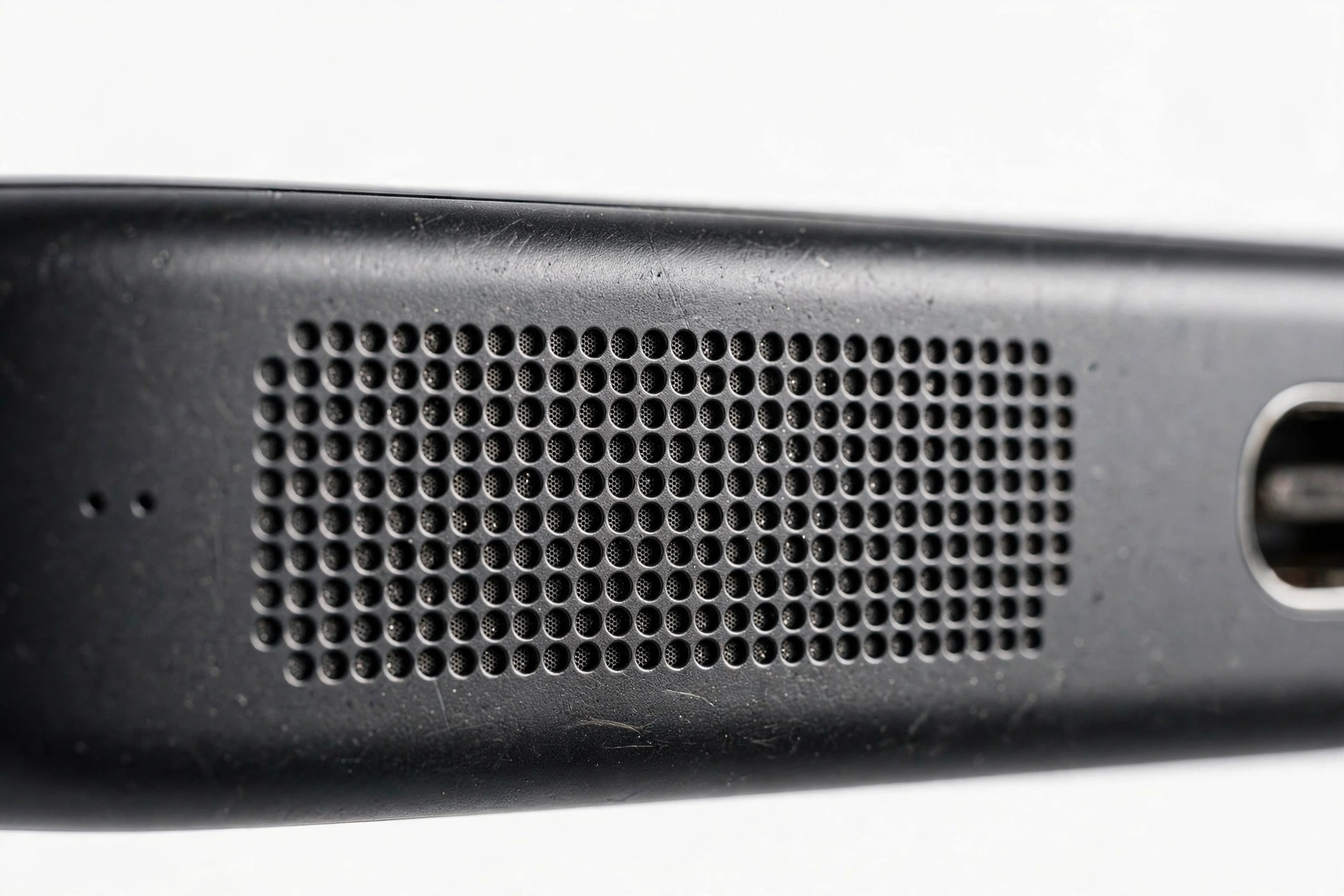
Quick fact: Doogee’s own rugged-phone documentation notes that when a phone is used in harsh environments, the speaker area can collect magnets and iron filings that are not cleaned up in time, resulting in speaker noise. That is a cleaning problem, not an update problem — but it is worth ruling out early, because the fix takes thirty seconds.
2. The one honest truth: an update cannot physically damage your speaker
A speaker is a passive hardware component — a diaphragm, a magnet, and a coil. Software cannot tear a diaphragm, demagnetize a magnet, or snap a connection. What an update can do is:
- Reset or change a volume channel, sound profile, or enhancement setting.
- Re-route audio to a Bluetooth device, USB accessory, or app that is no longer there.
- Corrupt cached data for the audio service or a media app.
- Introduce a genuine driver or firmware bug (rare, but it happens).
That is the complete list of what “speaker stopped working after an update” can mean. Every check in this guide targets one of those four mechanisms — which is why none of them require opening the phone.
Tip: If someone tells you the update “burned out” or “fried” your speaker, that is not how speakers fail. A speaker that died from hardware causes dies from drops, water, dust, or age — not from a software install. Keep troubleshooting the software side first.
3. First: rule out the quick settings traps
Before any diagnostics, run through these five checks. They take two minutes and resolve a surprising number of post-update silences.
3.1. Check every volume channel, not just one
Android has separate volume channels for media, calls, ringtones, notifications, and alarms. An update can reset one channel while leaving the others alone. Open Settings > Sound & vibration and raise Media and Call volume individually — do not rely on the volume buttons alone, which only adjust whichever channel is currently active.
3.2. Turn off Do Not Disturb and check Silent mode
An update can re-enable Do Not Disturb or flip a sound profile. Check the quick-settings panel and Settings > Sound & vibration for Do Not Disturb, Silent, or Vibrate-only modes.
3.3. Disconnect Bluetooth completely
This is the single most common false alarm after any update, and it deserves its own section (see §5). For now: turn Bluetooth off entirely — not just disconnect — and test again.
3.4. Restart the phone
A plain restart clears transient audio-service glitches. Hold the power button, tap Restart, and test the speaker with a known-good audio file (a ringtone or a downloaded song, not a streaming app — this rules out app-specific issues).
3.5. Test with different audio sources
Play a ringtone, a local music file, and a video. If the speaker works for ringtones but not for one app, the problem is that app — not the speaker, and not the update’s effect on the speaker. Clear that app’s cache (Settings > Apps > [app] > Storage > Clear cache) as the first step.
4. Earpiece vs. loudspeaker: isolate which speaker is silent
Your Doogee has (at least) two sound outputs: the earpiece (the small speaker at the top, used for calls) and the loudspeaker (the main speaker at the bottom or back, used for media and speakerphone). Knowing which one is silent cuts the suspect list in half.
| Test | Which speaker it uses | What silence means |
|---|---|---|
| Play a song or video | Loudspeaker | Silent = loudspeaker path issue |
| Make a normal call (phone to ear) | Earpiece | Silent = earpiece path issue |
| Make a call on speakerphone | Loudspeaker | Silent = loudspeaker path issue |
| Play a voice note in a messaging app | Earpiece (usually) | Silent = earpiece path issue |
| Set an alarm and let it ring | Loudspeaker | Silent = loudspeaker path issue |
If only one of the two is silent, the fault is in that output’s routing or driver path — not in a global setting. If both are silent, suspect a system-wide cause: Do Not Disturb, Bluetooth routing, a muted master channel, or an audio-service bug.
5. The Bluetooth ghost connection: the #1 false alarm
After an update, your Doogee may reconnect to a Bluetooth device you forgot about — a car stereo, earbuds in a drawer, a smart speaker in another room — and send all audio there. The phone looks silent; the audio is actually playing somewhere else.
To rule this out properly:
- Turn Bluetooth off completely (Settings > Connected devices > Bluetooth toggle off — not just disconnecting individual devices).
- Unplug any USB-C audio adapters or wired headsets.
- Play a test sound.
If sound returns, the “broken speaker” was a routing issue all along. To prevent repeats, go to Settings > Connected devices and Forget devices you no longer use, especially car stereos that auto-connect when you walk past the car.
Tip: A car parked in the driveway is the classic culprit. Owners report their phone “losing” its speaker every time they walk near the car, because the phone auto-connects to the car’s Bluetooth and routes calls and media there. If your speaker dies at the same location every day, check the car first.
6. Doogee rugged design: sealed grilles and what gets trapped in them
Doogee’s rugged models (S-series, V-series, Blade series) are built for construction sites, workshops, and outdoor work. That toughness comes with a trade-off: the sealed speaker grilles that keep water out also trap dust, and Doogee’s own documentation warns that speaker areas used in harsh environments can collect magnets and iron filings, producing speaker noise if not cleaned.
After an update, a grille that was already half-blocked can seem to “suddenly” fail — the update gets the blame, but the blockage was building for months. Check the grille:
- Look at the loudspeaker grille under good light. Visible dust, lint, or metallic particles mean a cleaning is overdue.
- Use a dry, soft-bristled brush (a clean soft toothbrush works) and brush gently across the grille. Do not press inward.
- A piece of low-tack tape pressed lightly over the grille and lifted can pull surface debris without pushing it in.
Stop for safety: Never poke needles, pins, SIM tools, or toothpicks into the speaker grille. Never use compressed air, liquids, or heat. On sealed rugged models the speaker sits behind a membrane — puncturing it destroys the water resistance and the speaker in one move. If brushing does not clear it, that is a job for a repair shop, not a sharper tool.
7. Safe Mode: the diagnostic that separates apps from the system
Safe Mode boots Android with only the built-in system apps — every third-party app is temporarily disabled. This is the single most informative test you can run, because it cleanly separates “an app is doing this” from “the system is doing this.”
To enter Safe Mode on a Doogee phone:
- Press and hold the power button until the power menu appears.
- Touch and hold Power off until the “Reboot to safe mode” prompt appears.
- Tap OK. The phone restarts with “Safe mode” shown in a corner.
- Play a test sound with a built-in app (Files, a ringtone, the default music player).
| Result in Safe Mode | What it means | Next step |
|---|---|---|
| Speaker works in Safe Mode | A third-party app is interfering | Uninstall recently updated apps one by one (§8) |
| Speaker still silent in Safe Mode | System setting, driver, or hardware | Continue with §9–§12 (system-level fixes) |
| Speaker works intermittently in Safe Mode | Likely a system bug or loose connection | Check for follow-up updates; consider professional assessment |
To exit Safe Mode, simply restart the phone normally.
Quick fact: “Speaker cleaner,” “volume booster,” and “bass booster” apps are frequent offenders. They install audio-processing hooks that an OS update can break — leaving the speaker silent or distorted. If the speaker works in Safe Mode, check for these apps first and uninstall them before anything else.
8. Five update mechanisms, in likelihood order
When the quick checks and Safe Mode point at the system rather than an app, one of these five mechanisms is responsible. They are listed from most to least likely.
8.1. Reset or changed sound settings (most likely)
Updates routinely reset sound profiles, equalizer settings, or per-app volumes to defaults. Re-check Settings > Sound & vibration in full: media volume, call volume, ring volume, alarm volume, and any enhancement or equalizer toggles. Also check individual app volumes — some apps keep their own volume slider independent of the system.
8.2. Re-routed audio
Covered in §5. Bluetooth, USB audio, and even hearing-aid or casting routes can capture the audio path after an update re-scans available outputs. Turning Bluetooth off and unplugging USB accessories is the complete test.
8.3. Corrupted app or audio-service data
An update can leave stale cache data that conflicts with the new version. Clear the cache for the affected app first (Settings > Apps > [app] > Storage > Clear cache — this deletes no personal data). If the problem affects all audio, also try Settings > Apps > Show system > Android System / Media Storage > Storage > Clear cache.
8.4. Incompatible third-party app
An app that worked on the old version may misbehave on the new one — especially audio modifiers, call recorders, and custom launchers with sound features. The Safe Mode test (§7) identifies this category. Update the suspect apps from the Play Store, or uninstall them if no update is available.
8.5. Genuine shipped bug (least likely, but real)
Occasionally an update ships with an actual audio driver bug. The signature: the speaker fails at the exact moment of the update, on a phone with no third-party audio apps, and Safe Mode does not help. In this case the fix is a follow-up update, not a factory reset — check Settings > System > System update for a newer build, because manufacturers patch audio regressions quickly once reported.
9. Reset options that do not delete your data
Before considering anything destructive, Android offers two resets that preserve your files, photos, and accounts:
- Reset app preferences (Settings > System > Reset options > Reset app preferences): restores default app permissions, notification settings, and background restrictions without deleting data. Useful when an update scrambled which apps may play audio.
- Reset Wi-Fi, mobile & Bluetooth (Settings > System > Reset options): clears all paired Bluetooth devices and network settings. Useful when a ghost Bluetooth route keeps reappearing.
Neither of these deletes photos, messages, or accounts. They are safe to try before anything stronger.
10. Symptom → cause → fix worksheet
Find your symptom in the first column, then work across to the most likely cause and the fix to try first.
| Symptom | Most likely cause | Try first |
|---|---|---|
| No sound from any app, calls work | Media volume reset or app-specific mute | Raise Media channel; check in-app volume |
| No sound anywhere, was fine yesterday | Bluetooth ghost connection | Turn Bluetooth fully off; test again |
| Speaker works for ringtones, not music app | App cache corruption | Clear that app’s cache |
| Distorted or crackling after update | Grille blockage or enhancement-profile reset | Clean grille with soft brush; check equalizer settings |
| Works in Safe Mode only | Third-party app interference | Uninstall booster/cleaner apps; update the rest |
| Earpiece works, loudspeaker silent | Loudspeaker routing or driver path | Bluetooth off; Safe Mode; reset app preferences |
| Loudspeaker works, earpiece silent | Earpiece routing or call-audio path | Check call volume; disable Bluetooth; test with another call app |
| Silent only on speakerphone calls | Call-audio routing bug | Reset app preferences; check for system update |
| Intermittent cutouts after update | Power-management killing audio service | Exclude media apps from battery optimization |
| Exact-timing failure, nothing else explains it | Shipped driver bug | Check for follow-up system update; report the bug |
11. What your checks can and cannot establish
Honest diagnostics matter: some tests prove a cause, others only narrow the field. This table keeps the reasoning straight.
| Test | Can establish | Cannot establish |
|---|---|---|
| Bluetooth off → sound returns | Audio was being routed away | Whether the update caused the re-pairing |
| Safe Mode → speaker works | A third-party app is responsible | Which app, without further elimination |
| Safe Mode → still silent | Not a third-party app | System bug vs. hardware fault |
| Grille cleaning → sound returns | Physical blockage was the cause | Whether the update contributed at all |
| Follow-up update → sound returns | Shipped bug in the earlier build | That a factory reset would have helped (it would not have) |
| Factory reset → still silent | Hardware fault (or unpatched bug) | Nothing about the original cause — too destructive to be diagnostic |
12. The factory-reset rule: don’t do it first
A factory reset is the most destructive step available, and for post-update speaker issues it is also one of the least useful. Here is why:
- A reset reinstalls the same system version that has the problem. If the cause is a shipped driver bug, the reset changes nothing — the bug is still there afterward.
- A reset deletes everything on the phone. If you have not backed up, the cost of being wrong is total data loss.
- A reset cannot distinguish software from hardware. A speaker that is silent after a reset could still be either.
Stop for safety: Do not factory-reset as a first or second step. Back up everything first (Google One backup, photos, messages, authenticator codes — codes are often excluded from backups, so export them separately). Only consider a reset after every step in §§3–9 has failed, and test the speaker before restoring your backup — if it works on the clean install and breaks after restore, an app in your backup is the culprit.
13. When to stop troubleshooting and get an assessment
Stop and seek professional assessment when any of these are true:
- The speaker was already distorted, quiet, or intermittent before the update — that history points at hardware, not software.
- There are signs of physical damage: a cracked housing near the speaker, water exposure, or a swollen battery.
- Safe Mode, resets, and a follow-up update have all failed, and the phone is still under warranty — use the warranty rather than opening anything.
- You are tempted to open the phone. On Doogee’s sealed rugged models, opening the device breaks the water-resistance seals and risks battery damage.
Tip: Doogee’s own manuals advise contacting Doogee customer support or an authorized repair center rather than attempting self-repair. If the phone is out of warranty and you are in the Las Vegas area, Las Vegas Phone Repair & Accessories, 7400 Las Vegas Blvd S, Unit TT42, Las Vegas, NV 89123, (424) 406-6202 can assess whether the fault is the speaker module or something upstream — call ahead to confirm current hours and whether they stock parts for your specific Doogee model.
14. Hypothetical examples
Example A: Daniel’s car-Bluetooth ghost connection
(The following is a hypothetical illustration, not a customer story.)
Daniel updates his Doogee S-series phone overnight. In the morning, no alarm sound, no music, no video audio — but calls work fine through the earpiece. He is ready to blame the update. Then he remembers his car is parked in the driveway with the ignition in accessory mode from yesterday’s detailing. He turns Bluetooth off on the phone: every sound returns instantly. The update had re-scanned Bluetooth on boot and auto-connected to the car stereo, which was silently swallowing all media audio. He forgets the car stereo from his paired devices, and the problem never returns.
Example B: Amara’s iron-filings grille
(The following is a hypothetical illustration, not a customer story.)
Amara works in a metal fabrication shop and carries a Doogee rugged phone in her pocket. After a system update, the loudspeaker sounds muffled and buzzy. She assumes the update broke the audio driver. On a closer look under a bright light, the speaker grille is packed with fine metallic dust. A gentle brushing with a soft dry toothbrush restores full volume. The update was a coincidence — the blockage had been building for months, and Doogee’s own documentation warns that harsh-environment use lets iron filings collect in the speaker area.
15. Frequently asked questions
Can a software update physically damage my Doogee’s speaker?
No. A speaker is a passive hardware component — diaphragm, magnet, coil. Software cannot tear, demagnetize, or disconnect it. Post-update silence is always settings, routing, corrupted data, an incompatible app, or (rarely) a shipped driver bug. All five are fixable without hardware repair.
My speaker works with headphones but not the loudspeaker. Is it broken?
Not necessarily. Headphones use a completely different audio path. If headphones work and the loudspeaker does not, run the Bluetooth-off test first (the phone may be routing to a forgotten Bluetooth device), then the Safe Mode test, then check the grille for blockage.
Why does my speaker keep “breaking” every time I walk past my car?
Your phone auto-connects to the car’s Bluetooth and routes audio there. Turn Bluetooth off to confirm, then go to Settings > Connected devices and Forget the car stereo — or disable auto-connect for it — so it stops capturing your audio.
Should I factory-reset to fix a post-update speaker problem?
No — not first. A reset reinstalls the same system version, so it cannot fix a shipped driver bug, and it deletes all your data. Work through the checks in this guide first. Only consider a reset as a last resort, with a full backup, and test the speaker before restoring your apps.
What are “speaker cleaner” and “volume booster” apps? Should I install one?
No. These apps are a common cause of speaker problems, not a cure — they install audio hooks that OS updates frequently break. If you already have one installed and the speaker failed after an update, uninstall it first and retest. Never pay for a “speaker repair” app.
My Doogee is a waterproof rugged model. Can I rinse the speaker grille?
Do not. Even on IP68-rated models, Doogee’s documentation ties warranty coverage to proper port-seal use, and forcing water into the grille can trap moisture behind the membrane. Use a dry soft brush only. If debris is packed too tightly to brush out, that is a shop job.
The speaker works in Safe Mode. What now?
A third-party app is interfering. Uninstall recently updated apps one at a time, starting with audio modifiers, “speaker cleaner”/”booster” apps, call recorders, and custom launchers. Retest after each uninstall until the speaker returns, then reinstall the innocent ones.
When should I stop troubleshooting and get the phone assessed?
Stop when the speaker was already failing before the update, when there is physical damage or water exposure, when every software step has failed, or when you are tempted to open the phone. Sealed rugged phones lose their water resistance the moment they are opened — that trade is never worth a speaker diagnosis you can get from a shop.
Video: How to tell if your smartphone is fake or real
Sources and editorial notes
- HardReset.info — DOOGEE Fire 7 speaker troubleshooting: documents the standard fix order (check media and call volume in Settings, clean the speaker grille with a soft brush, disable Bluetooth to avoid audio routing, restart, check for system updates). Summarized in original language.
- Manuals.plus — DOOGEE V10 rugged phone user manual: notes that harsh-environment use lets magnets and iron filings collect in the speaker area, causing speaker noise if not cleaned. Summarized in original language.
- GetDroidTips — Common problems in Doogee S60 and solutions: covers restart, per-app cache deletion, Safe Mode testing, and robotic earpiece sound causes. Summarized in original language.
- Manuals.plus — DOOGEE X98 smartphone user manual: advises contacting Doogee customer support or an authorized repair center rather than attempting self-repair. Summarized in original language.
- XDA Forums — Doogee owner discussion thread: community reporting on Doogee S70 speaker issues and software-related fixes. Treated as community reporting, not manufacturer guidance.
Last source check: October 14, 2026. AI-assisted editorial guide, checked against the linked manufacturer information and community reporting above. Doogee publishes limited model-specific audio troubleshooting, so brand-specific steps are drawn from attributed community guides and Doogee’s own device manuals. For related guidance, see our brand-agnostic speaker troubleshooting guide, the Ulefone speaker companion, and the Meizu speaker companion.
Let’s get you connected again.
Tell us what’s happening with your device and we’ll help you decide the safest next step — no jargon, no pressure.
Las Vegas Phone Repair & Accessories · 7400 Las Vegas Blvd S, Unit TT42, Las Vegas, NV 89123
10:00 AM–8:00 PM — call ahead to confirm today’s hours
1 thought on “Doogee Phone Speaker Not Working After Update: Causes and Safe Fixes”