
Doogee Phone Camera Not Working After Update: Causes and Safe Fixes
Doogee’s own troubleshooting order is: restart the phone, clear the Camera app’s cache and data, then check for a follow-up software update — most post-update camera problems resolve before you ever reach the factory reset step. An update can change how the camera app stores its settings, revokes its permissions, or conflicts with another app, but it cannot physically damage the camera hardware; the fixes below separate the software causes from the hardware ones, step by step, without deleting your photos.
On this page
Doogee’s own troubleshooting order is: restart the phone, clear the Camera app’s cache and data, then check for a follow-up software update — most post-update camera problems resolve before you ever reach the factory reset step.
1. First: rule out the quick settings traps
Before any troubleshooting, check the two settings that mimic a dead camera: (Source: manuals.plus)
- Power saving / battery saver mode: On many Doogee rugged models, aggressive power saving throttles background services and can interfere with the camera app launching properly. Turn it off temporarily (Settings > Battery > Battery Saver) and test the camera again.
- Storage space: Community troubleshooting guides for the Doogee S96 Pro and S88 Pro consistently flag full storage as a camera killer — the Camera app needs free space to initialize its buffers. Check Settings > Storage and make sure you have at least 2 GB free.
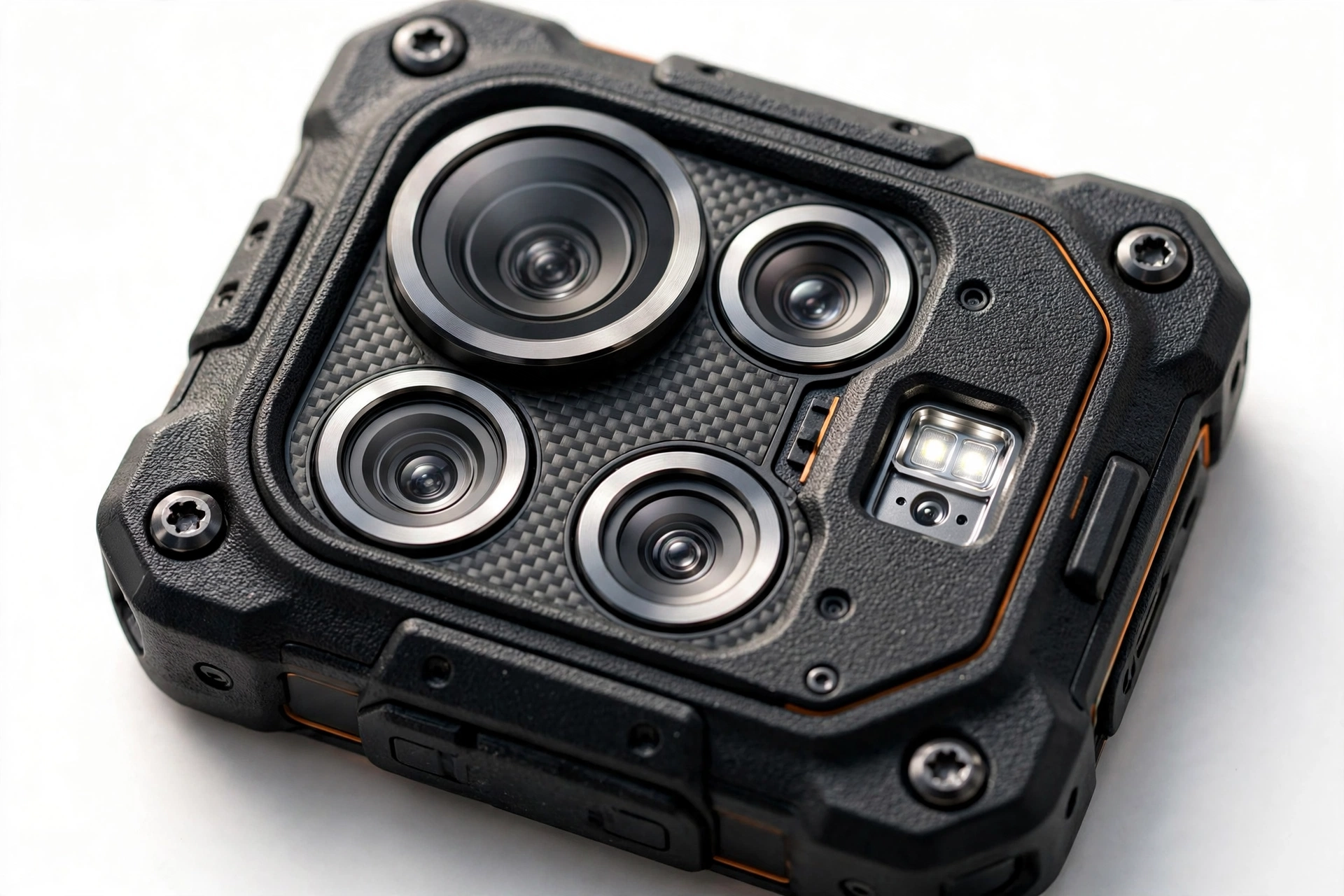
- Lens obstruction: Doogee rugged phones often have large camera housings or lens covers. Check that no case, lens protector, or debris is blocking any of the rear lenses, and wipe them gently with a soft, dry cloth.
2. Why updates break cameras on Doogee phones
An Android system update on a Doogee phone can disturb the camera in five ways, in rough order of likelihood:
| Mechanism | What actually happened | Typical symptom |
|---|---|---|
| Permission reset | The update silently revoked the Camera app’s permission to use the camera | Black viewfinder; app opens but shows nothing |
| Corrupted app data | Old cache or data files no longer match the updated camera drivers | “Unfortunately, Camera has stopped” crash |
| Third-party camera conflict | An incompatible third-party camera app (as GetDroidTips notes for the S96 Pro and S88 Pro) fights for control of the camera session | “Can’t connect to camera” error |
| Incompatible drivers | The updated OS ships camera drivers that don’t fully match your specific model’s hardware | Blurry, frozen, or distorted preview |
| Shipped bug | The update itself contains a camera bug Doogee hasn’t patched yet | Camera failed right after the update with no other cause |
Key fact: None of these involve hardware damage. An over-the-air software update cannot physically break a camera sensor — it can only change the software around it. That is why every fix below is software-side first.
3. Step 1: Restart the phone
Doogee’s own manuals — across the S200 Plus, V40 Pro, S98, Fire 3 Ultra, and Fire 6 — all list a restart as the first camera troubleshooting step. For a forced restart, press and hold the Power button for 10–15 seconds.
This clears any stuck camera session from before the update. Test the camera immediately after the phone boots back up.
4. Step 2: Check the Camera app’s permissions
The most common post-update camera failure is a silently revoked permission. After an update, Android’s permission manager sometimes resets the Camera app’s own camera permission, which produces a confusing symptom: the Camera app opens normally but the viewfinder is black, because the app is no longer allowed to see through the lens.
- Open Settings > Privacy > Permission manager > Camera.
- Make sure the Camera app is listed under Allowed. If it sits under Not allowed, grant it and reopen the camera.
- If your video recording crashes but photos work, also check Microphone permissions — the video mode needs the microphone too, and a revoked microphone permission can crash video capture while leaving stills untouched.
5. Step 3: Clear the Camera app’s cache, then its data
This is the signature fix Doogee documents in its own user manuals, and it is the one most likely to resolve a post-update crash. Go to Settings > Apps > Camera > Storage, then:
| Action | What it removes | What it keeps | When to use it |
|---|---|---|---|
| Clear cache | Temporary files that may reference the pre-update driver version | Your settings and all photos | First — try this before anything stronger |
| Clear data | Cache plus the app’s saved settings and preferences | Your photos (they live in the Gallery/DCIM, not in the Camera app) | If clearing cache alone didn’t fix it |
After clearing, reopen the Camera app — it will start with default settings, as if freshly installed.
Stop for safety: Clearing data resets the Camera app’s settings, but it does not delete your photos. Your photos are stored by the Gallery app or in the DCIM folder, not inside the Camera app’s private data. If this distinction worries you, back up your photos to Google Photos or a computer first — but the data-clear itself is photo-safe.
6. Step 4: Try the in-app settings reset
Some Doogee models (including the Tab G6 Max) expose a Restore defaults option inside the camera app’s own settings — open the Camera app, tap the settings icon, scroll to Restore defaults, and confirm. This is gentler than clearing app data and resets only the camera preferences, not the whole app.
7. Step 5: Test with a third-party camera app
This is the key diagnostic that tells you whether the problem is the stock Camera app or something deeper:
- Install Open Camera (a free, lightweight camera app) from the Play Store.
- Open it and try taking a photo with the rear camera.
- Then switch to the front camera and try again.
| Result | What it means | Next step |
|---|---|---|
| Open Camera works, stock app doesn’t | The stock Camera app is the problem (corrupt data or settings) | Uninstall updates to the stock Camera app, or wait for a fix |
| Neither app works on the rear camera | System-level driver or hardware issue | Safe Mode test, then software update check |
| Front works but rear doesn’t (in both apps) | Rear camera module failure — likely hardware | Professional diagnosis; stop software troubleshooting |
| Both work | Problem was transient or already fixed by cache clearing | Keep monitoring; no further action |
8. Step 6: Uninstall or disable conflicting camera apps
GetDroidTips’ Doogee troubleshooting guides specifically warn against third-party camera apps that aren’t compatible with the phone’s camera drivers. Only one app can hold the camera hardware at a time, and a leftover third-party camera app from before the update can block the stock app from opening the camera at all — the classic “Can’t connect to camera” error.
Go to Settings > Apps and uninstall any third-party camera apps you don’t actively use. Then restart the phone and test the stock camera again.
9. Step 7: Boot into Safe Mode
Safe Mode starts the phone with only pre-installed apps running, which rules out every third-party app in one test:
- Press and hold the Power button until the power menu appears.
- Touch and hold Power off until the Reboot to safe mode prompt appears, then confirm.
- Once booted (you’ll see “Safe mode” in the corner), open the stock Camera app.
- Restart normally to leave Safe Mode.
If the camera works in Safe Mode but not in normal mode, a third-party app is the culprit — review recently installed or updated apps (especially anything with camera, overlay, or accessibility permissions).
10. Step 8: Check for a follow-up software update
Doogee’s manuals consistently advise keeping the software up to date, and this matters more after a bad update than at any other time: the fix for a shipped camera bug is usually the next update. Go to Settings > System > System update and install anything available.
Also check for Camera app updates in the Play Store — on some Doogee models the camera app updates independently of the system.
Tip: Doogee sometimes pushes camera fixes silently inside system updates rather than announcing them. If the camera broke immediately after an update and none of the steps above helped, check for updates again a few days later before doing anything drastic — community reports for the Doogee MIX show camera behavior changing across consecutive updates.
11. The symptom-to-fix worksheet
| Symptom | Most likely cause | Fix to try |
|---|---|---|
| “Unfortunately, Camera has stopped” on launch | Corrupted app cache/data | Clear cache, then data (Step 5) |
| Black viewfinder, app otherwise normal | Revoked camera permission | Permission manager check (Step 4) |
| “Can’t connect to camera” | Another app holds the camera session | Uninstall conflicting camera apps (Step 8) |
| Camera works in Safe Mode only | Third-party app interference | Remove recently installed/updated apps (Step 9) |
| Blurry images after update | Dirty lens, wrong focus mode, or driver mismatch | Clean lens; in-app Restore defaults; software update |
| Front camera works, rear doesn’t | Rear module failure | Stop troubleshooting — professional diagnosis |
| Camera flash not firing | Low battery or power-saving mode | Charge above 20%; disable battery saver |
| Video recording crashes, photos fine | Microphone permission revoked | Grant microphone permission to the Camera app |
| Camera slow or laggy after update | Storage nearly full | Free up at least 2 GB of storage |
| Everything fails after all steps | Shipped driver bug or hardware fault | Wait for follow-up update; then professional diagnosis |
12. When to stop troubleshooting
Stop software troubleshooting and seek professional help if:
- The front camera works in every app but the rear never does — that points at the rear camera module, not software.
- The phone was dropped or got wet around the same time as the update — physical damage doesn’t respond to cache clearing.
- The battery is swollen, the phone is distorted, or it gets dangerously hot — power it down and do not charge it. This is a safety stop, not a troubleshooting step.
- You’ve done every step above and the camera still fails in Safe Mode after a follow-up update.
Stop for safety: Never open a Doogee rugged phone yourself. The sealed, gasketed construction that gives it water and dust resistance also means prying it open can puncture the battery (fire risk) and destroys the seals. Camera module replacement is a job for a technician with the right tools.
13. Factory reset: the last resort, not the first step
Doogee’s own manuals list a factory reset as the final option if nothing else works — and it belongs last for a specific reason: a factory reset reinstalls the same system version you already have. If the camera broke because the update shipped a driver bug, the reset brings the same bug back. A reset only helps when the problem is corrupted user data that survived everything else.
If you do reset:
- Back up everything first — photos, contacts, WhatsApp, authenticator codes.
- Use Settings > System > Reset options > Erase all data.
- Test the camera before restoring your apps and data — if it works on a fresh setup, one of your apps was the cause.
14. Two hypothetical cases
(The following are hypothetical illustrations, not customer stories.)
Case 1 — Priya’s black viewfinder. Priya’s Doogee S96 Pro updated overnight. The next morning the Camera app opened fine but the viewfinder was black. She assumed the camera was dead — but checking Settings > Privacy > Permission manager showed the Camera app sitting under “Not allowed.” Granting the permission fixed it instantly. The update had revoked the permission silently; nothing was broken.
Case 2 — Daniel’s crash loop. Daniel’s Doogee phone started crashing the Camera app with “Unfortunately, Camera has stopped” right after an update. Clearing the cache didn’t help, but clearing the app’s data did — the old saved settings no longer matched the updated camera drivers. His photos were untouched, because they live in the Gallery, not in the Camera app.
15. Doogee rugged-phone specifics: sealed bodies, extra lenses, and thermal cameras
Most Doogee phones sold today are rugged models — the S series, V series, and Fire series carry IP68/IP69K ratings and MIL-STD-810H certification. That ruggedness changes camera troubleshooting in three concrete ways worth knowing after an update.
First, the sealed camera housing. The waterproofing gaskets that protect Doogee phones mean the camera modules sit behind tightly sealed glass and housings. On the plus side, this makes dust or grit under the lens cover much less likely than on a non-rugged phone — if your images are suddenly blurry after an update, the cause is far more likely to be software (focus mode, dirty exterior glass, or a driver mismatch) than contamination inside the sealed assembly. Clean the exterior glass carefully with a soft, dry cloth; never use liquids or pointed tools around the camera housing, and never attempt to open a sealed Doogee phone — prying destroys the gaskets and can puncture the battery.
Second, the multi-lens arrays and secondary cameras. Many Doogee rugged phones ship with four or more rear sensors: a main camera, an ultrawide, a macro, and often a night-vision camera (for example the 20MP night vision unit on the S200 Plus). After an update, it is common for one mode to misbehave while the others are fine — night vision failing while the main camera works, or the ultrawide producing distorted images. This is actually useful diagnostically: if only one lens misbehaves across every app, the problem is almost certainly that lens’s driver or calibration data, and a follow-up software update is the realistic fix. If every lens fails identically, suspect permissions or app data (Steps 4–5) rather than any single module.
Third, the thermal camera on Fire-series models. The Doogee Fire 6 manual documents its own thermal-camera troubleshooting: make sure the thermal lens is clean and unobstructed, then restart the thermal camera app or the phone. Thermal imaging apps are often third-party or semi-integrated rather than part of the stock Camera app, so they are disproportionately affected by updates that change background-service or permission behavior. If the thermal camera broke after an update while the normal camera still works, check the thermal app’s permissions and updates in the Play Store before anything else — and resist the urge to factory reset the whole phone for what is almost certainly one app’s problem.
Tip: Doogee’s rugged phones are popular with outdoor workers, so camera failures get noticed fast in the field. If you rely on the camera for work documentation, the fastest recovery path after a bad update is the Open Camera test (Step 7) — if Open Camera works, you can keep working with it while waiting for Doogee’s follow-up update to fix the stock app, rather than losing a workday to troubleshooting.
16. What your checks can and cannot establish
| Observation | Can establish | Cannot establish |
|---|---|---|
| Works in Safe Mode, fails normally | A third-party app is interfering | Which app, without further testing |
| Third-party camera app works | The stock Camera app is the problem | Whether the stock app will be fixed by an update |
| Front works, rear never works | The rear module is very likely faulty | Whether it’s the module or its connector (needs opening) |
| Failed immediately after an update | Strong timing evidence for a software cause | Proof — a coincidental hardware failure is still possible |
| All steps fail | Software causes are largely ruled out | Whether a future update or a repair is the answer |
17. Frequently asked questions
Will clearing the Camera app’s data delete my photos?
No. Photos are stored by the Gallery app or in the DCIM folder, not inside the Camera app’s private data. Clearing cache or data only resets the Camera app’s settings and temporary files. That said, keeping a backup of anything irreplaceable is always wise before any troubleshooting.
Why does the Camera app need its own camera permission?
Since Android 6, every app — including the built-in Camera app — must hold a runtime permission to access the hardware. System updates occasionally reset these grants, which is why a permission check is one of the first post-update steps.
My video recording crashes but photos work. Is the camera broken?
Almost certainly not. Video recording also needs the microphone, and updates frequently revoke the Camera app’s microphone permission while leaving its camera permission intact. Grant the microphone permission and test again.
Should I factory reset as soon as the camera breaks after an update?
No. A reset reinstalls the same system version, so it cannot remove a bug that shipped with the update. Do the permission, cache, and Safe Mode steps first; keep the reset as the documented last resort, with a full backup beforehand.
What does “Can’t connect to camera” mean?
It means another app is already holding the camera hardware. Android gives the camera to one app at a time. Close or uninstall other camera apps, then restart the phone.
Are “camera fixer” or “camera booster” apps worth trying?
No. These apps cannot repair drivers or permissions; at best they change a setting you could change yourself, and some aggressively display ads or request unnecessary permissions. Stick to the documented steps above.
Only one rear lens seems dead. Do I need a whole new phone?
Not necessarily — on most phones each camera module is a separate replaceable part, and single-module failure is far more common than mainboard failure. A technician can test and replace the individual module.
When should I stop and get professional help?
When the rear camera fails in every app including Safe Mode after a follow-up update, when there’s physical damage or water exposure, or when the battery is swollen or the phone runs dangerously hot. If you’re in the Las Vegas area, Las Vegas Phone Repair & Accessories, 7400 Las Vegas Blvd S, Unit TT42, Las Vegas, NV 89123, (424) 406-6202 — call ahead to confirm current hours and model support before visiting.
Video: How to tell if your smartphone is fake or real
Sources and editorial notes
- DOOGEE S200 Plus 5G user manual — official troubleshooting order (restart → clear Camera app cache and data → software update), camera malfunction entry.
- DOOGEE V40 Pro 5G user manual — camera troubleshooting: restart, clear cache and data (Settings > Apps > Camera > Storage), check for physical obstruction.
- DOOGEE S98 user manual — camera issues entry (clean lenses, restart app/device, clear cache and data).
- DOOGEE Fire 3 Ultra user manual — camera troubleshooting: check permissions, restart, clear cache and data in Settings > Apps.
- GetDroidTips — How to quickly fix Doogee camera problems — community fix order including cache clearing, lens cleaning, storage-space check, factory reset as last resort.
- GetDroidTips — Common problems in Doogee S96 Pro — “Unfortunately camera has stopped” fixes: driver updates, incompatible third-party camera apps, cache clearing, storage check.
- XDA Forums — Doogee MIX development thread — community reporting on camera behavior changing across updates.
Last source check: October 14, 2026. AI-assisted editorial guide, checked against the linked manufacturer information. Doogee publishes limited model-specific camera troubleshooting beyond its manuals, so brand-specific steps are drawn from the official manuals above and attributed community guides. This guide is for reader education and does not constitute a warranty or repair authorization.
Related reading: our brand-agnostic guide to cameras failing after updates, plus the Doogee-specific companions for the Ulefone rugged line and Meizu Flyme phones.
Let’s get you connected again.
Tell us what’s happening with your device and we’ll help you decide the safest next step — no jargon, no pressure.
Las Vegas Phone Repair & Accessories · 7400 Las Vegas Blvd S, Unit TT42, Las Vegas, NV 89123
10:00 AM–8:00 PM — call ahead to confirm today’s hours