
Xiaomi Phone Speaker Not Working After Update: Causes and Safe Fixes
If your Xiaomi phone’s speaker stopped working right after an update, the cause is almost always software — a muted setting, a stuck audio route, or a genuine update bug. Work through this guide in order: quick triage first, then Xiaomi-specific settings, then the documented fix ladder, so you only reset what you need to.
On this page
If your Xiaomi phone’s speaker stopped working right after an update, the cause is almost always software — a muted setting, a stuck audio route, or a genuine update bug.
1. Who this guide helps
This guide is for Xiaomi, Redmi, and POCO phone owners whose speaker audio changed immediately after a HyperOS or MIUI update. It covers the bottom loudspeaker (media, ringtones, alarms), the earpiece (call audio), and both. If your phone had speaker problems before the update, the timing may be a coincidence — the later sections on cleaning and hardware diagnosis will help you there too. (Source: mi.com)
This article is Xiaomi-specific and update-specific. For the same problem on any phone brand, see the companion guide phone speaker not working after update. For OnePlus and Google Pixel versions of this exact problem, see OnePlus speaker not working after update and Google Pixel speaker not working after update.
Quick fact: An update cannot physically damage your speaker. The speaker is hardware; an update changes software. When speakers go silent right after an update, the cause is always a setting, an audio-routing conflict, an app conflict, or a software bug — not a blown speaker from the update itself.
2. The two-minute triage: which speaker, which sounds
Before changing anything, spend two minutes answering three questions. Your answers route you to only the sections that matter for your case, saving you from fixes you don’t need.
Question 1: Which sounds are silent?
- Everything (ringtones, music, YouTube, alarms, call speaker) — the most common post-update pattern, and usually a global setting or routing issue.
- Only media (music, videos) while ringtones still ring — usually the Media volume stream is down or an app has its own mute.
- Only phone calls (you can’t hear the caller on the earpiece) — an earpiece/call-path issue, not the loudspeaker.
- Only alarms — the alarm stream or the Clock app has its own volume, or the alarm was set to vibrate only.
Question 2: Which speaker is failing?
Most Xiaomi phones have stereo speakers: a bottom-firing loudspeaker and the earpiece at the top, which doubles as a second speaker for media. Play music and cover the bottom speaker with your finger, then cover the earpiece. If one speaker is loud and the other is silent, the problem is limited to one unit — useful information for any repair assessment later.
Question 3: Did sound survive on any output?
Pair Bluetooth earbuds or plug in wired/USB-C headphones. If audio plays fine there, the phone’s audio system is working and the problem is specifically with the internal speaker output path — which is exactly what the genuine update-bug section below is about. This single test separates software bugs from most hardware failures.
3. Five ways an update can change speaker behavior
Updates don’t break speakers, but they do change the software around them. Listed in rough likelihood order, these are the genuine mechanisms behind “it worked before the update”:
3.1 A setting was reset or changed silently
Major OS updates sometimes reset toggles you turned off years ago — or apply new defaults. The classic post-update silent killers on Xiaomi phones are Do Not Disturb being re-enabled, the Media volume stream dropping to zero, and “Mute all sounds” style accessibility options being toggled. Check Section 4 before doing anything more invasive.
3.2 Audio routing got stuck
During or after the update, the phone may have decided audio should go somewhere it isn’t — a remembered Bluetooth device that isn’t nearby, a car kit from your driveway, or a USB audio dongle. The phone plays audio “normally,” but to a destination you can’t hear. Disconnecting Bluetooth and checking the output is one of the first diagnostic steps Xiaomi’s own support flow recommends.
3.3 An app’s cached data conflicts with the new system
The update changed the system; some apps’ cached audio data didn’t get the memo. This typically shows up as one app being silent while others work — YouTube silent but ringtones fine, for example. Clearing that app’s cache (Section 8) usually resolves it.
3.4 Permissions or behaviors changed
New OS versions can reset per-app permissions or change background behavior. A video-call app that worked before may lose microphone or audio access after the update, producing one-sided or silent calls. Re-checking permissions is cheap and safe.
3.5 A genuine shipped bug
Occasionally the update itself contains a bug that kills speaker output. There is a documented example for HyperOS 3 — see Section 6. When this is the cause, restarts and resets won’t fix it; you wait for a follow-up patch. That’s why the triage above matters: it stops you from factory-resetting a phone whose real problem is a bug Xiaomi has to patch.
4. The silent killers: check these first
These are the settings that silently kill speaker output on Xiaomi phones, and they’re the cause far more often than any exotic bug. Check every one — it takes three minutes.
4.1 The three volume streams
Xiaomi’s Sound & vibration settings separate Media, Ringtone, and Alarm volumes. A single press of the volume buttons adjusts whichever stream the phone thinks is active — not necessarily the silent one. Go to Settings > Sound & vibration and confirm each slider is turned up. Play a video while watching the Media slider; it should show an active indicator.
4.2 Do Not Disturb
In Settings > Sound & vibration > Do Not Disturb, check that DND is off. Some DND schedules survive updates, and some get re-enabled by new default schedules. While you’re there, confirm scheduled turn-on times match what you expect.
4.3 Bluetooth audio theft
Open Settings > Bluetooth and turn Bluetooth off temporarily. If sound returns instantly, a paired device — earbuds in a bag, a car system, a Bluetooth speaker in another room — was silently receiving your audio. Reconnect devices one at a time to find the culprit, and remove pairings you no longer use.
4.4 Mono audio and Hearing settings
In Settings > Additional Settings > Accessibility > Hearing, check that mono audio isn’t enabled and that left/right balance isn’t pushed fully to one side. These settings change how stereo audio reaches your speakers and can make one speaker seem dead.
4.5 Per-app mutes
If only one app is silent, check inside that app: in-app volume controls, mute buttons, and autoplay-with-sound settings are independent of the system volume. Update the app itself from the Play Store — an app that hasn’t been updated for the new OS version is a common single-app-silence cause.
Tip: Run through all five silent killers before touching caches, resets, or Safe Mode. In post-update speaker cases, one of these five is the answer more often than all the advanced fixes combined.
5. HyperOS settings to check, in order
With the silent killers ruled out, work through Xiaomi’s own logical check order. This mirrors the troubleshooting flow Xiaomi’s support documentation recommends: restart, volume, DND, output routing, Bluetooth disconnection, speaker-opening inspection, app testing, OS update, and reset of app preferences.
5.1 Restart the phone
A plain restart clears the audio service state. It’s the first step for a reason: a stuck audio service after an update often needs exactly one reboot to reinitialize. Hold the power button, tap Restart, and test the speaker after the phone boots.
5.2 Test with different apps and content
Play a local music file, a YouTube video, and trigger a ringtone (have someone call you, or use a ringtone preview in Sound & vibration). If some apps produce sound and others don’t, you’ve isolated the problem to an app or its data — skip straight to Section 8 rather than resetting system settings.
5.3 Check for a follow-up update
Go to Settings > About phone > HyperOS version (or System update) and check for updates. When an update causes widespread audio issues, Xiaomi ships follow-up patches quickly — including incremental builds that specifically fix audio regressions. This is the official fix path for genuine update bugs.
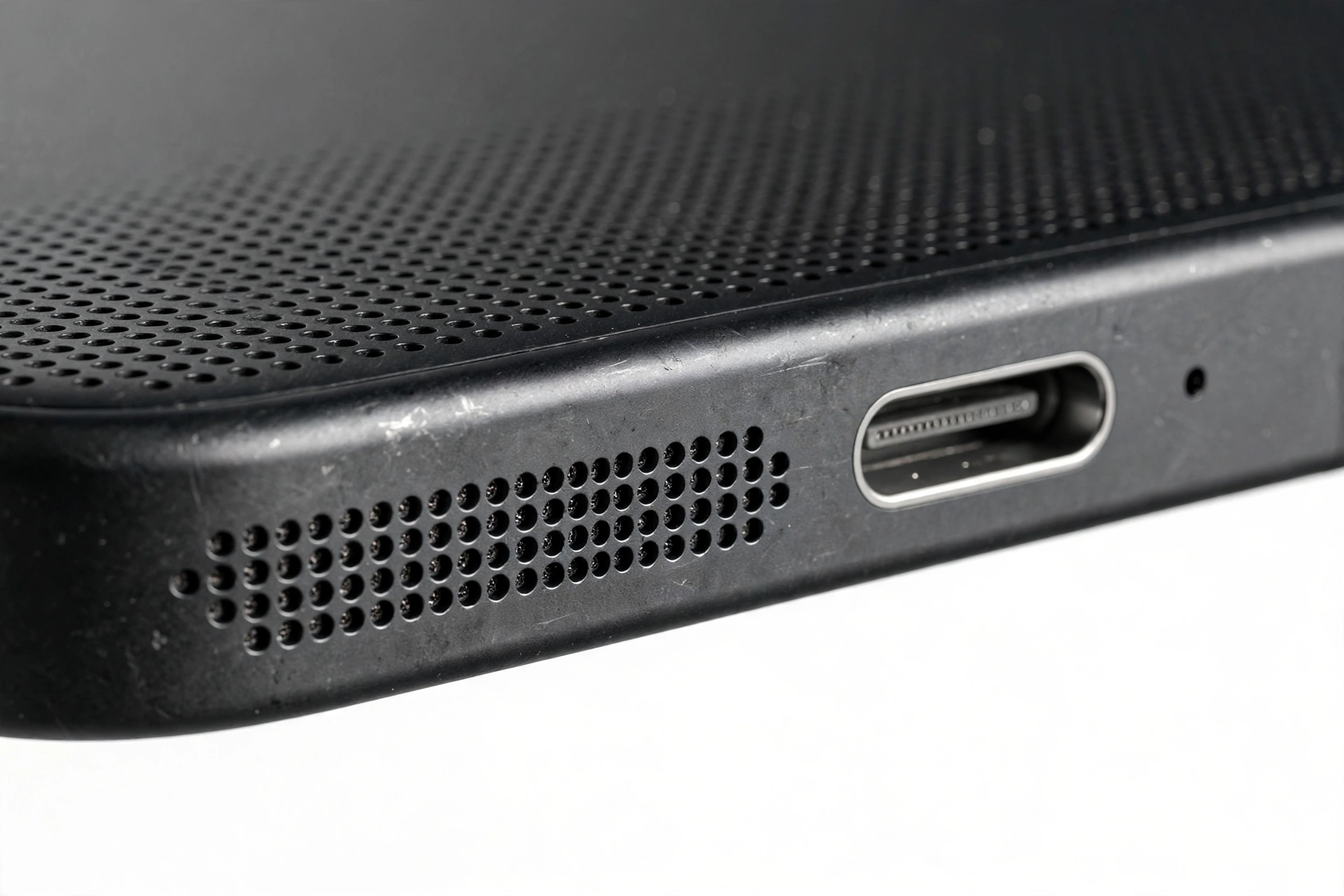
5.4 Inspect the speaker openings
The bottom speaker grille and earpiece slit collect dust and lint. Use a dry, soft-bristled brush to sweep the openings gently. Never push pins, needles, or toothpicks into the grille — you can puncture the speaker mesh or push debris deeper. Never use liquids or compressed air on the speaker openings.
Quick fact: Xiaomi’s HyperOS includes a built-in speaker cleaning feature (Settings > Additional Settings > Speaker cleaning on supported models) that plays a high-frequency tone designed to shake dust loose. It’s the manufacturer-sanctioned way to clear a grille — third-party “speaker cleaner” apps are not a recognized manufacturer step and some can damage speakers with sustained high volume.
5.5 Reset app preferences
In Settings > Apps > Manage apps > (menu) Reset app preferences, you can restore default app permissions and disabled apps. This is a low-risk reset: it doesn’t delete your data, but it can clear the permission and default-app conflicts an update leaves behind.
6. The reported HyperOS 3 audio blackout: when it’s a genuine bug
This section matters because it tells you when to stop troubleshooting. According to independent tech press reporting in 2026, the HyperOS 3 stable rollout produced a serious audio bug on some devices — most notably the Redmi Pad 2 on build OS3.0.1.0.WOVMIXM. After installing that update, the internal speakers produced no sound at all: notifications, media, alarms, and system tones all silent, even at maximum volume.
What makes this bug instructive:
- Restarting the device did not fix it for many affected users.
- Factory resets did not fix it for many affected users — a strong signal the problem was below the user-data layer.
- External audio did still work: Bluetooth speakers and USB-C headphones produced sound normally. That means the bug was in the internal speaker output path, not the whole audio framework.
This is press reporting, not an official Xiaomi defect acknowledgment — but it matches the classic signature of a genuine shipped driver or configuration bug. Separately, Xiaomi’s own published bug-fix list for HyperOS updates acknowledged an issue where “multimedia sound is not available via speaker or Bluetooth” on the Xiaomi 15, with a fix in the pipeline — an official example of a post-update audio bug fixed by a follow-up update, not by user troubleshooting.
Stop for safety: If your speaker died immediately after a specific update, do not factory-reset the phone as your first big step. A factory reset erases your data and apps, and for a genuine driver-level bug it won’t help — as the HyperOS 3 reports show. Work through the settings checks and the app-level fixes first. If the speaker worked perfectly before the update and the timing is exact, check for a follow-up system update before anything destructive.
How to tell a bug from a setting
- Bug signature: total silence from internal speakers, all apps, immediately after one specific update; Bluetooth/USB-C audio still works; restarts and settings checks change nothing.
- Setting signature: some sounds work and others don’t, or one app is silent; the Media slider shows activity; toggling Bluetooth or DND changes the behavior.
- Hardware signature: one speaker is dead and the other works (cover test from Section 2), and the pattern existed before the update or appeared gradually rather than at update time.
7. Symptom worksheet: match your pattern to the likely cause
| Symptom | Likely cause | First fix to try |
|---|---|---|
| Total silence, all apps, right after update; Bluetooth audio still works | Genuine update bug (reported HyperOS 3 pattern) | Check for follow-up system update; wait for patch |
| Total silence, but DND or schedule was re-enabled | Silent setting reset by update | Turn off Do Not Disturb and its schedules |
| Sound returns when Bluetooth is off | Audio routed to a remembered Bluetooth device | Disconnect/forget unused Bluetooth pairings |
| Media silent, ringtones still ring | Media stream muted or one app muted | Raise Media slider in Sound & vibration; check in-app volume |
| Only one app is silent | App cache or app permission conflict | Clear that app’s cache; update the app |
| One stereo speaker dead, the other fine | One speaker unit blocked or failing (not update-caused) | Clean the grille; run hardware test; seek assessment |
| Calls silent on earpiece, media fine | Earpiece/call path issue | Check call volume during a call; run earpiece hardware test |
| Speaker crackles or distorts after update | Grille blockage or app-level audio effect conflict | Clean grille with soft brush; test with effects off |
| Alarms silent | Alarm stream or Clock app issue | Raise Alarm volume; check Clock app permissions and updates |
| Speaker worked briefly after restart, then died again | Audio service crashing or conflicting app on boot | Safe Mode test; uninstall recently updated apps one at a time |
8. The fix ladder, in order
If the settings checks didn’t restore sound, work up this ladder from least to most disruptive. Stop at the first step that fixes the problem.
8.1 Restart (again, properly)
If you haven’t restarted since the update installed, do it now. Some updates don’t fully apply audio drivers until a clean reboot. This is the single most common real fix.
8.2 Clear the affected app’s cache
For single-app silence: Settings > Apps > Manage apps > [the app] > Clear cache. Cache is temporary data; clearing it is safe and often resolves the version mismatch between an app and the new OS. Do not clear data unless you accept losing the app’s saved settings and logins — cache first.
8.3 Update everything
Update the system (Settings > About phone > System update) and update all apps from the Play Store. Xiaomi’s own audio-bug acknowledgments are resolved through incremental updates, not user-side heroics — an outdated system build is a legitimate cause of a post-update audio problem.
8.4 Safe Mode
Boot into Safe Mode (hold power, then long-press “Power off” and tap OK when prompted). Safe Mode loads only system apps. If the speaker works in Safe Mode, a third-party app is interfering — uninstall recently installed or updated apps one at a time, rebooting normally between each, until you find the culprit.
8.5 Xiaomi hardware test
Xiaomi phones include a hardware test menu: dial *#*#64663#*#* and select the Speaker (and Earpiece) test. This plays audio directly through the hardware, bypassing normal software paths. If the test tone plays, your speaker hardware is fine and the problem is purely software — don’t pay for a speaker replacement. If the test tone is silent too, the speaker unit itself may be faulty, though on a phone that worked before the update this is uncommon.
8.6 Reset all settings (not data)
In Settings > Additional Settings > Backup & reset > Reset all settings, you can restore system settings to defaults without deleting personal data. This clears every audio toggle, DND schedule, and routing preference the update may have mangled — in one step instead of hunting them individually.
8.7 Factory reset — last resort only
A factory reset erases everything: apps, accounts, settings, and personal data. It is never a casual first step. Back up first (Settings > Additional Settings > Backup & reset > Local backups or a cloud backup), and only consider this if the hardware test passes but no software fix worked — or if Xiaomi support advises it. And remember Section 6: for a genuine driver-level bug, a factory reset won’t help.
9. What your observations can and cannot establish
An honest guide has to tell you the limits of DIY diagnosis. This table keeps expectations realistic:
| Observation | Establishes | Does NOT establish |
|---|---|---|
| Bluetooth audio works, internal speaker silent | The audio framework and media pipeline work; the problem is the internal-speaker path | Whether the cause is a setting, a bug, or hardware — further tests needed |
| Hardware test tone plays (*#*#64663#*#*) | The speaker unit itself can produce sound | Which software layer is muting it in normal use |
| Speaker works in Safe Mode | A third-party app is interfering | Which app, without systematic elimination |
| One speaker dead, other works | The failure is localized to one unit | Whether it’s blockage or component failure — needs inspection |
| Silence began exactly at update time | Strong timing evidence for a software cause | The specific cause — settings, routing, conflict, or bug all fit |
| Cleaning the grille restored sound | Blockage was the cause | That the update had anything to do with it (timing may have been coincidence) |
10. When to stop troubleshooting and seek help
Stop and get a professional assessment when any of these is true:
- The hardware test tone is silent — the speaker unit may genuinely be faulty.
- Only one of the two stereo speakers works, and cleaning plus the hardware test don’t change it.
- The phone was dropped, exposed to water, or the speaker grille shows physical damage — no software fix will help, and opening the phone yourself risks the battery and the water-resistance seals.
- Sound cuts in and out with movement, or the speaker rattles — these are mechanical symptoms.
- You’ve worked through the whole ladder and the pattern matches the reported update-bug signature — a service center can confirm whether a patch exists for your build.
Stop for safety: Never open the phone yourself. Xiaomi phones use glued assemblies; prying them open risks puncturing the battery, which can catch fire. Speaker replacement is a professional repair — the phone stays sealed and you stay safe.
(The following are hypothetical illustrations, not customer stories.) Priya’s update-night silence: Priya’s Redmi Note updated to a new HyperOS build overnight. In the morning, no alarm, no ringtone, nothing. She nearly factory-reset the phone — then found Do Not Disturb had been re-enabled by a new default schedule. One toggle, problem solved, no data lost. Marcus’s Bluetooth ghost: After updating, Marcus’s phone played everything silently. Turning Bluetooth off restored sound instantly — his car kit in the driveway was receiving all audio. He removed the old pairing and everything worked.
If you’ve reached the “when to stop” point and you’re in Las Vegas, Las Vegas Phone Repair & Accessories (7400 Las Vegas Blvd S, Unit TT42, Las Vegas, NV 89123; (424) 406-6202) can assess speaker problems. They’re open 10 AM–8 PM — call ahead to confirm today’s hours.
Video: How to tell if your smartphone is fake or real
Frequently asked questions
Can an update really break my speaker?
An update can’t physically damage the speaker hardware, but it can absolutely change settings, reroute audio, conflict with apps, or ship with a bug that silences the internal speaker path — as the reported HyperOS 3 audio blackout shows. “Software-silenced” and “physically broken” are different things with different fixes.
Should I factory-reset my phone?
Only as an absolute last resort, after backing up, and ideally after the hardware test. For a genuine driver-level update bug, a factory reset won’t help — the reported HyperOS 3 cases showed that clearly. Try the settings checks, app fixes, and system updates first.
Why does my speaker work with Bluetooth headphones but not the phone speaker?
Because the internal speaker output path and the Bluetooth audio path are different. Audio is playing normally; it’s just not reaching the built-in speaker. That pattern points to a setting, routing conflict, or the reported update-bug signature — and it rules out a dead audio system.
What is the Xiaomi speaker cleaning feature?
On supported HyperOS/MIUI models, Settings > Additional Settings > Speaker cleaning plays a high-frequency tone intended to shake dust from the speaker grille. It’s the manufacturer-sanctioned cleaning method. Third-party “speaker cleaner” apps are not an official Xiaomi step.
How do I test whether the speaker hardware itself is broken?
Dial *#*#64663#*#* and run the Speaker (and Earpiece) test. If the test tone plays, the hardware works and your problem is software. If it’s silent too, the speaker unit may need professional replacement.
One of my stereo speakers is dead. Is that an update problem?
Unlikely. Updates affect software, which drives both speakers. One dead speaker with the other working points to blockage or a failing unit — run the cover test from Section 2, clean the grille gently, and use the hardware test to confirm before seeking a repair assessment.
An app was silent but everything else worked. What happened?
Usually a version mismatch between that app and the new OS — its cached audio data conflicts with the updated system. Clear that app’s cache (not data) and update the app from the Play Store.
Xiaomi acknowledged an audio bug on my model. What should I do?
Check for system updates regularly — acknowledged bugs are fixed through incremental update builds, which arrive automatically via the system updater. Don’t factory-reset or pay for a hardware repair while waiting for a patch; use Bluetooth or wired headphones as a temporary workaround.
Sources and editorial notes
- Xiaomi Support UK — Bluetooth audio troubleshooting: official troubleshooting order (volume, DND, output routing, Bluetooth disconnection, service center escalation), summarized here.
- Newsible Asia — HyperOS 3 update bug spurs audio blackout: independent press reporting on the Redmi Pad 2 (build OS3.0.1.0.WOVMIXM) total speaker silence after the HyperOS 3 update, and the failure of restarts and factory resets for many users.
- Middle East Bulletin — audio issues emerging from the HyperOS 3 update: community reporting on post-update speaker silence and the Bluetooth/USB-C workaround.
- XiMiTime — Xiaomi announces HyperOS bug fixes: Xiaomi’s published bug list including the Xiaomi 15 “multimedia sound is not available via speaker or Bluetooth” acknowledgment, fixed through incremental builds.
- Dr.Fone — Xiaomi earpiece troubleshooting: independent guide documenting the CIT hardware test code (*#*#64663#*#*) and the earpiece cleaning steps, consistent with Xiaomi’s own support flow.
- YouTube — Speaker not working on Redmi Note 14 Pro: community walkthrough whose fix list (restart, volume, DND, output, Bluetooth, grille cleaning, HyperOS update, app testing, reset app preferences) matches Xiaomi’s official support order.
Last source check: October 14, 2026. AI-assisted editorial guide, checked against the linked manufacturer information and the cited independent reporting. Launch and bug details are reported facts, not manufacturer-confirmed specifications; where only press or community reporting exists, it is labeled as such. Xiaomi, Redmi, POCO, HyperOS, and MIUI are trademarks of their respective owners.
Let’s get you connected again.
Tell us what’s happening with your device and we’ll help you decide the safest next step — no jargon, no pressure.
Las Vegas Phone Repair & Accessories · 7400 Las Vegas Blvd S, Unit TT42, Las Vegas, NV 89123
10:00 AM–8:00 PM — call ahead to confirm today’s hours