
OnePlus Phone Speaker Not Working After Update: Causes and Safe Fixes
When a OnePlus speaker stops working after an update, the cause is almost always a setting the update changed — not a damaged speaker. The physical Alert Slider, Bluetooth audio routing, and Do Not Disturb are the most common silent culprits, and a short checklist will find most of them in under five minutes.
On this page
When a OnePlus speaker stops working after an update, the cause is almost always a setting the update changed — not a damaged speaker.
1. Who this guide helps
This guide is for OnePlus phone owners (OnePlus 13 series, 12 series, 11 series, Nord models, and older OnePlus phones running OxygenOS) whose speaker stopped producing sound — or started producing distorted, crackling, or intermittent sound — after installing an OxygenOS or Android update. It also applies if the problem appeared shortly after an update, because some symptoms take a day or two of use to notice. (Source: getdroidtips.com)
It covers both speakers in modern OnePlus phones: the bottom speaker (the loudspeaker for music, videos, alarms, and speakerphone calls) and the earpiece speaker (the small speaker at the top used for normal phone calls). The troubleshooting path differs depending on which one is affected, and section 5 walks through a quick test that tells you which is which.
This is the OnePlus-specific companion to the brand-agnostic phone speaker not working after update guide. If you own a Pixel or an iPhone instead, see the Google Pixel speaker guide or the iPhone speaker guide for device-specific settings on those platforms.
Quick fact: An OxygenOS or Android update cannot physically damage your speaker. It can change settings, reset permissions, alter audio routing, or introduce a software bug — but the speaker hardware itself is untouched by an update. That distinction matters, because settings problems are reversible at home while hardware problems are not.
2. The 2-minute triage: which path is yours?
Before changing any setting, answer three questions. Your answers decide which sections actually apply to you — most readers will only need two or three of the sections below.
Question 1: Is it totally silent, or just wrong?
Totally silent (no ringtones, no media audio, no notification sounds from the speaker) usually points to a routing or mode problem: the Alert Slider in silent mode, Do Not Disturb, Bluetooth rerouting, or a muted volume stream. These are the fastest fixes in this guide.
Wrong sound (crackling, distortion, muffled, tinny, too quiet, or cutting in and out) usually points to a blocked speaker opening, a stuck audio-effects setting, or — less commonly — a hardware problem. Start with section 6 (safe cleaning) and the settings in section 7.
Question 2: Is it every sound, or only some?
Open Settings > Sound & vibration and tap each of the volume sliders in turn: Media, Ringtone, Notification, and Alarm. As you raise each slider, most OnePlus phones play a sample of that sound type. Write down which ones are silent and which ones play.
- Media silent, ringtones fine: the media volume is muted or media audio is being routed elsewhere (Bluetooth, a connected app, or the Alert Slider in some configurations). Skip to section 4.
- Ringtones silent, media fine: check the Alert Slider and Do Not Disturb first (sections 3 and 4).
- Everything silent: work through sections 3–8 in order.
- Alarms only: check the Alarm volume slider specifically — it is a separate stream, and updates sometimes reset it independently.
Question 3: Did Bluetooth sneak in?
Swipe down the Quick Settings panel and look at the Bluetooth tile. If it is on, tap it and check whether the phone is connected to earbuds, a car, a speaker, or a smartwatch with audio capability. A phone that is connected to Bluetooth audio sends media and call audio to that device — the phone speaker goes quiet even though nothing is broken.
Tip: This is the single most common “speaker stopped working” cause across all phone brands. People update their phone, the update re-enables Bluetooth or re-pairs a device, and audio routes to forgotten earbuds in a bag. Check it first — it takes ten seconds.
3. The OnePlus signature: check the Alert Slider first
OnePlus phones have a hardware feature most other Android phones lack: the Alert Slider, a physical three-position switch on the side of the phone (on the upper right edge when the display faces you on classic models; on the upper left edge on newer flagships like the OnePlus 13 series, where it may be a smaller switch). It switches between Ring, Vibrate, and Silent with a single slide.
Because it is physical, an update cannot move it — but it is easy to nudge accidentally, especially when picking the phone up, sliding it into a pocket, or removing a case. And because updates are exactly the kind of event people investigate when “something changed,” the Alert Slider is the classic suspect that has nothing to do with the update at all.
How to check it
- Look at the switch position on the side of the phone.
- Slide it and watch the screen: OxygenOS shows a banner confirming the mode (Ring / Vibrate / Silent).
- Set it to Ring (usually the top position).
- Ask someone to call you, or play a video, and confirm sound returns.
If your model has the smaller slider (OnePlus 13 and later flagships), the positions are the same three modes — the screen banner is the reliable indicator of which mode you are in, since the smaller switch has less tactile difference between positions.
Quick fact: The Alert Slider does not mute media audio on most OxygenOS versions — it controls ringtones, notifications, and alarms. So if your music plays but calls never ring, the slider is the prime suspect. If media audio is also silent, keep going through the checklist.
4. The silent-killer settings checklist
Work through these in order. Each one is a documented OxygenOS setting that updates are known to reset or change. Check each, test, and stop when sound returns.
4.1. Do Not Disturb
Go to Settings > Sound & vibration > Do Not Disturb. If it is on, turn it off — or check its schedule. Some updates re-enable a DND schedule the user had previously turned off, and some users discover a “Bedtime mode” or “Sleep” schedule they never set.
4.2. All four volume streams
In Settings > Sound & vibration, drag every slider — Media, Ringtone, Notification, Alarm — to roughly the middle. Then press the physical volume buttons and confirm which stream the volume keys are currently controlling; OxygenOS lets you set the volume keys to control media by default, which means raising “volume” with the buttons may not affect the ringtone at all.
4.3. Bluetooth routing
Go to Settings > Bluetooth. If any audio device is connected, tap it and disconnect, or turn Bluetooth off entirely for the test. Also check Settings > Connected devices if your model lists it there. Test the speaker with Bluetooth fully off.
4.4. App-specific audio routing
Some apps — particularly music apps, podcast apps, and video apps — have their own internal volume or output-device settings. If the speaker works in the system UI (test with the volume-slider samples) but not in one specific app, open that app’s settings and look for audio output or volume options. Also check that the app was not left connected to a cast or external device.
4.5. Live Caption, sound effects, and equalizer settings
In Settings > Sound & vibration, look for audio-effects options. OxygenOS versions include settings such as Audio tuner / equalizer and spatial-audio style effects on some models. An update can reset these to an unusual preset. Turn effects off temporarily and test. If sound returns, the effect was the problem — you can re-enable it later and tune it to your taste.
4.6. App permissions for sound
If the speaker fails only in calls or only in one app, check that the app has the permissions it needs. This is more relevant to microphone and recording issues, but call apps with revoked permissions can behave as though the speaker is dead. Go to Settings > Apps, open the affected app, tap Permissions, and confirm nothing critical was revoked.
5. Which speaker is broken? The earpiece vs. bottom-speaker test
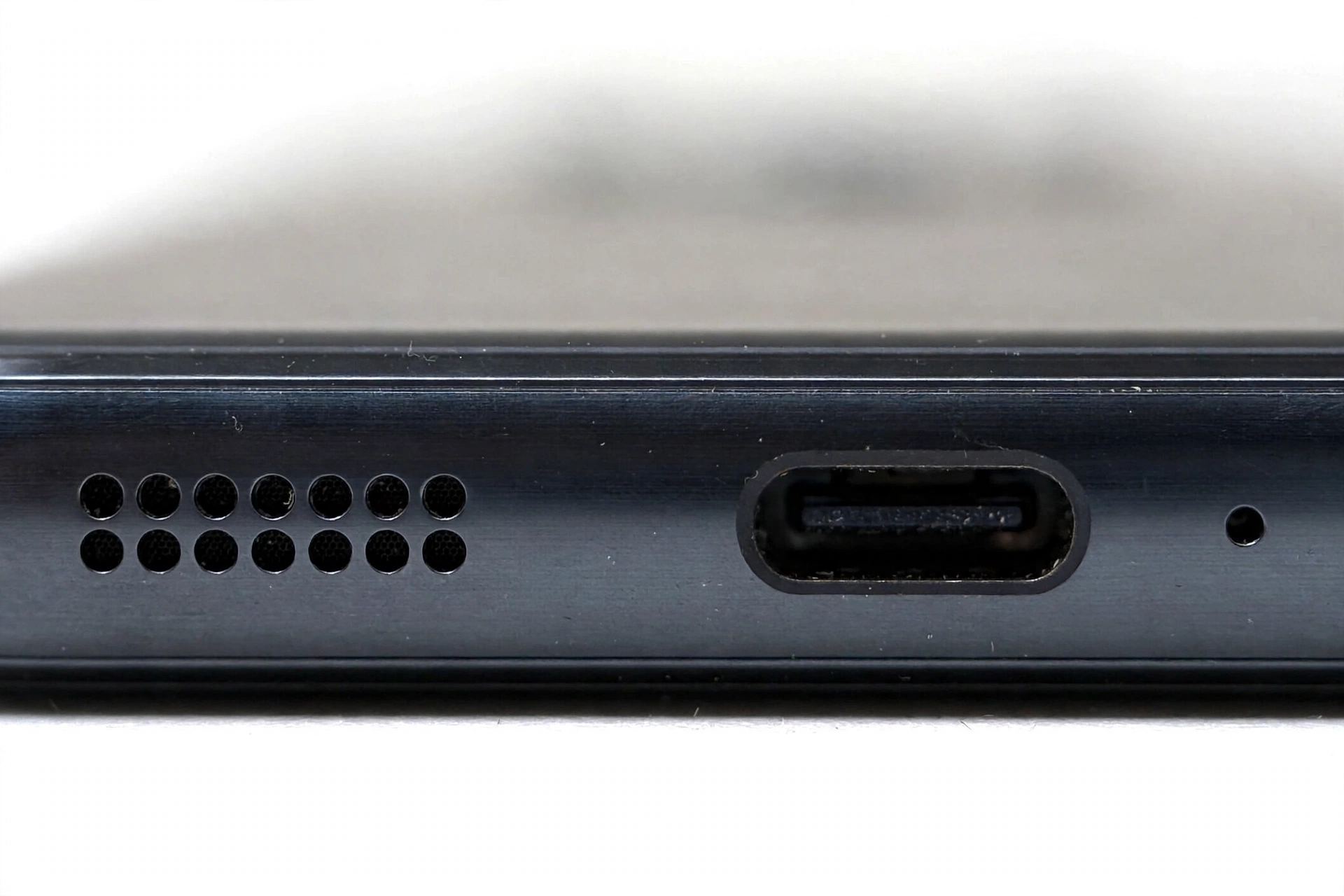
Modern OnePlus phones have stereo speakers: the bottom speaker (next to the charging port, behind the grille holes) and the earpiece speaker (the thin slot at the top of the phone, which doubles as the call speaker). Knowing which one fails narrows the cause dramatically.
The cover test
- Play a video with sound.
- Gently cover the bottom speaker grille with your finger. If the sound changes noticeably (quieter or muffled), the bottom speaker is producing sound.
- Now cover the top earpiece area with your finger. If the sound changes, the earpiece speaker is contributing.
- Make a test call without speakerphone. Can you hear the other person? That uses the earpiece speaker only.
- Switch the same call to speakerphone. Can you hear them now? That uses the bottom speaker (and sometimes both).
| Test result | What it means | Next step |
|---|---|---|
| Bottom speaker silent, earpiece works (calls are fine, media is silent) | Problem is isolated to the bottom speaker path — blocked grille, media routing, or hardware | Clean the grille (section 6), check media routing (section 4), then the fix ladder (section 8) |
| Earpiece silent, bottom speaker works (media plays, calls are silent without speakerphone) | Problem is isolated to the earpiece — blocked earpiece slot or hardware | Clean the earpiece slot gently, restart, then consider professional diagnosis |
| Both silent | System-wide routing or settings problem, or a severe software issue | Work through the full checklist and the fix ladder in section 8 |
| Both work in system tests but fail in one app | App-level problem, not a speaker problem | Check the app’s settings, reinstall the app |
Quick fact: On stereo OnePlus phones, covering one speaker while media plays should change the sound noticeably. If covering either speaker changes nothing, the phone may be outputting through only one channel — a software routing clue, not a hardware failure.
6. Safe cleaning: blocked speaker openings
Updates get blamed for problems that are really physical. Before assuming software, inspect the speaker openings with a flashlight:
- Bottom speaker grille: the row of small holes next to the charging port. Look for lint, pocket dust, or a case that covers the holes.
- Earpiece slot: the thin opening at the top of the display. Look for makeup, dust, or screen-protector edges that overlap it.
- Case check: remove the phone case entirely and test. Many cases — especially new or poorly fitted ones — cover speaker holes partially. This is one of the most common real causes of “muffled after update” complaints, because people install updates around the same time they change cases.
How to clean safely
- Power the phone off (optional but sensible).
- Use a clean, dry, soft-bristled brush (a soft toothbrush works) to sweep across the grille holes gently.
- For the earpiece slot, brush along the slot — never poke into it.
Stop for safety: Never push pins, needles, SIM tools, or toothpicks into speaker or microphone openings — you can puncture the speaker membrane and turn a free cleaning into a hardware repair. Never use liquids, heat, or compressed air on the openings. And never open the phone yourself; sealed phones contain batteries that can be dangerous if punctured.
Also be skeptical of “speaker cleaner” or “sound booster” apps that claim to eject water or fix speakers with tones. Independent testing has repeatedly found these apps ineffective at best, and some request invasive permissions. They are not a recognized troubleshooting step.
7. What an update can actually change
Understanding the mechanisms helps you troubleshoot efficiently instead of trying random fixes. An OxygenOS or Android update can affect the speaker through five documented pathways:
- Reset settings. Updates commonly reset Do Not Disturb schedules, volume levels, sound-effect presets, and Bluetooth preferences to defaults. This is the most common pathway and the easiest to fix.
- Re-assigned audio routing. Updates can re-enable Bluetooth, re-pair previously connected devices, or change the default output device. The speaker is fine — the audio is simply going somewhere else.
- Stale audio-service data. The update replaces system audio components, but cached data from the old version can conflict with the new one. Restarting the phone or clearing the cache of audio-related apps usually resolves this.
- App compatibility issues. A media or call app that has not been updated for the new OxygenOS version can misbehave — silent in that app only. Updating the app (or testing in Safe Mode, section 8) identifies this.
- A genuine shipped bug. Occasionally an update really does introduce a speaker-related bug. OnePlus has a documented history of this — for example, older OxygenOS releases that caused sound leaks through the speaker when earphones were connected, which were then fixed in follow-up updates. When this is the cause, the fix is patience: check for the next update rather than resetting everything.
Quick fact: If the speaker problem started within a day or two of an update and affects the whole system (not one app), pathways 1–3 cover the overwhelming majority of cases. Work the checklist before assuming pathway 5.
8. The fix ladder: software resets in the right order
Do these in order, testing the speaker after each step. Stop when sound returns — there is no need to complete the ladder.
Step 1: Restart the phone
Hold the power button, tap Restart. This clears temporary audio-service state and is the official first step in every manufacturer’s troubleshooting flow. It resolves a surprising number of post-update audio glitches.
Step 2: Reset app preferences
Go to Settings > System > Reset options > Reset app preferences (the exact path varies slightly by OxygenOS version; on some versions it is under Settings > Apps). This restores default permissions and associations for all apps without deleting any data. It is the gentlest “reset” available and often fixes app-level audio weirdness after an update.
Step 3: Clear cache of audio-related apps
For the specific app that has no sound (or for system audio apps if everything is silent), go to Settings > Apps, open the app, tap Storage & cache, and tap Clear cache. This is safe — it does not delete your files, logins, or downloads.
Step 4: Check for the next update
Go to Settings > System > System updates and check for a newer version. If your speaker problem is a known bug in the update you installed, OnePlus may already have shipped the fix. This is especially worth checking if the problem started immediately after a major version update (for example, a new OxygenOS generation).
Step 5: Test in Safe Mode
Safe Mode starts the phone with only the original system apps, which tells you whether a third-party app is interfering.
- Press and hold the power button until the power menu appears.
- Long-press Power off until the Reboot to Safe Mode prompt appears, then tap OK.
- Test the speaker in Safe Mode (play a video, test a ringtone).
- Restart the phone normally to exit Safe Mode.
If the speaker works in Safe Mode but not in normal mode, a third-party app is the culprit. Uninstall recently installed or updated apps one at a time — starting with audio, equalizer, call-recording, or “booster” apps — until you find it.
Step 6: Reset system settings (not a factory reset)
Go to Settings > System > Reset options and look for Reset Wi-Fi, mobile & Bluetooth or Reset system settings. These reset network and system preferences to defaults without deleting your photos, apps, or files. They can clear stubborn routing problems.
Step 7: Factory reset — last resort only
A factory reset erases everything on the phone and returns it to out-of-box software state. It is the final software step because it costs you time (backing up, resetting, restoring) and because it cannot fix hardware problems.
Stop for safety: Before a factory reset, back up everything: photos, videos, contacts, messages, authenticator codes, and app data. Go to Settings > System > Backup and confirm a current backup exists. A factory reset also removes saved Wi-Fi passwords, paired Bluetooth devices, and app logins. Do not factory reset as a casual first step — it is the last step for a reason.
After the reset, test the speaker before restoring your backup. If the speaker works on the fresh system but fails after you restore, the problem was in your old settings or an app — and restoring the backup will bring it back. In that case, set the phone up as new and reinstall apps selectively.
9. Symptom-to-cause worksheet
Match your symptom to the most likely causes, in order. This is an editorial summary of the checks above, not a diagnosis — use it to decide what to try first.
| Symptom | Most likely cause | Try first |
|---|---|---|
| No ringtone, no notifications, but media plays | Alert Slider in Vibrate/Silent, or Do Not Disturb | Alert Slider to Ring; check DND schedule |
| No sound from any app, system sounds silent too | Bluetooth routing to another device, or all streams muted | Turn Bluetooth off; raise all four volume sliders |
| Media silent in one app only | App-internal volume or output setting; app not updated for new OS | App settings; update the app; test in Safe Mode |
| Muffled or quiet, all sounds | Blocked speaker grille or ill-fitting case | Remove case; clean grille with soft brush |
| Crackling or distortion | Audio effect preset reset by update; or hardware | Turn off equalizer/effects; test in Safe Mode |
| Calls silent without speakerphone, media fine | Earpiece speaker blocked or failed | Clean earpiece slot; restart; seek diagnosis if it persists |
| Speaker cuts in and out | Bluetooth device intermittently connecting; or loose hardware | Forget Bluetooth devices; if it persists, hardware check |
| Alarms silent but everything else works | Alarm volume stream reset independently | Raise the Alarm slider in Sound & vibration |
| Started days after the update, gradual worsening | Coincidence — physical blockage or hardware wear, not the update | Clean grilles; do not assume software |
| Everything silent immediately after a major OS update | Settings reset by the update; rarely a shipped bug | Full checklist (section 4), then check for a follow-up update |
10. What your observations can and cannot establish
Honest troubleshooting means knowing the limits of what each test proves. This table keeps expectations realistic.
| Observation | Establishes | Does not establish |
|---|---|---|
| Speaker works in Safe Mode | A third-party app is interfering | Which app — that takes elimination |
| Speaker works after Bluetooth is turned off | Audio was being routed to a Bluetooth device | Why it connected — updates often re-enable it |
| One app is silent, everything else works | The problem is app-level, not the speaker | Whether the app or its settings are at fault |
| Cleaning the grille fixes muffled sound | The cause was physical blockage | That the update was involved at all |
| Speaker still silent after factory reset (tested before restoring backup) | The problem is very likely hardware | Which component failed — that needs diagnosis |
| Problem started right after an update | Timing correlation only | Causation — coincidental hardware failures happen |
11. Two hypothetical examples
(The following are hypothetical illustrations, not customer stories.)
Example 1: Amara’s silent commute
Amara updates her OnePlus 12 to the latest OxygenOS version overnight. The next morning, her alarm does not sound and she misses her bus. She is convinced the update broke her speaker. Working through the checklist, she discovers two things: the update re-enabled a Do Not Disturb schedule she had turned off months ago, and her forgotten Bluetooth earbuds — left in her backpack — auto-connected when the phone restarted after the update. Turning off DND and disconnecting the earbuds restores all sound in under three minutes. The speaker was never broken.
Example 2: Devon’s crackling videos
Devon notices crackling audio in videos a week after updating his OnePlus Nord. He assumes the update damaged the speaker. The cover test shows both speakers producing sound, and Safe Mode sounds identical — ruling out apps. Removing his new case reveals the real cause: the case’s speaker cutout is slightly misaligned and partially covers the bottom grille. The update was a coincidence; the case was the problem. He replaces the case and the crackling disappears.
12. When to stop troubleshooting and get help
Stop and seek professional diagnosis if any of the following are true:
- The speaker is still silent after a factory reset, tested before restoring your backup.
- The earpiece speaker fails but the bottom speaker works (or vice versa) after cleaning and a restart — an isolated speaker failure suggests hardware.
- The phone was dropped, got wet, or was exposed to dust/sand around the time the problem started.
- The speaker makes buzzing or rattling sounds at all volumes — a damaged speaker membrane often sounds like this.
- The phone is swollen, distorted, or dangerously hot. Power it down and do not charge it; this is a battery safety issue, not a speaker issue.
When you visit a repair shop, bring the results of your triage: which speaker fails, when it started, what you already tried, and whether Safe Mode changed anything. That information saves diagnostic time.
If you are in the Las Vegas area and the checklist points to hardware, Las Vegas Phone Repair & Accessories (7400 Las Vegas Blvd S, Unit TT42, Las Vegas, NV 89123; (424) 406-6202) can assess the speaker in person. Hours are 10:00 AM–8:00 PM — call ahead to confirm today’s hours before visiting.
Quick fact: A shop cannot diagnose a speaker from a phone call alone, and neither can this guide. The checks above narrow the possibilities; a hands-on assessment confirms which one it is. Be wary of anyone who quotes a repair price without examining the phone.
13. Questions to ask before approving a speaker repair
- Did you reproduce the problem on the phone? A proper diagnosis confirms the symptom on the actual device, not just from a description.
- Is it the speaker, the audio IC, or a connection? “Speaker not working” can mean the speaker unit, the audio circuitry, or a loose flex connection — each has a different repair.
- What parts will be used, and what is the warranty on the repair? Ask specifically about part quality and warranty terms before approving.
- Will my data be affected? Speaker repairs should not require wiping the phone. Back up anyway before handing it over.
- What is the total cost including diagnosis? Ask whether there is a diagnostic fee and whether it applies toward the repair.
14. Frequently asked questions
Can an OxygenOS update permanently damage my OnePlus speaker?
No. An update changes software — settings, drivers, app compatibility. It cannot physically damage the speaker membrane, the voice coil, or the audio circuitry. If the speaker is truly damaged (buzzing, rattling, dead after a factory reset), the damage came from something physical: a drop, water, dust, or wear. The update may have coincided with it, but coincidence is not causation.
Why does my OnePlus have no sound after the update but vibrates?
Check the Alert Slider first — if it is in Vibrate mode, the phone vibrates instead of ringing, exactly as designed. Slide it to Ring. If it is already on Ring, check Do Not Disturb, which also silences ringtones while leaving vibration on.
My speaker works for calls but not for music. What is wrong?
Calls (without speakerphone) use the earpiece speaker; music uses the bottom speaker. If calls are fine but music is silent, the bottom speaker path is the problem — check the media volume slider, Bluetooth routing, and the bottom grille for blockage. The earpiece working proves the phone’s audio system is fundamentally fine.
Should I install a “speaker cleaner” app?
No. These apps are not a recognized troubleshooting step from any phone manufacturer. At best they play tones that do nothing; at worst they request invasive permissions or show aggressive ads. Clean the grille with a soft dry brush instead — it is free, safe, and actually works.
The speaker worked in Safe Mode. Now what?
A third-party app is interfering. Think about which apps you installed or updated around the time the problem started — especially audio apps, equalizers, call recorders, launchers, or anything that modifies system sound. Uninstall suspects one at a time, testing the speaker after each removal.
Will a factory reset fix my speaker?
It fixes software-caused speaker problems, which are the majority of post-update cases — but only if you test before restoring your backup. If the speaker works on the fresh system, the problem was in your old settings or an app. If it is still silent on a fresh system, the problem is hardware and no amount of resetting will fix it. Always back up before resetting.
Does the Alert Slider affect alarms?
On most OxygenOS versions, the Alert Slider’s Silent mode silences ringtones and notifications; alarms are controlled by their own volume stream and usually still sound. But updates have been known to reset the Alarm slider independently, so if alarms specifically are silent, check Settings > Sound & vibration and raise the Alarm slider directly.
My OnePlus speaker crackles only at maximum volume. Is that the update?
Probably not. Distortion that appears only at maximum volume is a classic sign of a speaker being driven beyond its clean range — or of a partially blocked grille making the speaker work harder. Try lowering the volume slightly and cleaning the grille. If crackling happens at all volumes and started exactly with an update, try turning off audio effects first, then test in Safe Mode.
Video: How to tell if your smartphone is fake or real

Sources and editorial notes
- GetDroidTips — How to Fix OnePlus 6T Sound Problems: documents the Alert Slider positions (Ring/Vibrate/Silent) as a sound troubleshooting step, speaker-grille blockage by cases, and finger placement over the grille.
- iFixit — OnePlus Nord N200 Troubleshooting: recommends checking for software updates to resolve audio issues, resetting sound settings to defaults, testing across apps, and inspecting openings for blockage; notes hardware replacement as the last step.
- T-Mobile Support — Sounds and Volume (OnePlus Nord N100): official-style troubleshooting flow — check volume, reboot the device, install the latest software, factory reset as a last resort with backup warning.
- SlashGear — Android Phone Speaker Not Working? Here’s How To Fix It: documents the standard Android flow of wiping cache, installing updates, and factory reset (Settings > System > Reset options > Erase all data) with a backup warning; notes hardware service as the final step.
- Android Authority — OxygenOS 16 Quick Settings audio changes: reports on OxygenOS 16’s new Quick Settings audio widgets and earbud controls, illustrating how OxygenOS updates change audio-related settings and UI.
- Gadgets360 — OnePlus OxygenOS update fixing speaker sound leaks: documents a real case of an OxygenOS update addressing speaker-related audio bugs (sound leaks when earphones connected), showing that shipped audio bugs are fixed via follow-up updates.
Last source check: October 14, 2026. AI-assisted editorial guide, checked against the linked manufacturer and independent information above. Troubleshooting steps describe documented OxygenOS settings paths and general Android procedures; no manufacturer procedures were invented. This guide does not claim manufacturer authorization, and nothing here replaces a hands-on diagnosis for suspected hardware failure.
Let’s get you connected again.
Tell us what’s happening with your device and we’ll help you decide the safest next step — no jargon, no pressure.
Las Vegas Phone Repair & Accessories · 7400 Las Vegas Blvd S, Unit TT42, Las Vegas, NV 89123
10:00 AM–8:00 PM — call ahead to confirm today’s hours