
Kyocera Phone Camera Not Working After Update: Causes and Safe Fixes
If your Kyocera phone’s camera stopped working right after a software update, the update almost certainly did not break the camera hardware — it changed a permission, corrupted the camera app’s cache, or shipped a driver mismatch. Work through Kyocera’s documented fix order (restart, permission check, clear the camera app’s cache and data, Safe Mode test) before you even think about a factory reset, which reinstalls the same system version and cannot fix a shipped driver bug.
On this page
If your Kyocera phone’s camera stopped working right after a software update, the update almost certainly did not break the camera hardware — it changed a permission, corrupted the camera app’s cache, or shipped a driver mismatch.
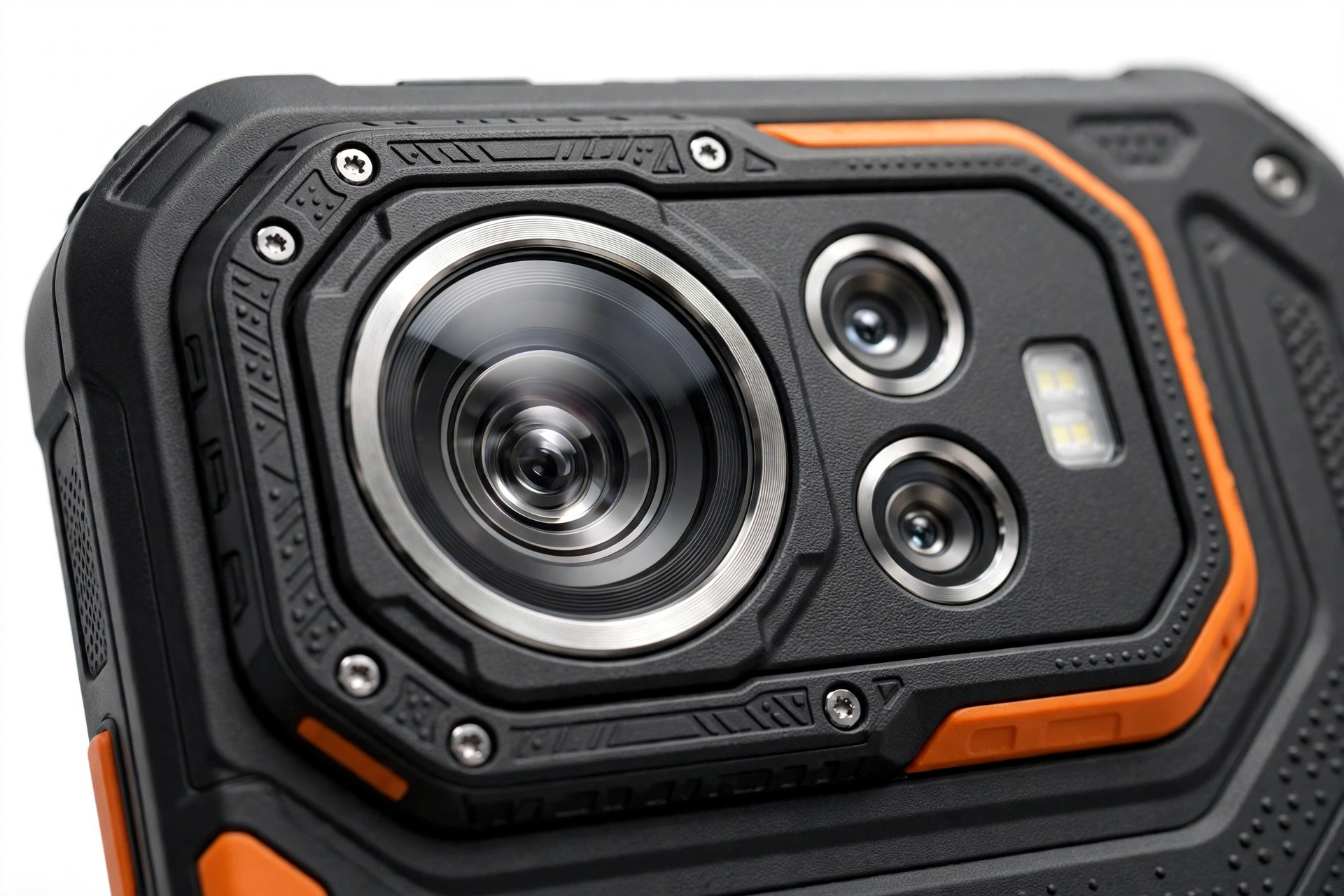
1. What “camera not working” actually means on a Kyocera
“Camera not working” covers several different failures, and the fix depends on which one you have. On Kyocera’s rugged lineup — the DuraForce, DuraForce Pro, DuraForce Pro 2, DuraForce Pro 3, DuraForce Ultra 5G, and DuraSport 5G — owners most commonly report one of these after an update: (Source: manuals.plus)
- Black viewfinder: the camera app opens but shows only black, sometimes with the shutter button greyed out.
- “Can’t connect to camera” or “Camera failed” error: the app refuses to start the camera hardware at all.
- Crash loop: the camera app opens for a second and then closes, sometimes taking the whole phone back to the home screen.
- One lens works, another doesn’t: the main camera fails while the front camera works (or vice versa), or switching to wide-angle crashes the app.
- Frozen or laggy preview: the viewfinder stutters, freezes, or shows tearing after the update.
- Camera works in one app but not another: the stock camera app fails while WhatsApp or Snapchat can still take photos — or the reverse.
Quick fact: each of these points to a different cause. A black viewfinder with a working front camera usually means a permission or driver issue on one sensor; a total “can’t connect” error usually means the camera service failed to start. Identifying your exact symptom first saves you from trying fixes meant for a different problem.
2. The honest Kyocera context you should know first
Kyocera builds phones for a different audience than most brands on this site. Its DuraForce and DuraSport lines are rugged, MIL-STD-810H-rated work phones sold primarily through carriers like Verizon and AT&T to construction crews, first responders, utilities, and field workers — not to general consumers. That shapes everything about updates and support:
- Updates arrive through your carrier, not Kyocera directly. Verizon and AT&T test and schedule system updates for Kyocera models, which is why two identical DuraForce phones can receive the same update weeks apart.
- Kyocera stepped back from the consumer phone market. In May 2023, Kyocera announced it would wind down its consumer smartphone business (completed by March 2025, per reporting) and refocus on corporate and enterprise customers. The practical consequence: do not expect frequent feature updates or quick patch turnarounds for older consumer-era models.
- Enterprise features complicate troubleshooting. Many Kyocera work phones are managed by an employer’s IT department, which can restrict settings, block app changes, or delay updates. If your phone is company-issued, some steps below may be locked — check with your IT administrator rather than fighting the policy.
Tip: because carrier testing is involved, a camera bug that appears on a Verizon DuraForce Pro 3 may never appear on the AT&T variant, and vice versa. When searching for reports of your exact problem, include your carrier and model in the search.
3. Five ways an update can break a camera (in likelihood order)
Understanding the mechanism tells you which fix to try. From most to least likely on Kyocera phones:
| Mechanism | What happened | Typical symptom |
|---|---|---|
| Permission reset | The update revoked or re-prompted the camera app’s permissions, and the grant was denied or left pending | Black viewfinder, or app asks for permission every launch |
| Cache corruption | The update changed the camera app’s data format; old cached files now crash the app on launch | Crash loop, frozen preview |
| Driver / HAL mismatch | The new system image shipped a camera driver that doesn’t match the sensor firmware on your specific model or carrier build | “Can’t connect to camera,” one lens dead |
| Third-party conflict | Another app (flashlight, barcode scanner, video caller) is holding the camera and won’t release it under the new system | Works in one app, fails in another |
| Media framework change | The update changed how the OS handles video encoding, breaking video mode while stills work | Photo works, video recording crashes |
Quick fact: notice what is not on this list: physical damage. A software update cannot crack a lens, disconnect a sensor, or burn out hardware. If the camera worked the minute before the update and failed the minute after, the hardware is almost certainly fine — the software around it changed.
4. The 60-second triage: isolate the fault before fixing anything
Before changing any settings, run these three isolation tests. They take about a minute and tell you — and any repair shop — exactly where the fault lives:
- Front vs. rear: open the camera app and switch between the front and rear cameras. If one works and the other doesn’t, the fault is isolated to one sensor’s driver or permission — not the whole camera system.
- Stock app vs. third-party app: try taking a photo in a different app (for example, the camera inside a messaging app). If the stock Kyocera camera app fails but another app works, the problem is the app’s cache or data — an easy fix. If no app can use the camera, the problem is deeper (driver or permission level).
- Photo vs. video: try both still photos and video recording. If photos work but video crashes, the update likely changed the media framework — a driver-level issue you probably cannot fix at home.
| Test result | Likely cause | Go to |
|---|---|---|
| One lens works, other fails | Sensor-specific driver or permission issue | Section 5 (permissions), then Section 9 (update check) |
| Stock app fails, other apps work | Corrupted camera app cache/data | Sections 6–7 (clear cache, clear data) |
| No app can use the camera | System-level driver or permission failure | Sections 5, 8 (Safe Mode), 9 (update check) |
| Photo works, video crashes | Media framework change in the update | Section 9 (follow-up update); likely needs a patch |
5. Check the camera permission first (the most common fix)
After major updates, Android sometimes resets app permissions silently — and the camera permission is one of the most commonly affected. Kyocera phones run near-stock Android, so the path is the standard one:
- Open Settings, then tap Apps (on some models: Apps & notifications).
- Find and tap Camera in the app list. (If you don’t see it, tap See all apps first.)
- Tap Permissions, then tap Camera.
- Make sure it is set to “Allow only while using the app” or “Ask every time” — not “Don’t allow.”
- While you’re there, check Microphone too: video recording needs the microphone permission, and updates sometimes revoke it separately, which makes video mode crash while photos work fine.
Tip: this single check resolves a large share of post-update camera failures, and it takes under a minute. Do it before anything more drastic — including before the cache clearing below.
The following is a hypothetical illustration, not a customer story: Daniel, a site foreman, updated his DuraForce Pro 3 overnight and found a black viewfinder the next morning. He was about to factory-reset the phone when a coworker suggested checking permissions — the update had silently set the camera permission to “Don’t allow.” Re-enabling it fixed the camera instantly, with zero data loss.
6. Force stop and clear the camera app’s cache
If permissions are correct, the next step is clearing the camera app’s temporary files. Kyocera’s own manuals document this as the standard response to misbehaving apps, and Verizon publishes the same procedure for the DuraForce Pro 3:
- Open Settings, then Apps → See all apps.
- Tap Camera.
- Tap Force stop, then tap OK.
- Tap Storage & cache.
- Tap Clear cache.
- Reopen the camera app and test it.
Clearing the cache deletes only temporary files — your photos, settings, and modes are untouched. If the crash loop stops after this step, the update had corrupted the app’s cached data, and you’re done.
7. Clear the camera app’s data (when cache alone isn’t enough)
If clearing the cache didn’t help, escalate to clearing the app’s stored data. On the same Storage & cache screen, tap Clear storage (labeled Clear data on some models), then confirm. This resets the camera app to its fresh-install state: custom modes, saved settings, and preferences return to defaults.
Stop for safety: clearing the camera app’s data does not delete your photos — those live in your gallery/DCIM folder, not inside the camera app. But do not confuse this with a factory reset (Section 11), which erases the entire phone. “Clear storage” affects one app; “factory reset” affects everything.
After clearing data, open the camera app — it will behave like a first launch and may re-ask for permissions. Grant them, then test both front and rear cameras.
8. Boot into Safe Mode to catch app conflicts
If the camera still fails, a third-party app may be holding the camera and refusing to release it. Flashlight utilities, barcode/QR scanners, video-calling apps, and “camera booster” tools are the usual suspects. Safe Mode boots the phone with only preinstalled system apps running:
- Press and hold the Power button until the power menu appears.
- Press and hold Power off until the “Reboot to safe mode” prompt appears, then tap OK.
- Once booted, you’ll see “Safe mode” in a corner of the screen. Open the camera app and test it.
- To exit, simply restart the phone normally.
| Result in Safe Mode | Meaning | Next step |
|---|---|---|
| Camera works | A third-party app is interfering | Uninstall recently updated apps one by one, starting with flashlight, scanner, and “booster” apps |
| Camera still fails | The problem is in the system or the camera app itself | Continue to Section 9 (update check) and Section 11 (reset decision) |
Tip: “camera fixer,” “camera booster,” and “HD camera enhancer” apps are a frequent cause of post-update camera failures, not a cure. They hook into the camera pipeline and often break when the OS changes underneath them. If you installed one hoping to fix the problem, uninstall it — it is more likely making things worse.
9. Check whether the update left you in underwater mode
This one is Kyocera-specific and catches people out. The DuraForce Pro line ships an underwater camera mode designed for taking photos while the phone is submerged — it locks the touchscreen (water causes false touches) and remaps the shutter to the physical buttons. If the update toggled this mode on, or failed to toggle it back off, the camera can behave strangely on dry land: unresponsive shutter button, frozen preview, or the app appearing “stuck.”
- Open the camera app and look for an underwater mode icon or indicator (often a water-drop symbol).
- If it is active, turn it off in the camera app’s settings or mode menu.
- If you can’t find the toggle, force-stop the camera app and clear its cache (Section 6) — this resets the mode state.
Quick fact: underwater mode is a legitimate Kyocera feature, not a bug — but an update that mishandles its on/off state produces exactly the “camera frozen after update” symptom owners report. Always rule this out before assuming a driver problem.
10. Check for a follow-up update (and set honest expectations)
If the steps above didn’t fix it, check whether a corrective update is available:
- Open Settings → System → System update (on some models: Settings → About phone → System updates).
- Tap Check for update and install anything offered.
- Also open the Play Store, tap your profile → Manage apps & device → Updates available, and update the camera app if a newer version is listed.
Be realistic about timing, though. Because Kyocera’s updates flow through carrier testing and the company has wound down its consumer phone business, corrective patches for older models can be slow — or may never come for models past their support window. If no update is available and the fault is driver-level (Section 3), you may be waiting on a fix that isn’t scheduled. That’s useful information: it tells you to stop repeating software steps and move to the decision in Section 13.
11. The central rule: don’t factory-reset first
You’ll find “factory reset” suggested all over the internet for camera problems. On a post-update failure, it is almost always the wrong move, for one simple reason: a factory reset reinstalls the same system version — including the same buggy camera driver. If the update shipped a driver mismatch, wiping your data and starting over gives you the identical broken driver, minus all your photos, apps, and settings.
Kyocera’s own manuals list a factory reset as a last resort, explicitly advising you to back up all data first. Treat it the same way:
- Before: permissions checked, cache cleared, data cleared, Safe Mode tested, follow-up update checked.
- Backup verified: confirm your photos are actually backed up (open Google Photos on another device or at photos.google.com) — not just “probably backed up.”
- Test-before-restore: after the reset, test the camera before restoring your apps and data. If the camera works on the clean system but breaks after restore, one of your apps is the culprit — and you just proved it without losing anything.
Stop for safety: never factory-reset a phone with a swollen, distorted, or dangerously hot battery, and never reset as a first step “just to see.” On a company-managed Kyocera, a reset may also wipe enterprise profiles your IT department must re-provision — check with them first.
12. Free up storage space
A full storage drive can prevent the camera app from saving captures or building its preview buffer, producing freezes and crashes that look like update damage. Kyocera’s work phones often accumulate years of site photos:
- Open Settings → Storage and check free space.
- Aim for at least 10–15% free. If you’re below that, back up photos and videos, then delete local copies or move them to a microSD card.
- Clear the downloads folder and uninstall apps you no longer use.
This is a quick, zero-risk step — do it alongside the cache clearing in Section 6 rather than as a last resort.
13. Symptom worksheet: match what you see to what to do
| Symptom | Likely cause | Do this first |
|---|---|---|
| Black viewfinder, front camera works | Rear-camera permission revoked | Section 5: re-grant camera permission |
| “Can’t connect to camera” error | Camera service failed to start (driver) | Section 6: force stop + clear cache; then Section 9 |
| App opens then immediately crashes | Corrupted cache from the update | Section 6: clear cache; escalate to Section 7 |
| Works in WhatsApp, not in stock app | Stock app’s data corrupted | Section 7: clear the stock camera app’s data |
| Works in no app at all | System-level driver/permission fault | Sections 5, 8, then 9 |
| Photos fine, video crashes | Media framework change | Section 10: look for a follow-up update |
| Shutter button unresponsive, odd UI | Stuck underwater mode | Section 9: disable underwater mode |
| Freezes when storage nearly full | No space for capture buffer | Section 12: free 10–15% storage |
| Started days after the update | Coincidence — likely app or hardware | Section 8: Safe Mode; consider hardware check |
| Camera was already flaky before | Pre-existing fault unmasked by update | Skip to Section 14 |
14. What a home check can and cannot establish
Honesty about limits is part of a safe repair. Here’s what your troubleshooting actually proves:
| Observation | Establishes | Does NOT establish |
|---|---|---|
| Camera works in Safe Mode | A third-party app is interfering | Which app, without uninstalling suspects one by one |
| Permission was set to “Don’t allow” | The update revoked the permission | Whether anything else is also wrong |
| Clearing cache fixed it | The update corrupted cached data | That the underlying update is otherwise healthy |
| Nothing fixes it | The fault is likely driver-level or hardware | Which of the two — that needs professional diagnosis |
| One lens works, other doesn’t | The fault is isolated to one sensor path | Whether it’s the sensor, its driver, or its connection |
| Problem began exactly at update time | Strong correlation with the update | Proof the update caused it (correlation isn’t causation) |
Quick fact: no home test can distinguish a shipped driver bug from a failing camera module once software steps are exhausted. If you’ve worked through Sections 4–10 and the camera still fails everywhere, that’s the point to stop and get a professional diagnosis — not to keep repeating the same steps hoping for a different result.
15. When to stop troubleshooting and get help
Stop immediately — do not continue troubleshooting — if you notice any of the following:
- Swollen, distorted, or separating phone body: the battery may be failing. Power the phone down, don’t charge it, and take it for professional handling.
- Dangerously hot during normal use: excessive heat plus camera failure can indicate a deeper hardware or power issue.
- Water inside the phone: Kyocera phones are rugged and water-resistant when seals are intact, but a cracked screen or worn port cover defeats that. Don’t charge a wet phone.
- Company-managed device with locked settings: if your employer’s IT policy blocks the steps above, stop and contact IT — circumventing management profiles can violate workplace policy.
Stop for safety: never open a Kyocera phone yourself. The rugged sealing (gaskets, port covers, Sapphire Shield display assembly) is a factory assembly — opening it destroys the water resistance and, on most models, voids remaining warranty. Camera module replacement is a professional repair.
If you’ve exhausted the software steps and the camera still fails in every app, a repair shop can determine whether it’s a driver issue awaiting a patch or a hardware fault. Las Vegas Phone Repair & Accessories, 7400 Las Vegas Blvd S, Unit TT42, Las Vegas, NV 89123, (424) 406-6202, can assess Kyocera camera faults — call ahead to confirm current hours and whether your specific model is supported, since parts for older rugged models can be hard to source.
16. Frequently asked questions
Will a factory reset fix my Kyocera camera after an update?
Almost certainly not, and it costs you all your data. A reset reinstalls the same system version with the same camera driver, so a driver-level bug survives the reset untouched. Work through permissions, cache, data, Safe Mode, and update checks first — reset only as a documented last resort with a verified backup.
Are my photos safe when I clear the camera app’s data?
Yes. Clearing the camera app’s data resets the app’s settings and modes; your photos live in the phone’s DCIM/media storage, not inside the app. Still, verify your backup (Google Photos or your preferred service) before any destructive step — it’s cheap insurance.
Why does the camera work in WhatsApp but not the stock camera app?
Each app keeps its own cache and settings. The update corrupted the stock app’s data while leaving WhatsApp’s untouched. Clearing the stock camera app’s cache and data (Sections 6–7) usually resolves this exact pattern.
What is underwater mode and could it be my problem?
Kyocera’s DuraForce Pro line includes a camera mode for underwater photography that locks the touchscreen and remaps controls to physical buttons. If an update left it enabled, the camera behaves oddly on land. Check for a water-drop icon in the camera app and disable the mode (Section 9).
Should I install a “camera fixer” app from the Play Store?
No. These apps cannot fix driver-level problems and frequently cause new ones by hooking into the camera pipeline. The fixes that work — permissions, cache, Safe Mode — are all built into Android already.
My Kyocera is company-issued and settings are locked. What now?
Contact your IT administrator or mobile device management team. They control update timing and app policies on managed phones, and they may already know about the issue — enterprise fleets often hit the same bug simultaneously, which actually helps get it escalated to the carrier.
The camera failed a week after the update, not immediately. Is it still the update?
Possibly, but the link is weaker. Delayed failures are more often a newly updated third-party app, gradual storage exhaustion, or coincidental hardware wear. Run the Safe Mode test (Section 8) — it’s the fastest way to separate an app conflict from a system problem.
Kyocera left the consumer phone business — can I still get my phone fixed?
Kyocera refocused on enterprise customers, but existing phones remain repairable through independent shops for common faults. The practical limits are parts availability for older models and the pace of carrier-delivered patches — not the brand’s strategy. Ask any shop to confirm parts for your specific model before committing.
Video: How to tell if your smartphone is fake or real
Sources and editorial notes
- Kyocera DuraForce Pro 2 user manual (via Manuals.plus) — documents the force-restart procedure (hold Power 10–15 seconds), clearing an app’s cache and data for malfunctions, and factory reset as a last resort with backup. Summarized in original language.
- Verizon support: “Reset App” for the Kyocera DuraForce Pro 3 — documents Settings → Apps → See all apps → Force stop → Storage & cache → Clear storage. Summarized in original language.
- AT&T device support: Kyocera DuraForce XD app troubleshooting — documents the clear-cache path (Settings → Apps → app → Clear cache). Summarized in original language.
- PhoneArena: Kyocera’s consumer smartphone market exit (May 2023) — reports the Nikkei-sourced announcement, President Tanimoto’s profitability rationale, and Kyocera’s clarification refocusing on business customers. Summarized in original language.
- FoneArena: Kyocera to quit consumer smartphone market by 2025 — reports the March 2025 timeline, the ¥2.27 billion loss context, and continued enterprise focus. Summarized in original language.
- CellPhones.ca: Kyocera DuraForce Ultra 5G specs — camera, Snapdragon 765G, and battery specifications used for model context. Summarized in original language.
- iFixit: Kyocera camera replacement guide — cited only to establish that camera module replacement is a hardware-level procedure requiring disassembly, not a home fix. Summarized in original language.
Last source check: October 14, 2026. AI-assisted editorial guide, checked against the linked manufacturer and carrier information. Kyocera procedures described here are limited to documented Settings paths and manual-documented steps; no unofficial codes or procedures are included. Carrier update timing and enterprise policies vary — your carrier or IT administrator’s guidance takes precedence for managed devices. For related troubleshooting, see our general phone camera update guide, the Sonim camera update guide, and the CAT phone camera update guide.
Let’s get you connected again.
Tell us what’s happening with your device and we’ll help you decide the safest next step — no jargon, no pressure.
Las Vegas Phone Repair & Accessories · 7400 Las Vegas Blvd S, Unit TT42, Las Vegas, NV 89123
10:00 AM–8:00 PM — call ahead to confirm today’s hours